
Contents
The code is as follows:
import display_driver
import lvgl as lv

lv.init()

# Screen initialization
scr = lv.screen_active()
scr.set_style_bg_color(lv.color_hex(0xFFFFFF), 0)

#Create a slider
slider = lv.slider(scr)
#Set the slider size
slider.set_size(300, 50)
#Set the slider value range
slider.set_range(0, 100)
#Center it
slider.center()

#Create a value display label
lbl_val = lv.label(scr)
lbl_val.set_text(str(slider.get_value()))
lbl_val.align(lv.ALIGN.CENTER, 0, -50)

#Interaction callback function
def slider_event_cb(e):
    current_val = slider.get_value()
    lbl_val.set_text(str(current_val))
    print(current_val)

#Register the interaction callback function. For more states see the "class EVENT" section of api.py
slider.add_event_cb(slider_event_cb, lv.EVENT.VALUE_CHANGED, None)

lv.screen_load(scr)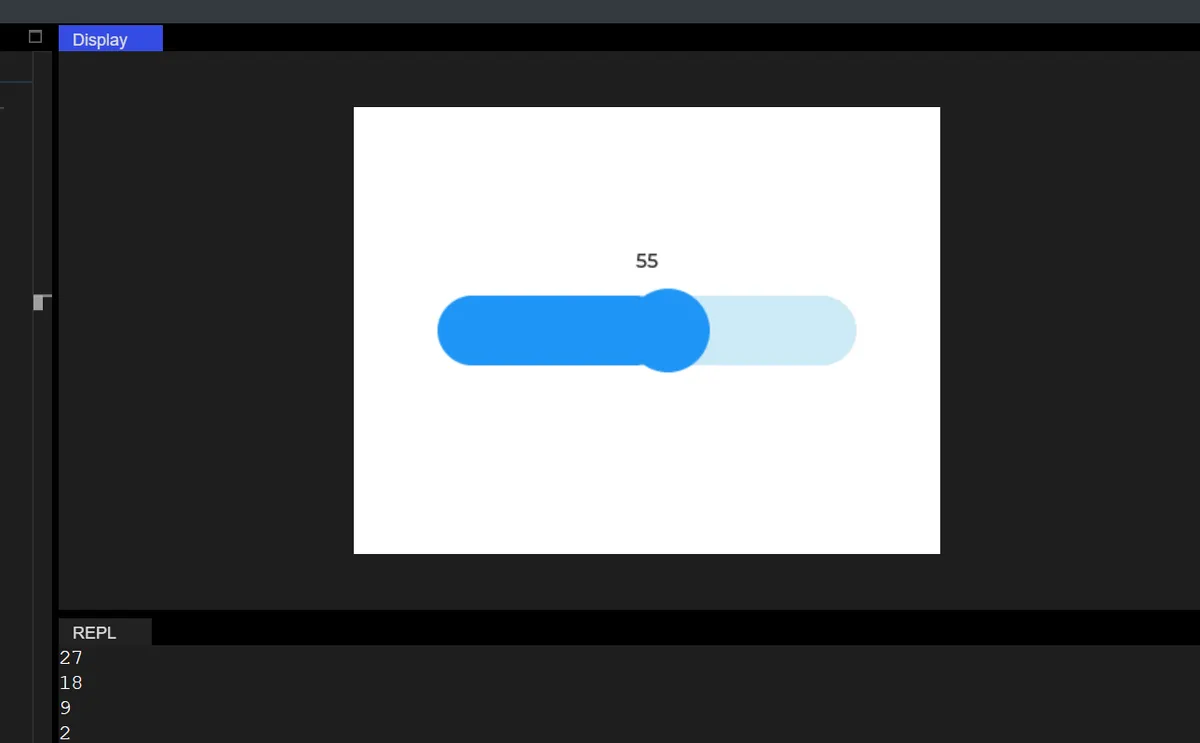
10.1 Modify Slider Mode
The differences between the different modes are as follows:
| Constant | Purpose |
|---|---|
| NORMAL | Normal mode (default): single slider, dragged from the minimum value to the maximum value (this is what your earlier code used) |
| SYMMETRICAL | Symmetric mode: centered on 0, with values symmetric about zero (for example, with a range of -50 to 50, the slider at center is 0) |
| RANGE | Range mode: dual sliders, lets you select a value interval (for example, setting a range of 10 to 80) |
10.1.1 Scope Mode
The code is as follows:
import display_driver
import lvgl as lv

lv.init()

# Screen initialization
scr = lv.screen_active()
scr.set_style_bg_color(lv.color_hex(0xFFFFFF), 0)

# ===================== Core change: slider mode =====================
# Create the slider and set it to [RANGE mode] (dual knobs)
slider = lv.slider(scr)
slider.set_mode(lv.slider.MODE.RANGE)  # Switch to range mode
# You can also try symmetrical mode: slider.set_mode(lv.slider.MODE.SYMMETRICAL)

# Set the slider size (keep width > height for horizontal mode)
slider.set_size(300, 50)
# Symmetrical mode: set a symmetric range (e.g. -50~50); range mode can use 0~100
slider.set_range(0, 100)
slider.center()

# ===================== Label display adapted to the mode =====================
# Main knob value label (right knob)
lbl_main = lv.label(scr)
lbl_main.set_text(f"main value:{slider.get_value()}")
lbl_main.align(lv.ALIGN.CENTER, 0, -50)

# Added for range mode: left knob value label
lbl_left = lv.label(scr)
lbl_left.set_text(f"left value:{slider.get_left_value()}")
lbl_left.align(lv.ALIGN.CENTER, 0, -80)

# ===================== Callback function adapted to multiple modes =====================
def slider_event_cb(e):
    # Get the values of the main knob (right) and the left knob
    main_val = slider.get_value()
    left_val = slider.get_left_value()

    # Update the label text
    lbl_main.set_text(f"main value:{main_val}")
    lbl_left.set_text(f"left value:{left_val}")

    # Print the mode and values (for debugging)
    print(f"current mode:{slider.get_mode()}, left value:{left_val}, main value:{main_val}")

# Register the value-changed event
slider.add_event_cb(slider_event_cb, lv.EVENT.VALUE_CHANGED, None)

lv.screen_load(scr)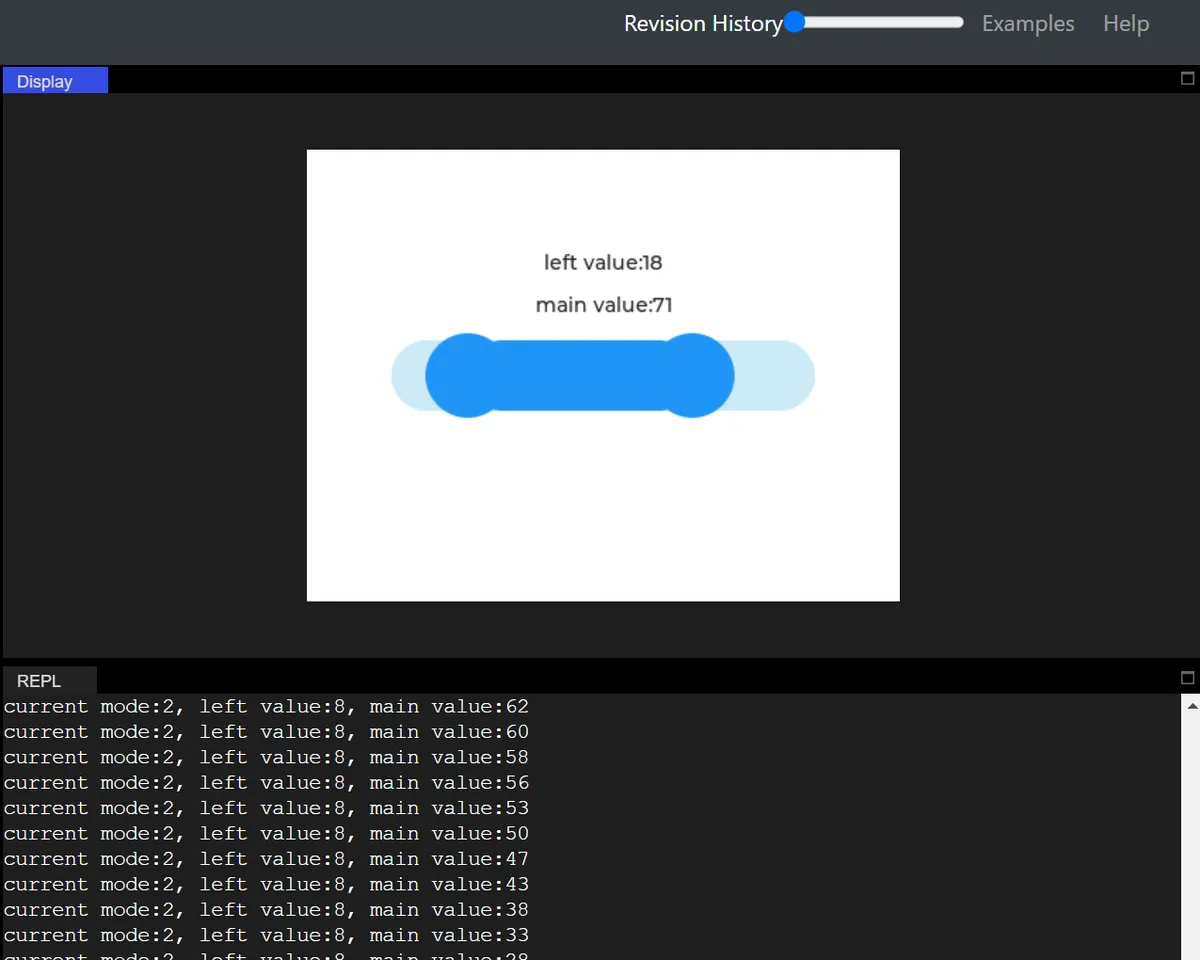
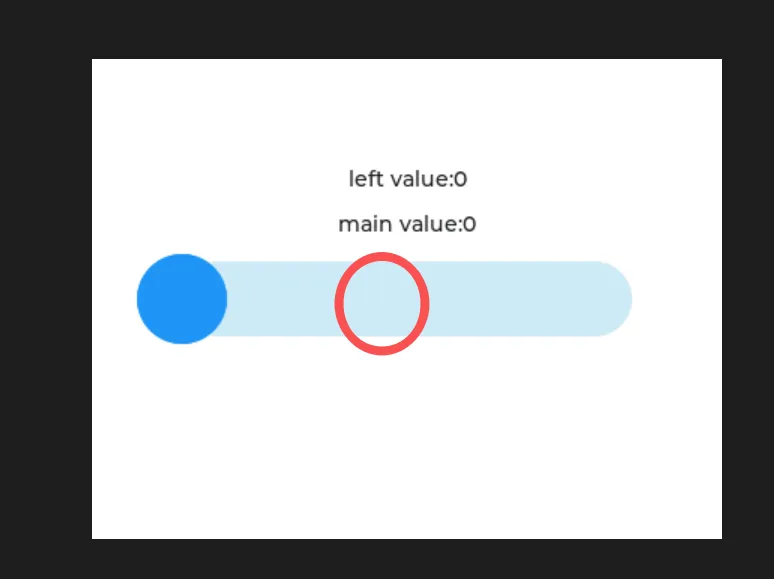
First click once, then drag:
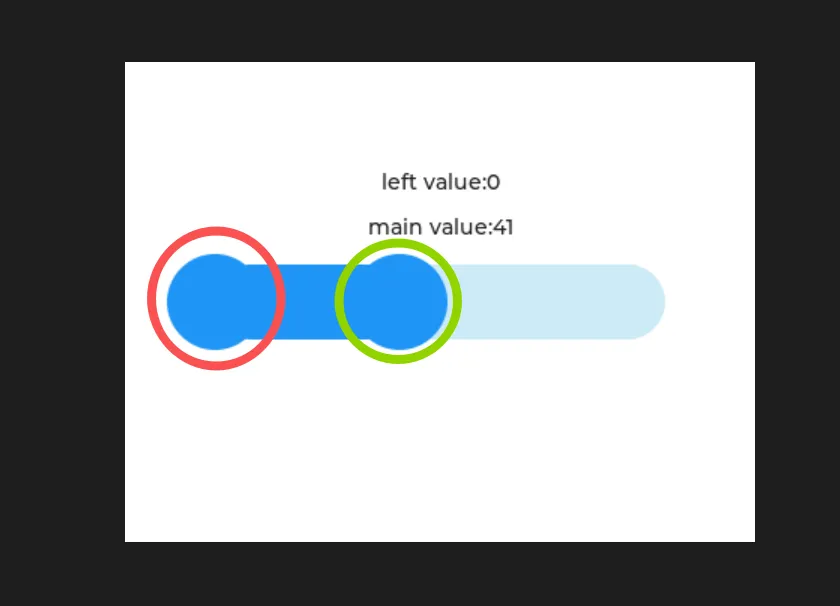
10.1.2 Symmetric Mode
import display_driver
import lvgl as lv

lv.init()

# Screen initialization
scr = lv.screen_active()
scr.set_style_bg_color(lv.color_hex(0xFFFFFF), 0)

# ===================== Core change: slider mode =====================
# Create the slider and set it to [RANGE mode] (dual knobs)
slider = lv.slider(scr)
# slider.set_mode(lv.slider.MODE.RANGE)  # Switch to range mode
slider.set_mode(lv.slider.MODE.SYMMETRICAL) # Symmetrical mode

# Set the slider size (keep width > height for horizontal mode)
slider.set_size(300, 50)
# Symmetrical mode: set a symmetric range (e.g. -50~50); range mode can use 0~100
slider.set_range(-50, 50)
slider.center()

# ===================== Label display adapted to the mode =====================
# Main knob value label (right knob)
lbl_main = lv.label(scr)
lbl_main.set_text(f"main value:{slider.get_value()}")
lbl_main.align(lv.ALIGN.CENTER, 0, -50)

# Added for range mode: left knob value label
lbl_left = lv.label(scr)
lbl_left.set_text(f"left value:{slider.get_left_value()}")
lbl_left.align(lv.ALIGN.CENTER, 0, -80)

# ===================== Callback function adapted to multiple modes =====================
def slider_event_cb(e):
    # Get the values of the main knob (right) and the left knob
    main_val = slider.get_value()
    left_val = slider.get_left_value()

    # Update the label text
    lbl_main.set_text(f"main value:{main_val}")
    lbl_left.set_text(f"left value:{left_val}")

    # Print the mode and values (for debugging)
    print(f"current mode:{slider.get_mode()}, left value:{left_val}, main value:{main_val}")

# Register the value-changed event
slider.add_event_cb(slider_event_cb, lv.EVENT.VALUE_CHANGED, None)

lv.screen_load(scr)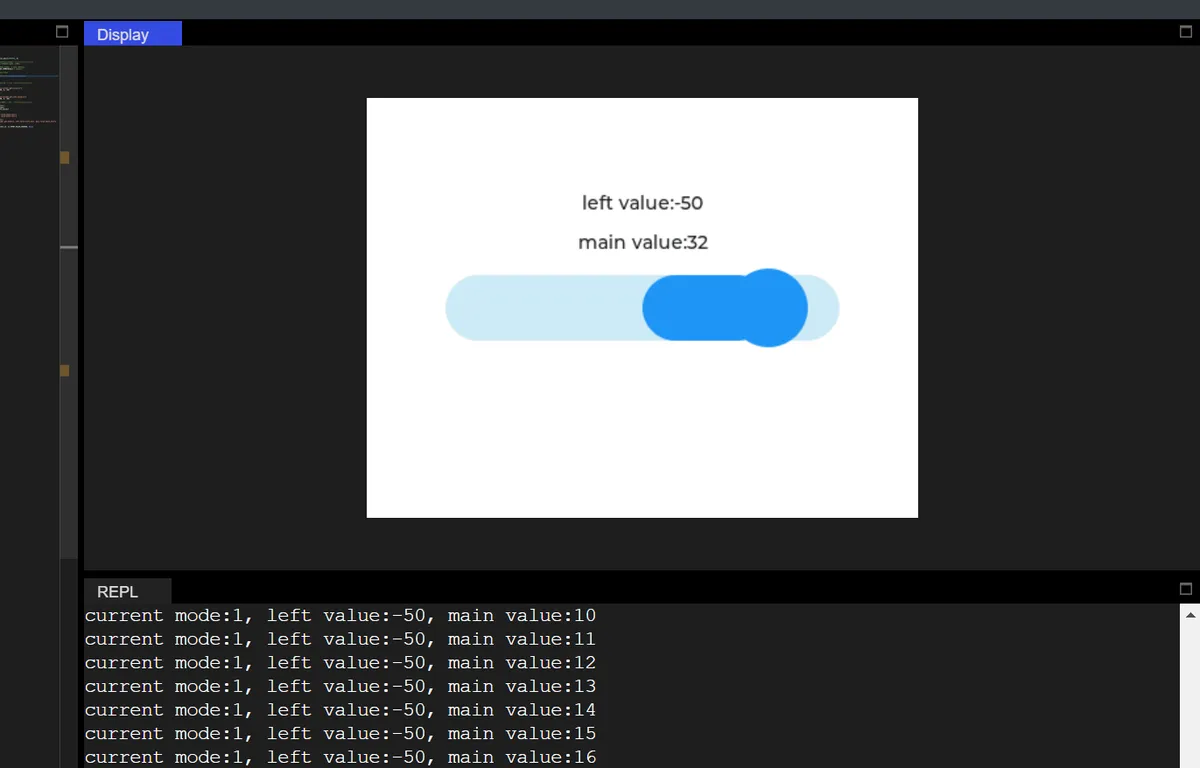
10.2 Modify Slider Direction
The following code is not runnable in version 9.0:
Change the slider from the default horizontal (HORIZONTAL) to vertical (VERTICAL), and adjust its size and layout to adapt to the vertical orientation.
import display_driver
import lvgl as lv

lv.init()

# Screen initialization
scr = lv.screen_active()
scr.set_style_bg_color(lv.color_hex(0xFFFFFF), 0)

# ===================== Core change: slider orientation =====================
slider = lv.slider(scr)
# Force vertical orientation (default is horizontal)
slider.set_orientation(lv.slider.ORIENTATION.VERTICAL)

# Vertical slider: swap width and height (narrow and tall)
slider.set_size(50, 300)  # Width 50, height 300 (vertical orientation needs height > width)
slider.set_range(0, 100)
slider.center()

# ===================== Label layout adapted to vertical orientation =====================
lbl_val = lv.label(scr)
lbl_val.set_text(str(slider.get_value()))
# Place the label to the right of the vertical slider (X offset +80, Y centered)
lbl_val.align(lv.ALIGN.CENTER, 80, 0)

# ===================== Callback function (logic unchanged, layout adapted) =====================
def slider_event_cb(e):
    current_val = slider.get_value()
    lbl_val.set_text(f"当前值:{current_val}")
    print(f"垂直滑动条值:{current_val}")

slider.add_event_cb(slider_event_cb, lv.EVENT.VALUE_CHANGED, None)

lv.screen_load(scr)
10.3 Using set_range in RANGE mode
Focus on the RANGE mode to demonstrate set_range ()(custom value range) usage and implement "initial interval selection".
#Set the slider value range
slider.set_range(0, 300)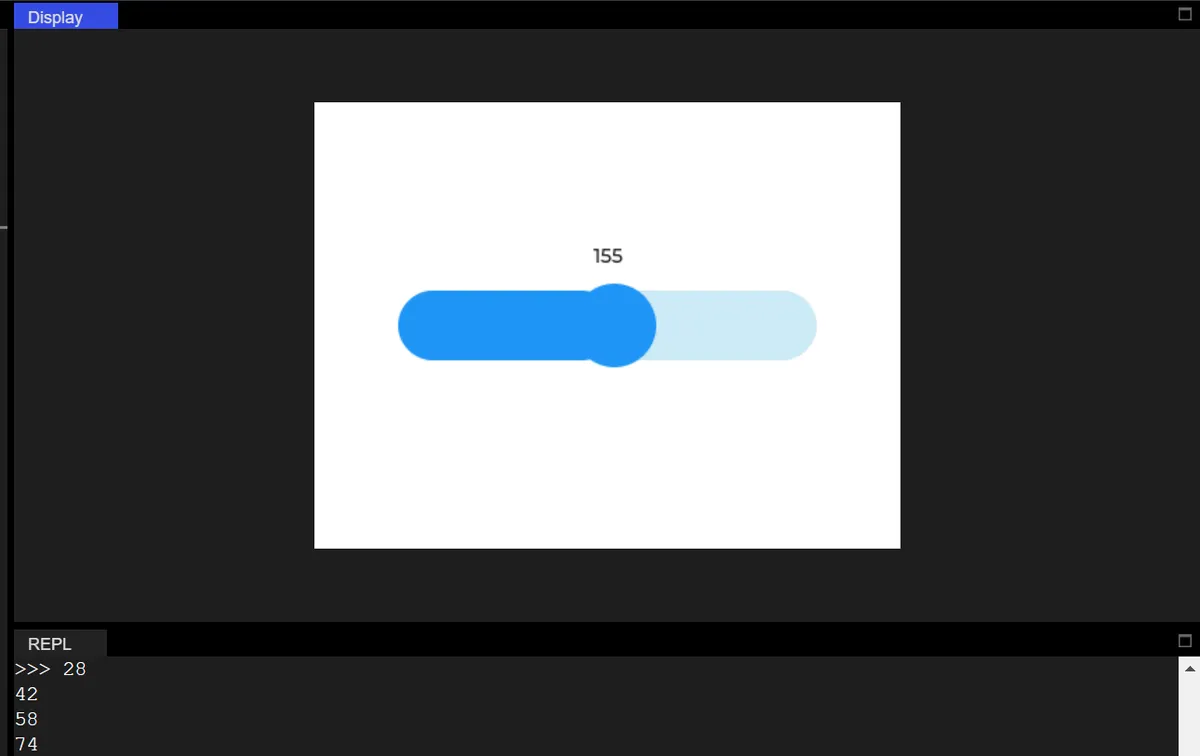
10.4 Determine whether the slider is being dragged
The code is as follows:
import display_driver
import lvgl as lv

# Initialize the LVGL core engine
lv.init()

# Screen initialization: set white background
scr = lv.screen_active()
scr.set_style_bg_color(lv.color_hex(0xFFFFFF), 0)

# Create a normal horizontal slider
slider = lv.slider(scr)
# Set slider size: width 300 pixels, height 50 pixels
slider.set_size(300, 50)
# Set value range: 0~100
slider.set_range(0, 100)
# Display the slider centered
slider.center()

# ===================== Split into two independent Labels =====================
# 1. Value display Label (updated only by the slider callback)
num_label = lv.label(scr)
num_label.set_text("Value: 0")
# Value label position: 70 pixels above the slider, centered
num_label.align(lv.ALIGN.CENTER, 0, -70)

# 2. Drag status Label (updated only by the timer)
status_label = lv.label(scr)
status_label.set_text("Status: Not dragging")
# Status label position: 40 pixels above the slider, centered
status_label.align(lv.ALIGN.CENTER, 0, -40)

# Global variable: stores the current slider value (replaces dynamic attributes, avoids AttributeError)
current_value = slider.get_value()

# ===================== Slider callback: handles only the value Label =====================
# Function: only responds to value changes, updates the value Label + global variable, does not handle any status logic
def slider_event_cb(e):
    global current_value
    # Get the latest value and update the global variable
    current_value = slider.get_value()
    # Update only the value Label
    num_label.set_text(f"Value: {current_value}")
    # Print value update (English)
    print(f"Value updated to: {current_value}")

# Register the value-changed event
slider.add_event_cb(slider_event_cb, lv.EVENT.VALUE_CHANGED, None)

# ===================== Timer: only handles the drag-state Label =====================
# Function: only polls the drag state, updates the text and color of the state Label
def timer_cb(timer):
    # Only check the drag state
    is_dragging = slider.is_dragged()
    # Only update the state Label
    if is_dragging:
        status_label.set_text("Status: Dragging")
        status_label.set_style_text_color(lv.color_hex(0xFF0000), 0)  # Dragging: red
    else:
        status_label.set_text("Status: Not dragging")
        status_label.set_style_text_color(lv.color_hex(0x000000), 0)  # Not dragging: black
    # Print the drag state (in English)
    print(f"Dragging status: {is_dragging}")

# Create a timer: poll every 50ms (adjustable)
timer = lv.timer_create(timer_cb, 50, None)

# Load the screen
lv.screen_load(scr)
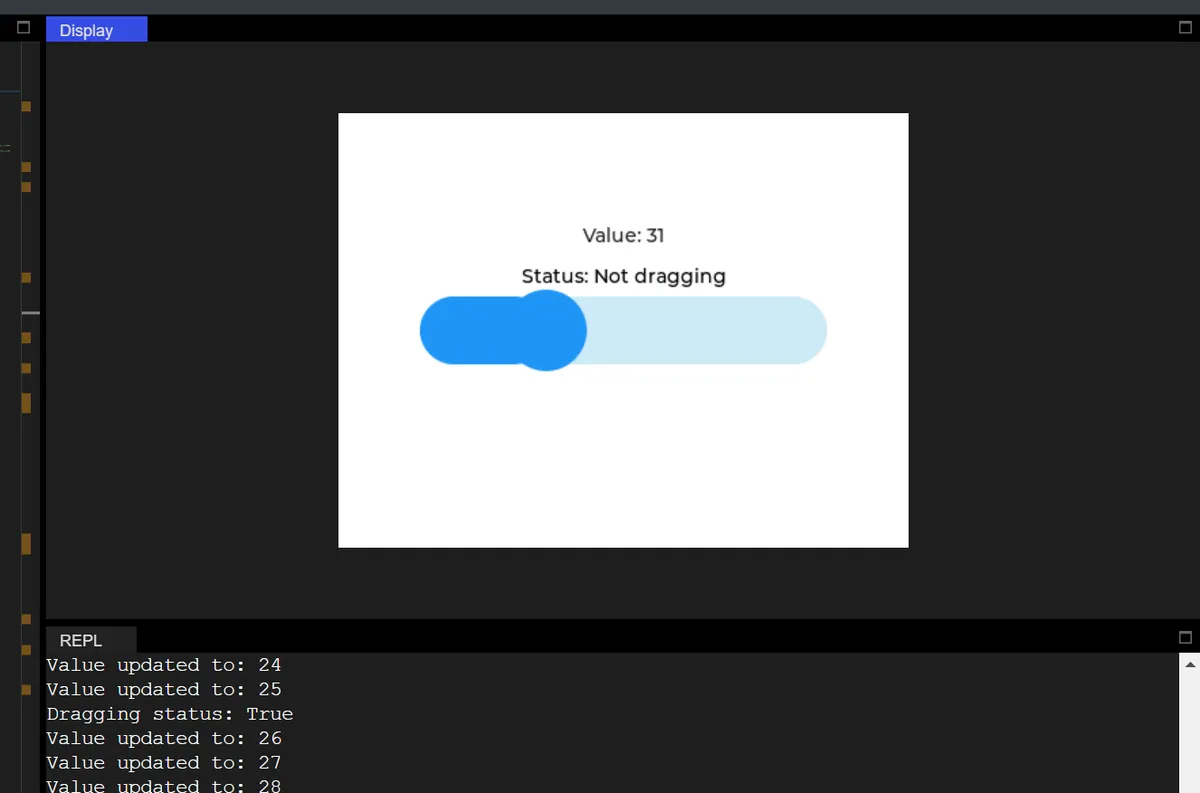
In the code above, the interactive slider function is implemented:
- First, initialize the LVGL engine and the screen with a white background, create a horizontal slider, set its size and value range, and then display it centered.
- Then split two independent labels (the value label and the drag status label), and store the value of the slider via a global variable to avoid the error caused by MicroPython LVGL not supporting dynamic object properties;
- The callback function for slider value change is only responsible for updating the text of the value label, synchronizing the global variables, and printing the value update information;
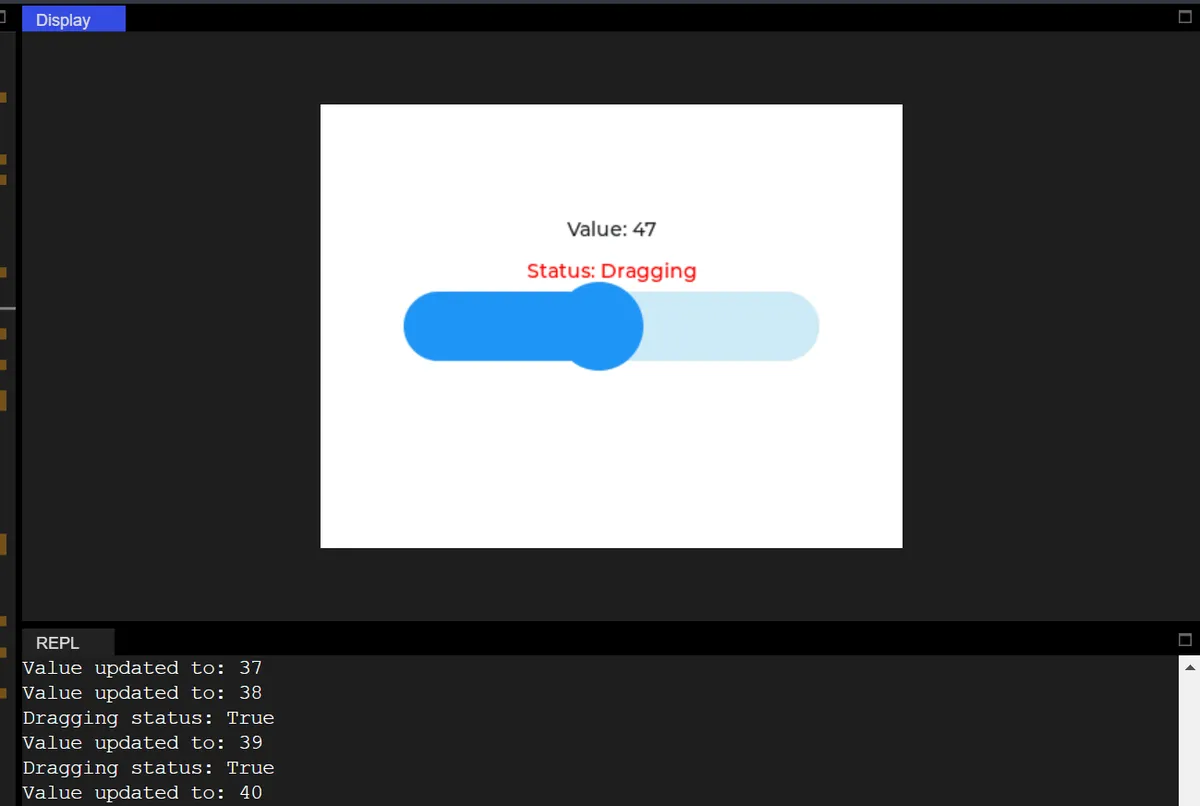
- Meanwhile, create an LVGL timer to polling the drag status of the slider every 50ms, only update the text of the status label (display "Dragging" when dragging, "Not dragging" when not dragging) and the font color (red when dragging, black when not dragging), and print the drag status;
- The comments throughout the code are in Chinese to facilitate logic understanding, while the printed content is in English, which not only ensures the clear separation of functional responsibilities but also adapts to the compatibility of the operating environment.
- Drag the slider:
num_labelReal-time displayValue: XX(The value changes are only updated via the slider callback);status_labelDisplayStatus: Dragging(in red, updated by timer);- Terminal output:
Value updated to: XX+Dragging status: True.
- Release the slider:
num_labelKeep the latest value;status_labelimmediately switch toStatus: Not dragging(black);- Terminal output:
Dragging status: False.
Version Record
Version Number | Modifier | Time | Content |
v1.0 | Li Zisheng | 2026/03/23 | Initialize the document. |