Contents
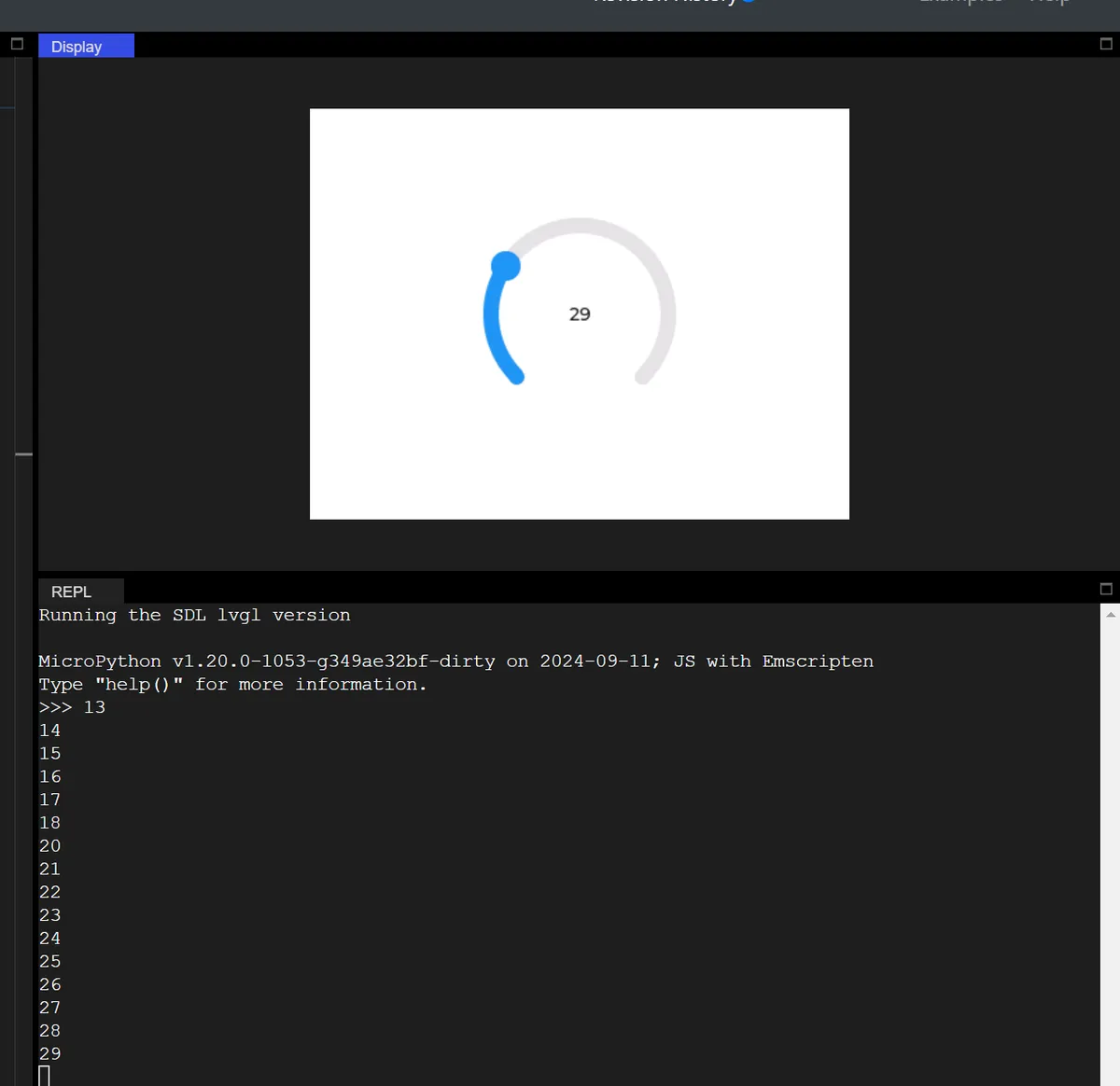
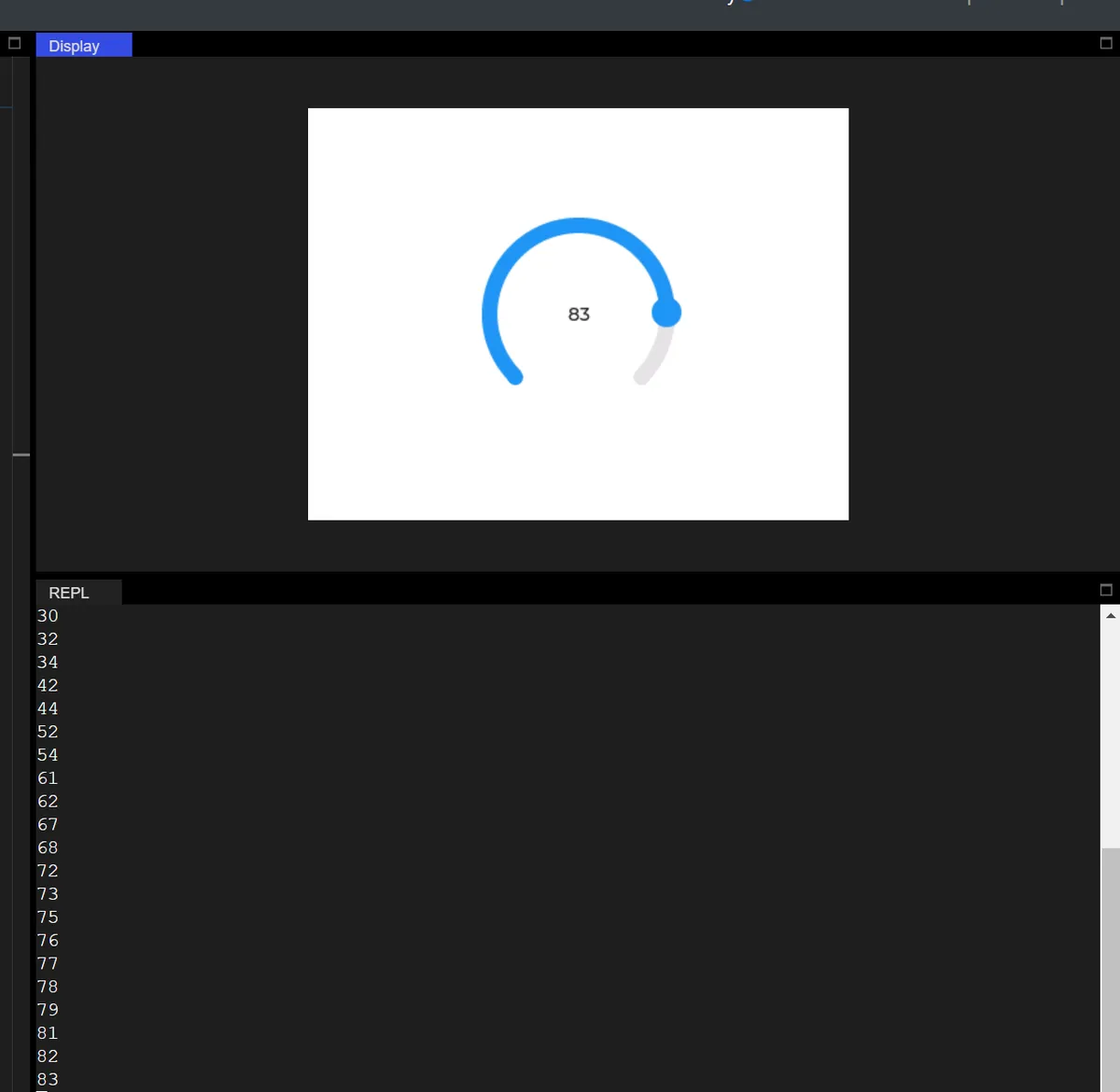
The following code implements an interactive Arc control centered on a white background, whose core function is to update and display/print its current value in real time when the arc is dragged:
import display_driver
import lvgl as lv

lv.init()

# Screen initialization (keep the white background from your original code)
scr = lv.screen_active()
scr.set_style_bg_color(lv.color_hex(0xFFFFFF), 0)

#Create an arc
arc = lv.arc(scr)
#Set the arc size
arc.set_size(150, 150)
#Set the arc value range
arc.set_range(0, 100)
#Set the current value
arc.set_value(10)
#Center it
arc.center()

# Create a value display label
lbl_val = lv.label(scr)
lbl_val.set_text(str(arc.get_value()))
lbl_val.align(lv.ALIGN.CENTER, 0, 0)

#Interaction callback function
def arc_event_cb(e):
    current_val = arc.get_value()
    lbl_val.set_text(str(current_val))
    print(current_val)

#Register the interaction callback function
arc.add_event_cb(arc_event_cb, lv.EVENT.VALUE_CHANGED, None)

lv.screen_load(scr)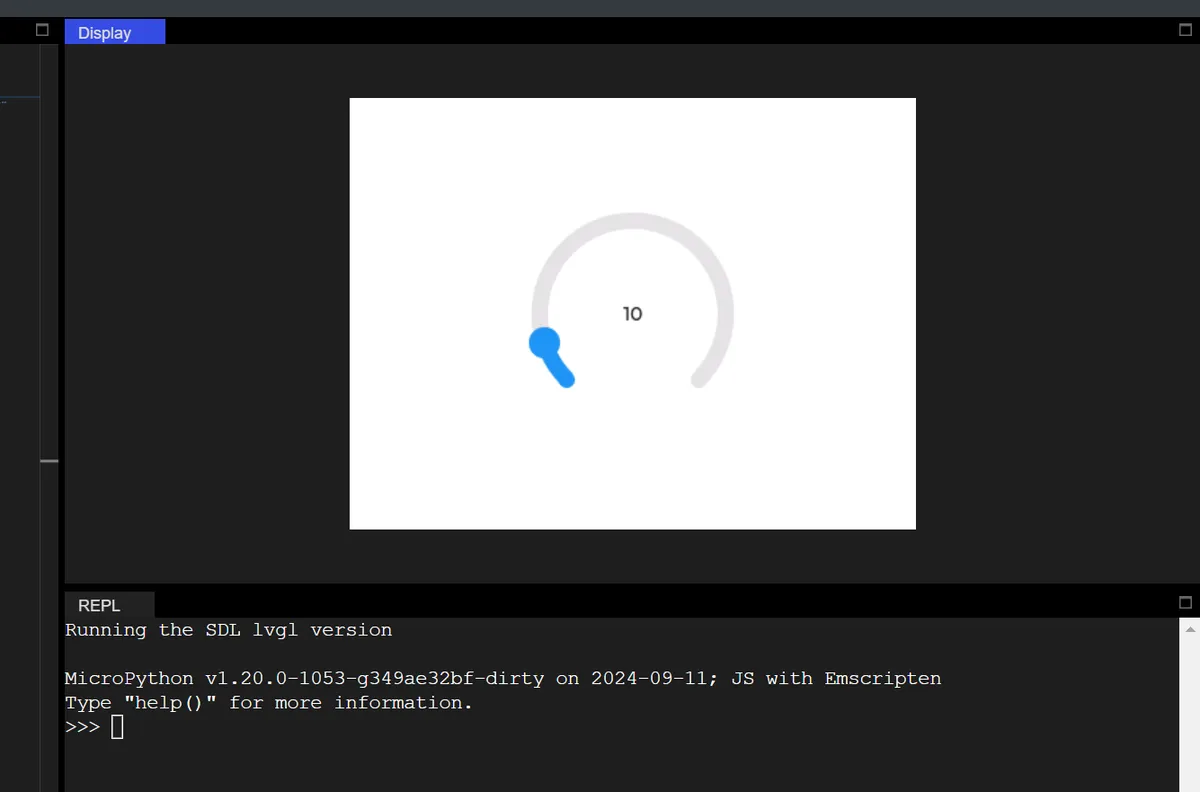
9.1 Setting Dimensions and Value Ranges
import display_driver
import lvgl as lv

lv.init()

# Screen initialization (keep the white background from your original code)
scr = lv.screen_active()
scr.set_style_bg_color(lv.color_hex(0xFFFFFF), 0)

#Create an arc
arc = lv.arc(scr)
#Set the arc size
arc.set_size(200, 200)
#Set the arc value range
arc.set_range(0, 360)
#Set the current value
arc.set_value(10)
#Center it
arc.center()

# Create a value display label
lbl_val = lv.label(scr)
lbl_val.set_text(str(arc.get_value()))
lbl_val.align(lv.ALIGN.CENTER, 0, 0)

#Interaction callback function
def arc_event_cb(e):
    current_val = arc.get_value()
    lbl_val.set_text(str(current_val))
    print(current_val)

#Register the interaction callback function
arc.add_event_cb(arc_event_cb, lv.EVENT.VALUE_CHANGED, None)

lv.screen_load(scr)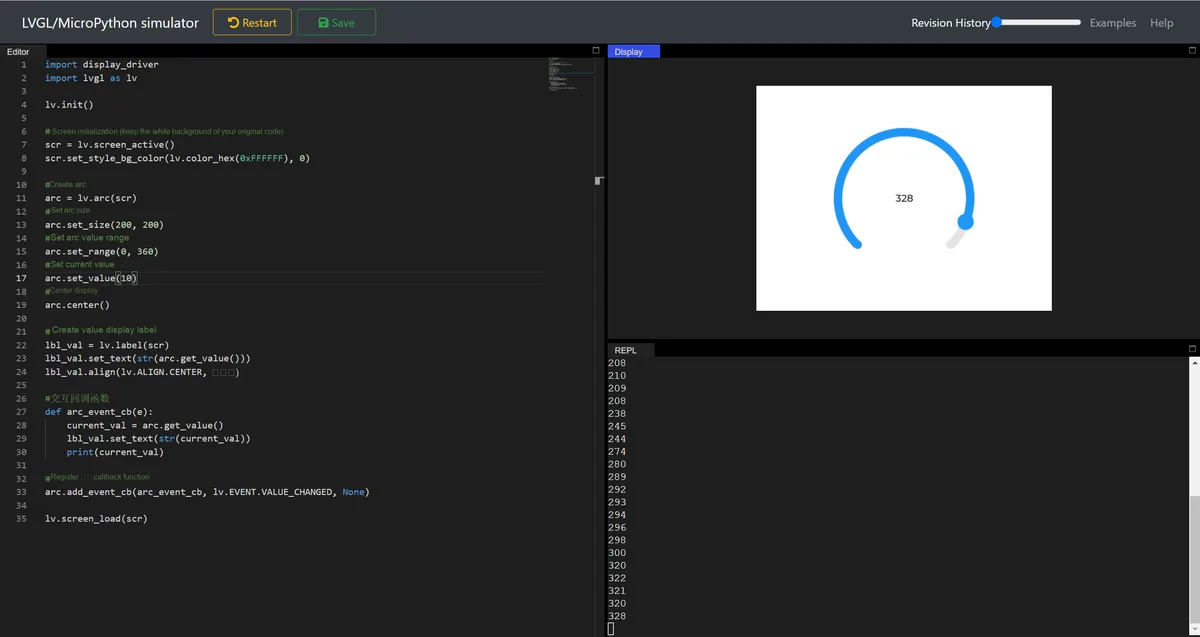
9.2 Adjustment Mode
arc.set_mode(lv.arc.MODE.REVERSE) # MODE.REVERSE: reverse expansion, suitable for "countdown, reverse adjustment" scenarios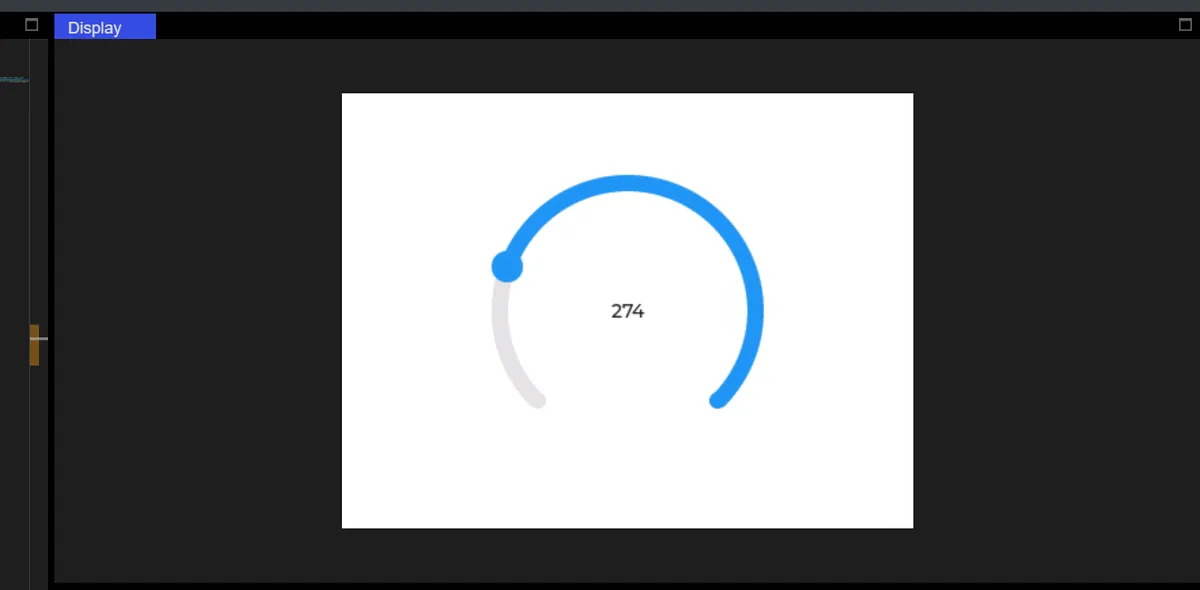
arc.set_mode(lv.arc.MODE.SYMMETRICAL) # MODE.SYMMETRICAL: values are symmetric about the middle value (set a positive/negative range)
# Suitable for "temperature ±, volume balance" scenarios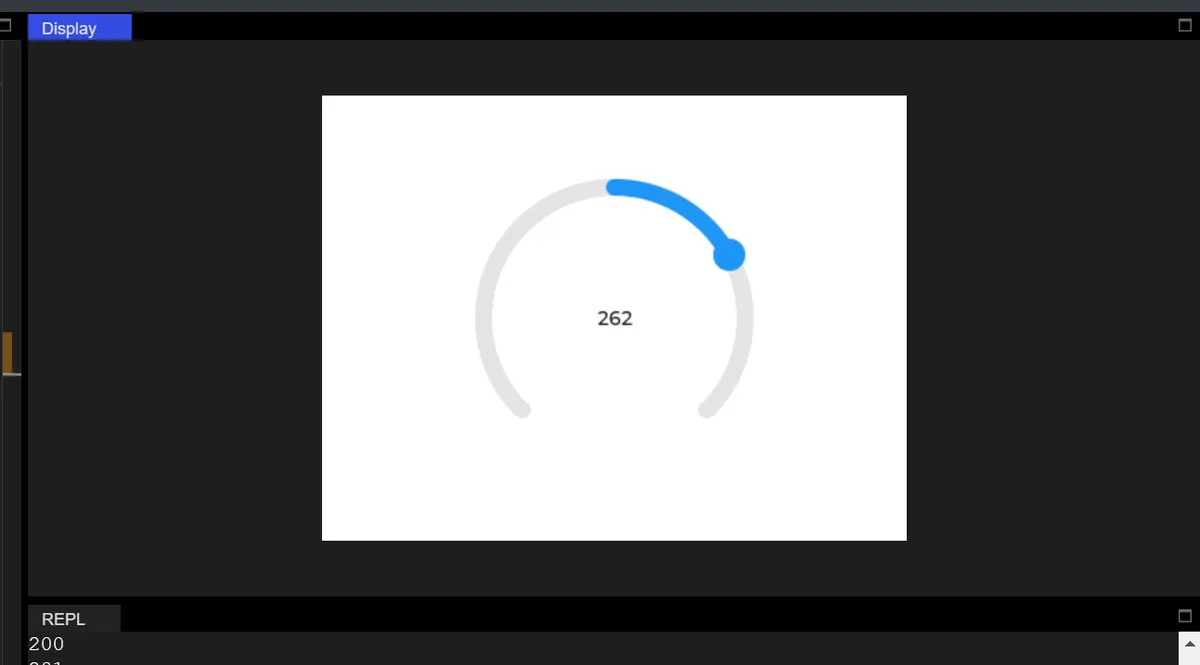
9.3 Set Background Arc
import display_driver
import lvgl as lv

lv.init()

# Screen initialization (keep the white background from your original code)
scr = lv.screen_active()
scr.set_style_bg_color(lv.color_hex(0xFFFFFF), 0)

#Create an arc
arc = lv.arc(scr)
#Set the arc size
arc.set_size(200, 200)
#Set the arc value range
arc.set_range(0, 360)
#Set the current value
arc.set_value(10)
#Center it
arc.center()

# Set the mode
arc.set_mode(lv.arc.MODE.NORMAL) # MODE.NORMAL: most common, value goes from minimum → maximum, arc expands clockwise

#  Set the background arc
arc.set_bg_angles(0, 270)

# Create a value display label
lbl_val = lv.label(scr)
lbl_val.set_text(str(arc.get_value()))
lbl_val.align(lv.ALIGN.CENTER, 0, 0)

#Interaction callback function
def arc_event_cb(e):
    current_val = arc.get_value()
    lbl_val.set_text(str(current_val))
    print(current_val)

#Register the interaction callback function
arc.add_event_cb(arc_event_cb, lv.EVENT.VALUE_CHANGED, None)

lv.screen_load(scr)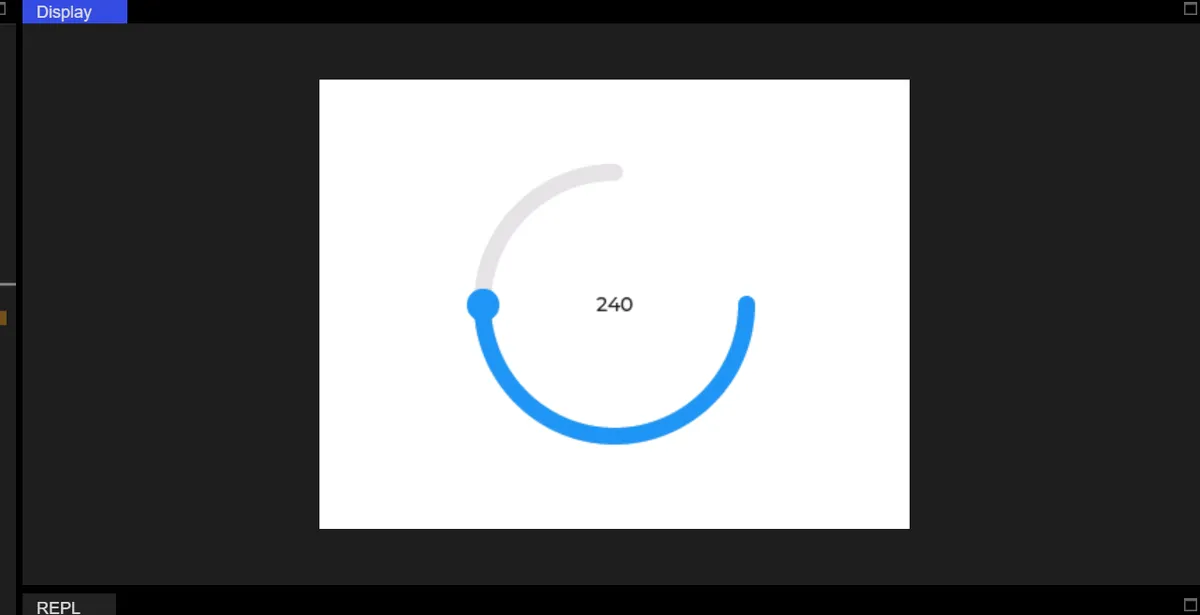
9.4 Arc Integral Rotation
# The whole arc widget spans 90 degrees
arc.set_rotation(90)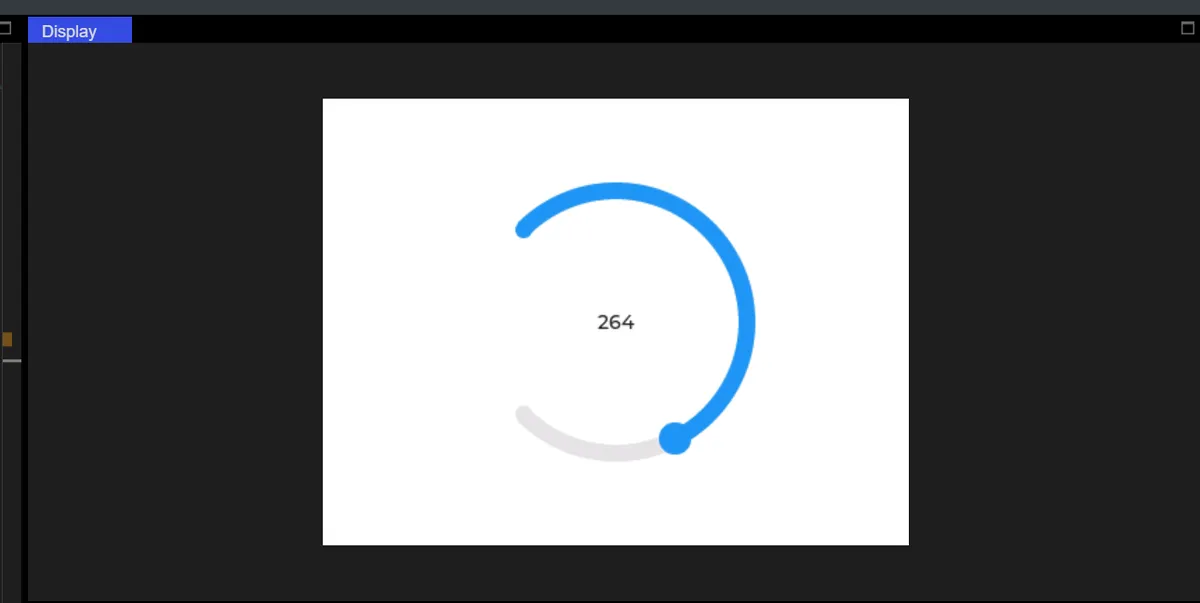
9.5 Curve Control of LED Brightness
The code is as follows:
import display_driver
import lvgl as lv

lv.init()

# 1. Screen initialization
scr = lv.screen_active()
scr.set_style_bg_color(lv.color_hex(0xFFFFFF), 0)

# 2. Create the arc (integrating the core methods)
arc = lv.arc(scr)
arc.set_size(150, 150)
# Display a full circle
arc.set_angles(0, 360)
arc.set_bg_angles(0, 360)

# Value range = LED brightness range (0~255)
arc.set_range(0, 255)
# Initial brightness 0 (LED off)
arc.set_value(0)
# Normal mode (clockwise to brighten)
arc.set_mode(lv.arc.MODE.NORMAL)
# Centered in the upper half of the screen
arc.align(lv.ALIGN.CENTER, 0, -50)

# 3. Create the LED
led = lv.led(scr)
led.set_size(80, 80)
led.align(lv.ALIGN.CENTER, 0, 80)  # Centered below the arc
led.set_color(lv.color_hex(0xFF0000))  # Red LED
led.set_brightness(0)  # Initial brightness 0

# 4. Interaction callback: arc value → LED brightness
def arc_led_cb(e):
    # get_value: get the current value of the arc (0~255)
    brightness = arc.get_value()
    # Set the LED brightness
    led.set_brightness(brightness)
    # Print for debugging (value = brightness)
    print(f"LED Brightness : {brightness}")

# Bind the value-changed event
arc.add_event_cb(arc_led_cb, lv.EVENT.VALUE_CHANGED, None)

lv.screen_load(scr)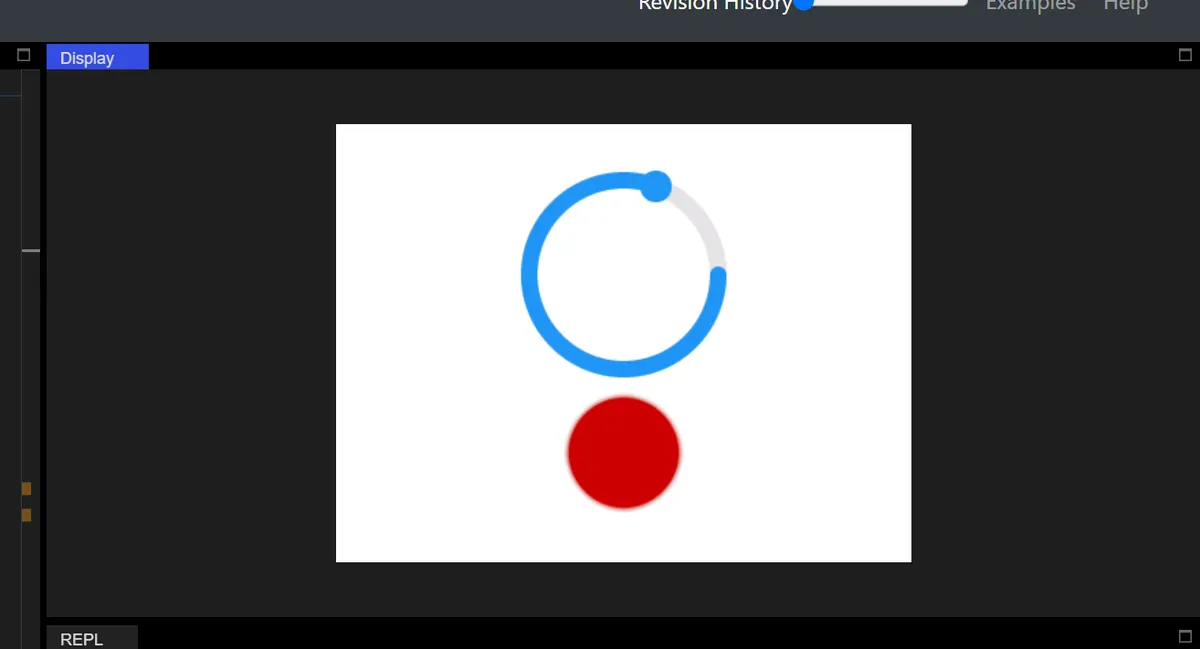
Version Record
Version Number | Modifier | Time | Content |
v1.0 | Li Zisheng | 2026/03/23 | Initialize the document. |