
Contents
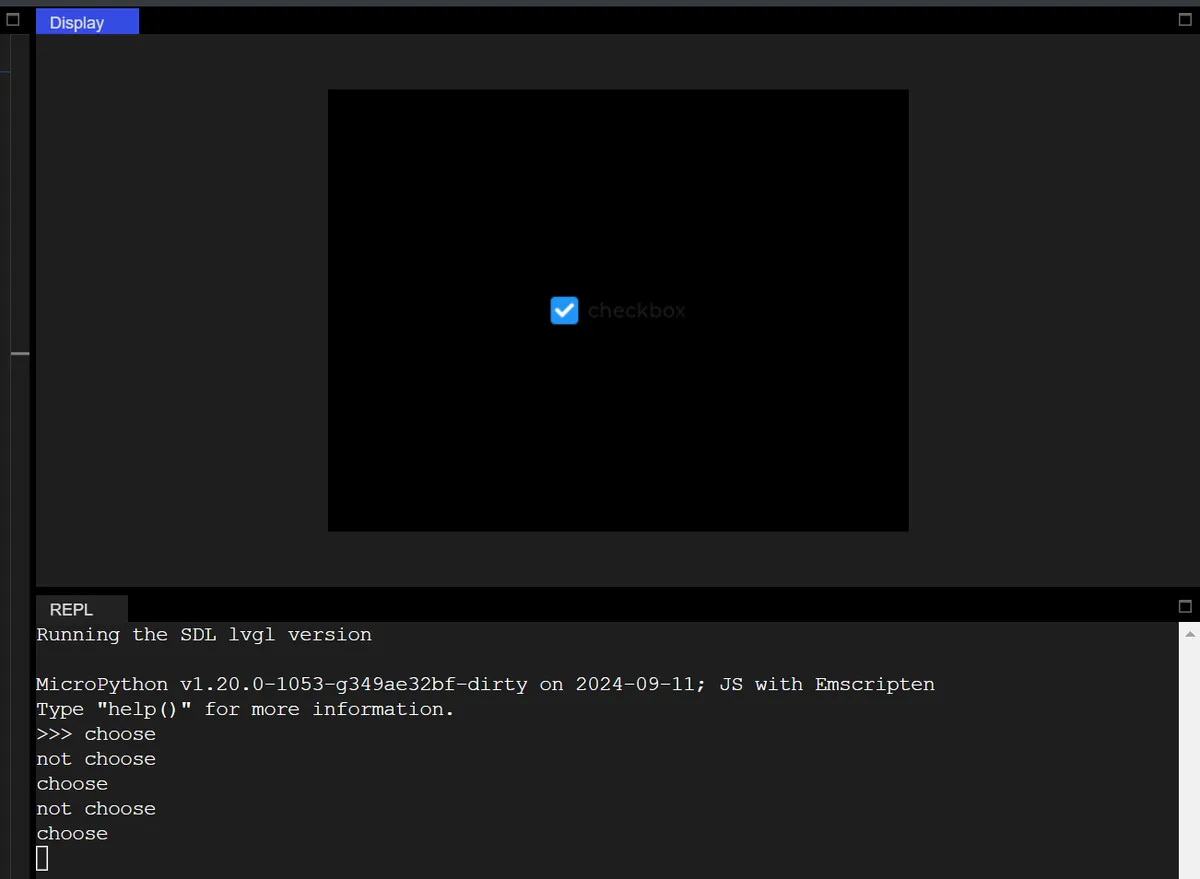
The following code implements an interactive checkbox control that is centered on a black background. Its core function is to respond in real time to the checked/unchecked state of the checkbox and output corresponding prompts to the Console.
import display_driver
import lvgl as lv
import time

lv.init()

#Get the currently active screen object
scr = lv.screen_active()
#Set the screen background color to black
scr.set_style_bg_color(lv.color_hex(0x000000), 0)

#Create a checkbox
cb = lv.checkbox(scr)
#Set the checkbox text
cb.set_text("checkbox")
#Center it
cb.center()

#Interaction callback function
def cb_event_cb(e):
    if cb.has_state(lv.STATE.CHECKED):
        print("choose")
    else:
        print("not choose")
#Register the interaction callback function. For more states see the "class EVENT" section of api.py
cb.add_event_cb(cb_event_cb, lv.EVENT.VALUE_CHANGED, None)

lv.screen_load(scr)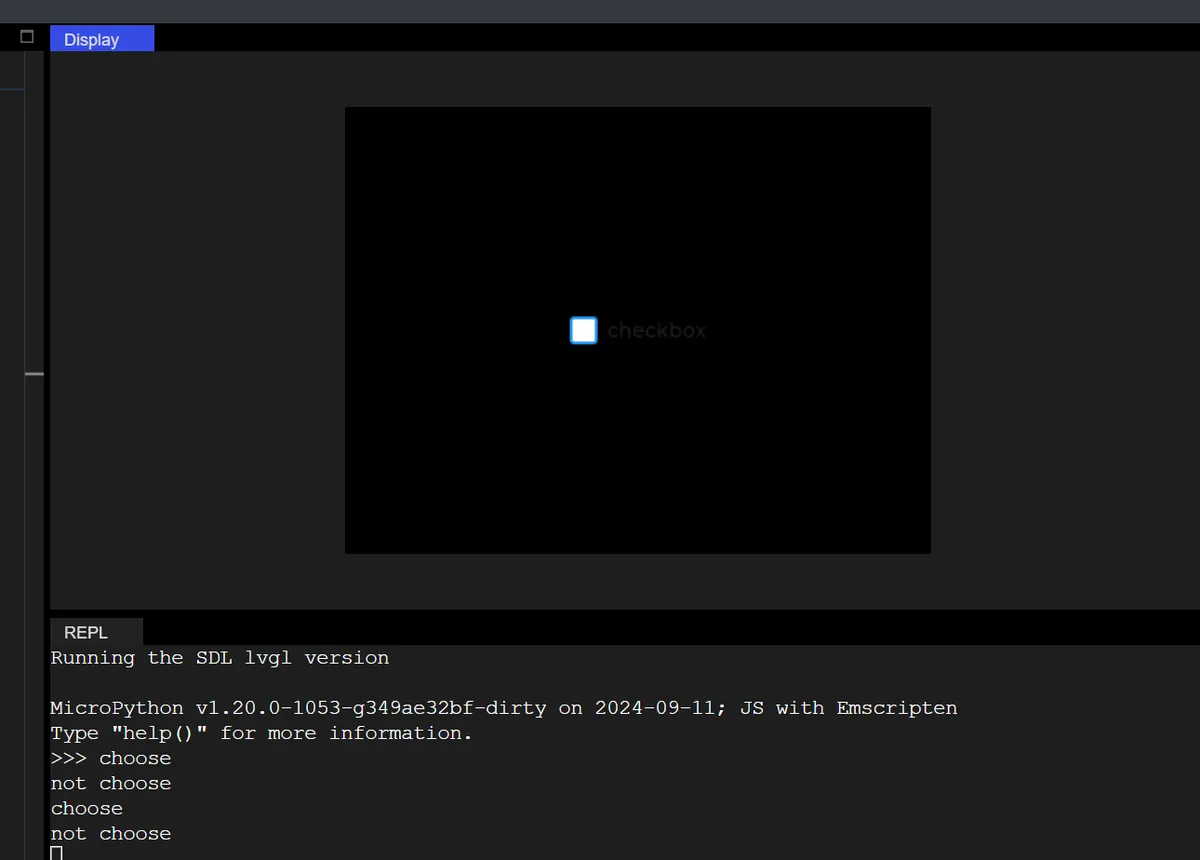
8.1 Checkbox Font Customization Demo
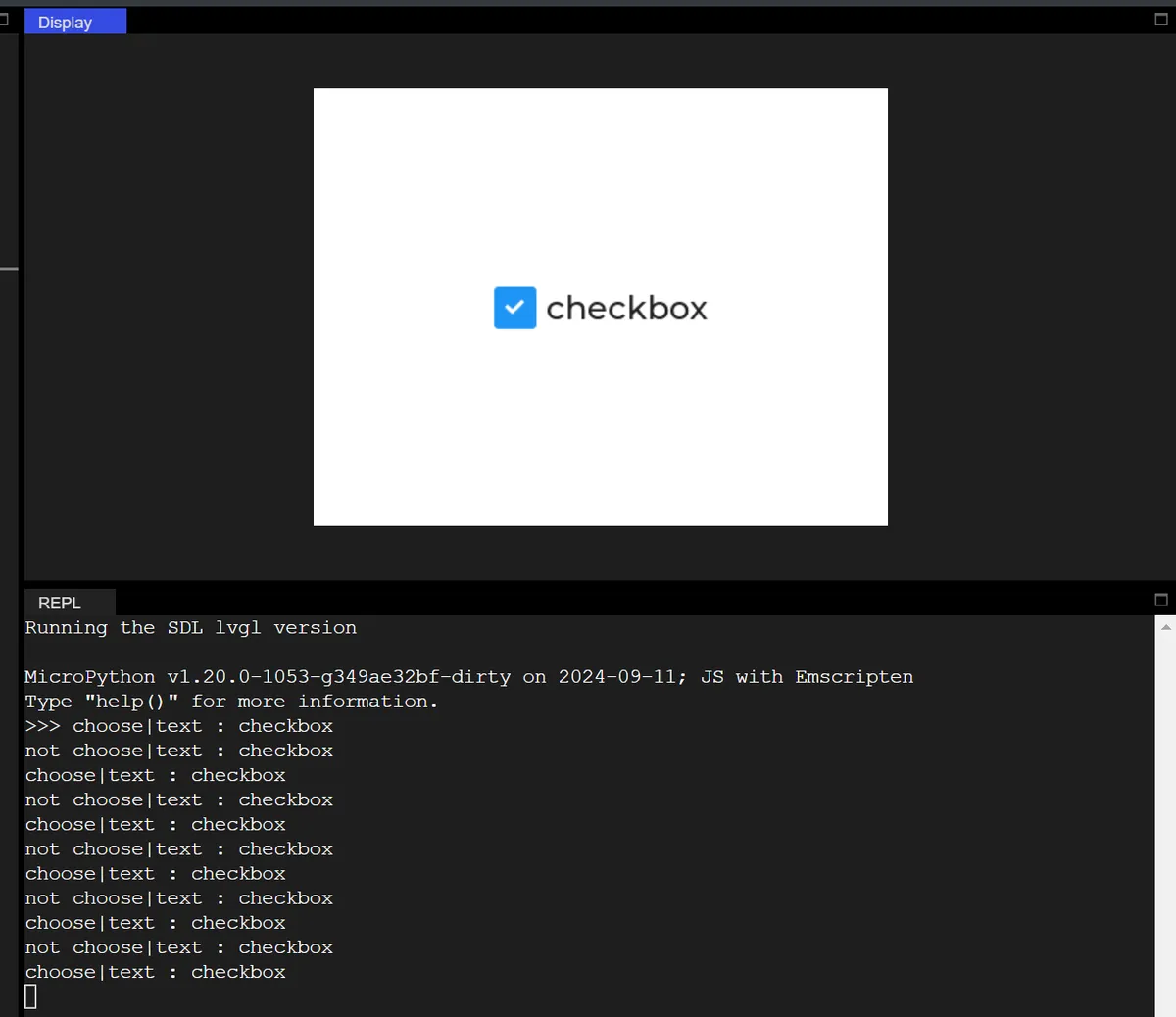
The following code creates a check box and customizes its text style (font, color, size):
import display_driver
import lvgl as lv
import time

lv.init()

#Get the currently active screen object
scr = lv.screen_active()
#Set the screen background color to black
scr.set_style_bg_color(lv.color_hex(0xFFFFFF), 0)

#Create a checkbox
cb = lv.checkbox(scr)
#Set the checkbox text
cb.set_text("checkbox")
#Center it
cb.center()

# Create a font style object
style_cb_text = lv.style_t()
style_cb_text.init()
# Set the font
style_cb_text.set_text_font(lv.font_montserrat_24)
# Apply the style to the checkbox
cb.add_style(style_cb_text, lv.STATE.DEFAULT)

#Interaction callback function
def cb_event_cb(e):
    global cb_text
    cb_text = cb.get_text()
    if cb.has_state(lv.STATE.CHECKED):
        print(f"choose|text : {cb_text}")
    else:
        print(f"not choose|text : {cb_text}")
#Register the interaction callback function. For more states see the "class EVENT" section of api.py
cb.add_event_cb(cb_event_cb, lv.EVENT.VALUE_CHANGED, None)

lv.screen_load(scr)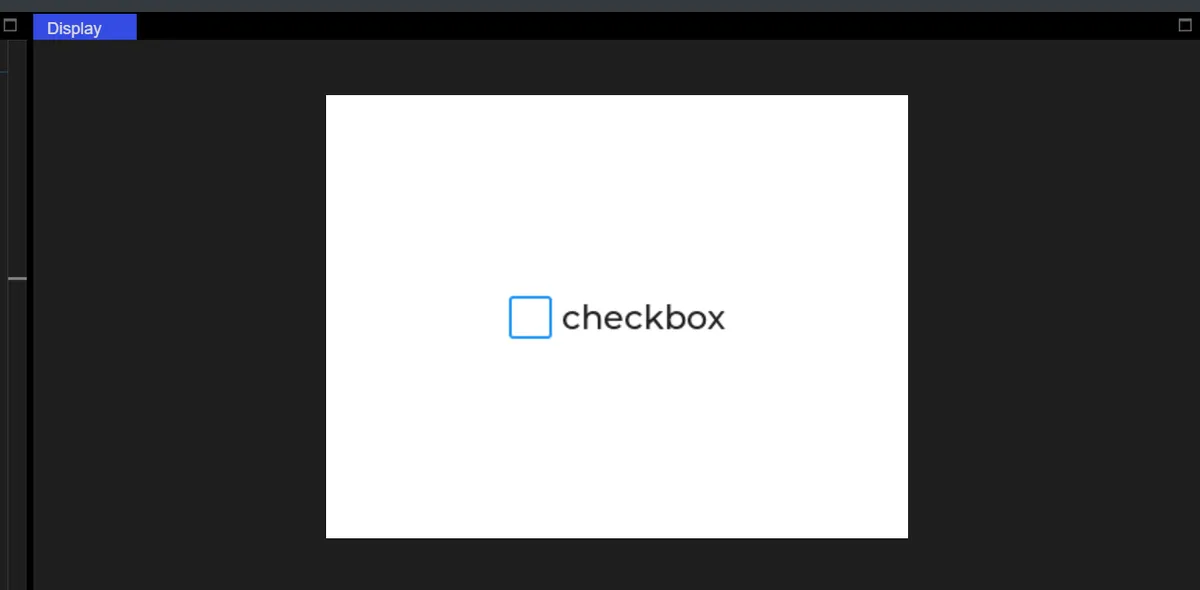
8.2 Control the LED by Ticking the Checkbox
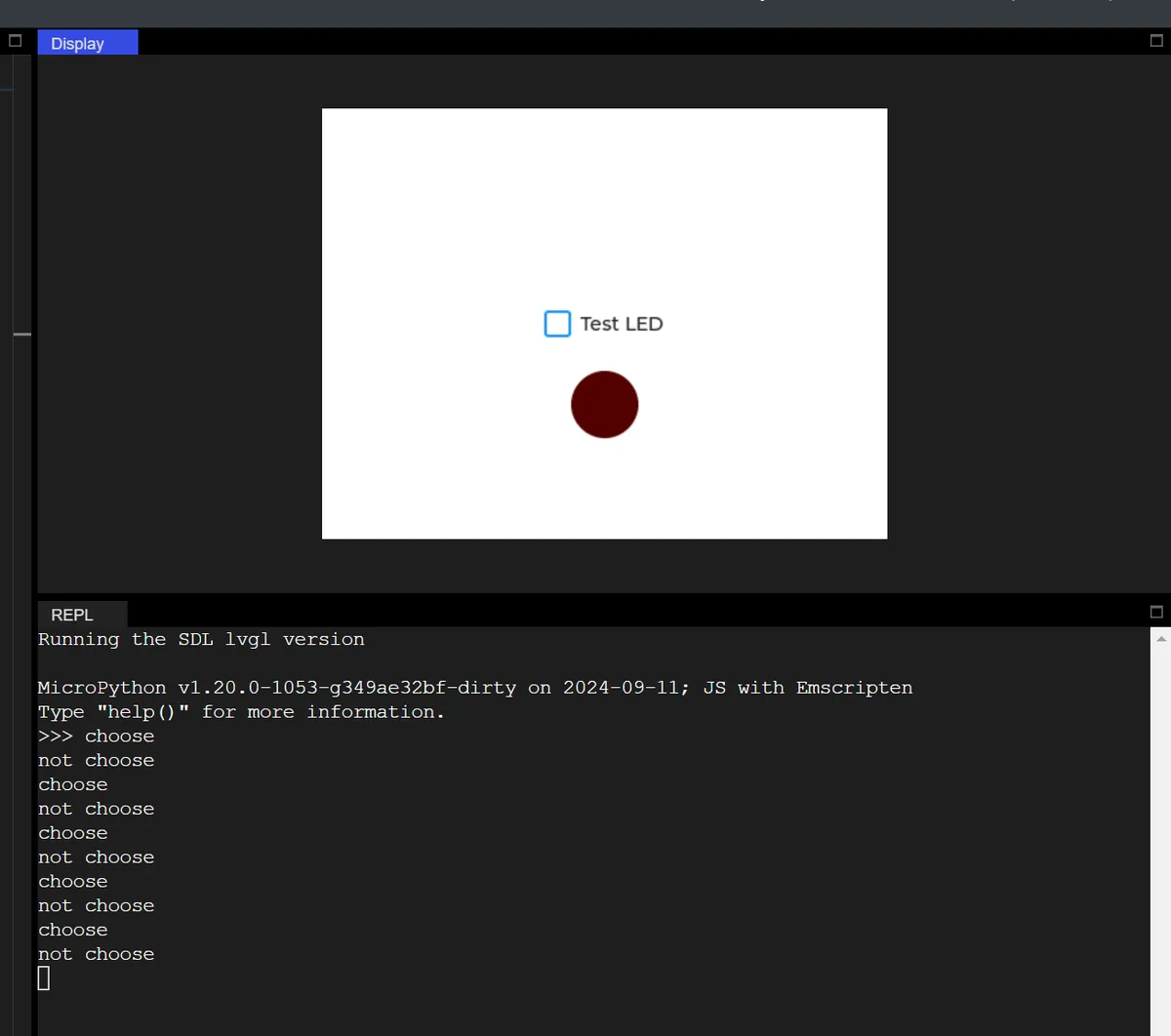
In the code below, tick the checkbox to turn on the LED:
import display_driver
import lvgl as lv

lv.init()

# Screen initialization (keep the white background from your original code)
scr = lv.screen_active()
scr.set_style_bg_color(lv.color_hex(0xFFFFFF), 0)

# 1. Minimal checkbox (no extra styling, get it running first)
cb = lv.checkbox(scr)
cb.set_text("Test LED")
cb.center()

# 2. Minimal LED (only set size + color + position, no dependence on checkbox alignment)
led = lv.led(scr)
led.set_size(50, 50)
led.align(lv.ALIGN.CENTER, 0, 60)  # Directly below the checkbox
led.set_color(lv.color_hex(0xFF0000))

# 3. Minimal callback (only controls the LED on/off, no global variables)
def cb_test_cb(e):
    if cb.has_state(lv.STATE.CHECKED):
        led.on()
        print("choose")
    else:
        led.off()
        print("not choose")

# 4. Register the event (format identical to your original code)
cb.add_event_cb(cb_test_cb, lv.EVENT.VALUE_CHANGED, None)

lv.screen_load(scr)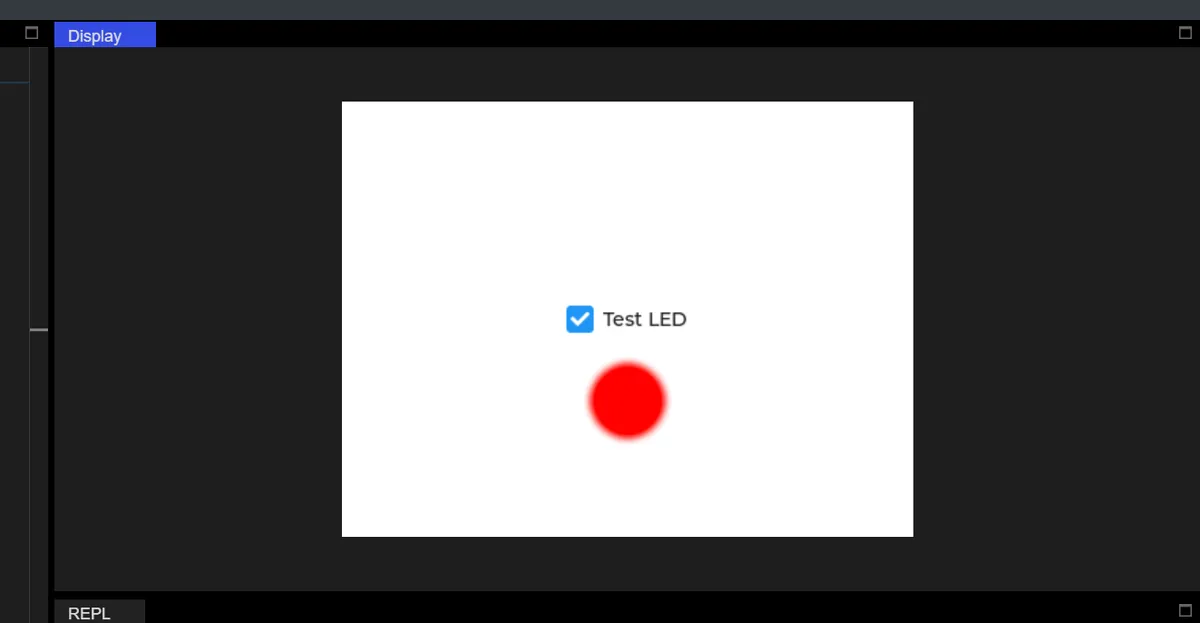
Version Record
Version Number | Modifier | Time | Content |
v1.0 | Li Zisheng | 2026/03/23 | Initialize the document. |