
Contents
Abstract:
In Python, string formatting refers to a way of inserting variables into strings, and Python provides multiple methods for string formatting, including the old-style % formatting, the newer str.format method, and f-strings (formatted string literals).
Original Link:
Previous Recommendations:
You who are learning embedded systems, don’t you even know Object Oriented yet? ?!
More exciting content can be found here:
Speed Up Your Python: A Quick Guide to Python Parallel Computing
Understand the Debugging Principle of CM3 Microcontroller in One Article
The "Martial Arts Manual" for Computer Science Competitions
Avnet ZUBoard 1CG Development Board — A New Choice for Deep learning
Deploy SenseCraft Model to Grove Vision AI V2 Image Processing Module
Document and Code Access:
You can download the document via the following link:
https://github.com/leezisheng/Doc
This document mainly introduces how to use Python for Object Oriented programming, and requires readers to have a basic understanding of Python syntax and microcontroller development. Compared with other blogs or books that explain Python Object Oriented programming, this document is more detailed and focuses on embedded host computer applications, taking the common serial port data transmission and reception, data processing, dynamic graph drawing and other functions between the host computer and the slave computer as application examples. Meanwhile, it uses the Sourcetrail code software to visualize the code for reading, so as to facilitate readers' understanding.
The link to obtain the relevant sample code is as follows:
https://github.com/leezisheng/Python-OOP-Demo
Body Text
String formatting is the process of inserting variable values into the placeholder positions within a string, which enables the creation of dynamic text where certain parts may need to be replaced according to different scenarios.
In Python, string formatting methods include the output formatting of the Print function and the Format function formatting.
Use the Print function to implement formatting via format specifiers
Common formatting symbols include:
- (1) %c: Formats a character and its corresponding ASCII code;
- (2) %s: format string;
- (3) %d: Formats an integer;
- (4) %u: Formats an unsigned integer type;
- (5) %o: Formats an unsigned octal number;
- (6) %x: Format an unsigned hexadecimal number;
- (7) %f: Formats a floating-point number, with the precision after the decimal point specifiable;
- (8) %e: Formats a floating-point number in scientific notation;
- (9) %g: A shorthand notation for %d and %e.
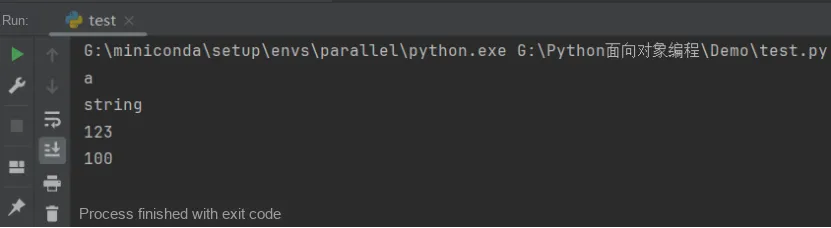
The sample code is shown below:
print("%c" % 'a')
print("%s" % "string")
print("%s" % 123)
print("%d" % 100.0)
The running results are as follows:
Meanwhile, the conversion specifier can reference dictionary variables.
The format of the specifier is %(mapping_key) flags, where mapping_key specifies the name of the referenced variable, and flags specifies the conversion format.
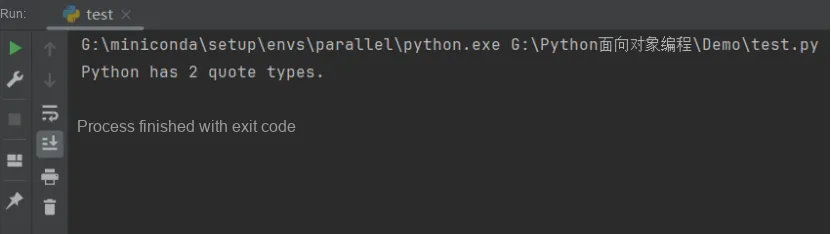
The sample code is as follows:
print('%(language)s has %(number)01d quote types.'
      % {'language': "Python", "number": 2})
The running results are as follows:
Format using the format () method
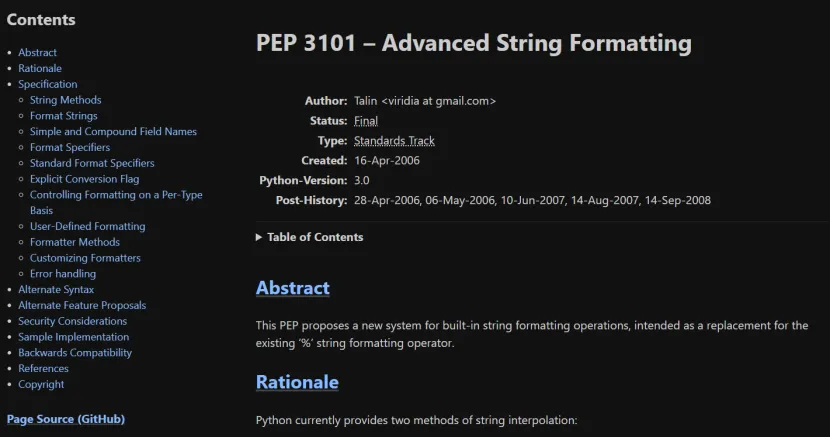
The built-in string class provides the ability to perform complex variable substitution and value formatting via the format () method described in PEP 3101. The Formatter class in the string module allows you to create and customize your own string formatting behaviors using the same implementation as the built-in format () method.
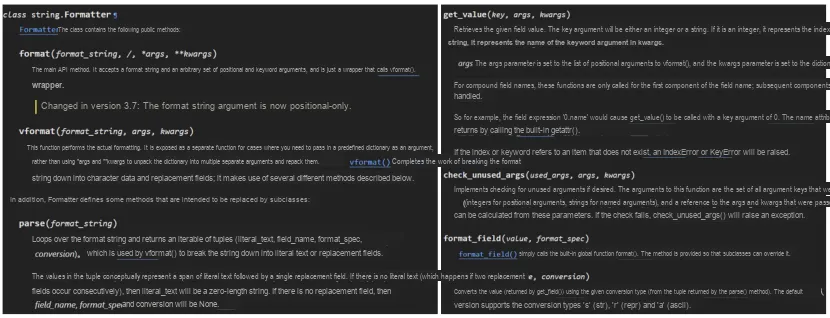
The str.format () method and the Formatter class share the same format string syntax (though for the Formatter class, its subclasses can define their own format string syntax). Any string can be turned into a formatted string by calling the format () method. This method returns a new string, in which the special characters will be replaced with the positional arguments and keyword arguments passed into the method. The format method does not limit the number of arguments, and it uses the *args and **kwargs syntax in method parameter passing that we mentioned earlier.
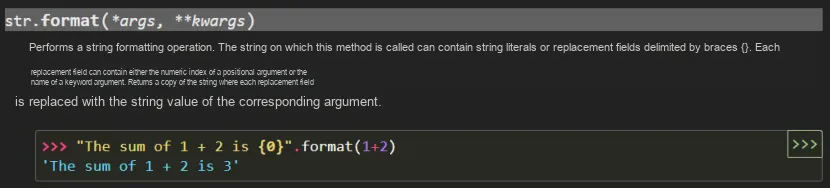
The special symbols that get replaced in a formatted string are the opening and closing curly braces: { and }. We can insert them in pairs, and they will eventually be replaced in order by the positional arguments passed into the str.format method.
The sample code is as follows:
template = "Hello {}, you are currently {}."
print(template.format('Dusty', 'writing'))
The running results are as follows:
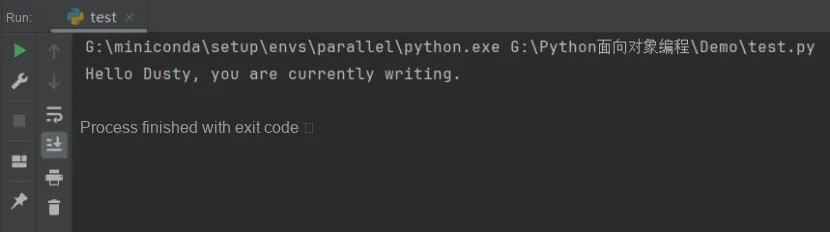
The str.format () method can use positional arguments or keyword arguments to fill placeholders. Positional arguments are passed in order, while keyword arguments match values using the placeholder names.
The sample code is as follows, and the running result is the same as above.
template = "Hello {0}, you are currently {1}."
print(template.format('Dusty', 'writing'))
template = "Hello {name}, you are currently {doing}."
print(template.format(name='Dusty', doing='writing'))
We don't have to pass only string variables to the format method; any primitive type, such as integers or floating-point numbers that can be printed, is acceptable. More interestingly, complex objects including lists, tuples, dictionaries, and arbitrary objects can all be used; within the format string, we can access variables via indices and object attributes (methods are not allowed). For example, in the following case where we output an email message, we combine the sender and recipient into a tuple in the email address, and store the subject and message in a dictionary, then we can format it like this:
emails = ("a@example.com", "b@example.com")
message = {
            'subject': "You Have Mail!",'message': "Here's some mail for you!"
          }
template = """
From: <{0[0]}>
To: <{0[1]}>
Subject: {message[subject]}
{message[message]}"""
print(template.format(emails, message=message))
When we pass the `emails` tuple, we pass a position-based parameter, and these two email addresses can be accessed via `0[x]`, where x can be 0 or 1, corresponding to the first or second element in the tuple. The leading 0 refers to the first positional parameter passed to format (which, in this case, is the `emails` tuple).
When passing the message dictionary, we passed a keyword-based parameter. When accessing the dictionary via string key names, we use message[subject] and message[message]. Note that this is different from the usual way of accessing values in a dictionary — we don’t need to add quotation marks here.
print(message['subject'])If there are nested data structures, we can even implement multi-level queries. It is not recommended to do so here, as the template string will quickly become incomprehensible in that case. If we have a dictionary containing tuples, we can do it as follows, and the code running result is the same as above:
emails = ("a@example.com", "b@example.com")
message = {
            'emails': emails,
            'subject': "You Have Mail!",
            'message': "Here's some mail for you!"
          }
template = """
From: <{0[emails][0]}>
To: <{0[emails][1]}>
Subject: {0[subject]}
{0[message]}"""
print(template.format(message))
Actually, we can also pass any object as an argument to the format function, and then access the object's properties using dot notation. In the following code, we use the format function to output the name, description, and properties/methods of the class.
class SensorClass(SerialClass):
    '''
        Sensor class, inherits from SerialClass
    '''
    ... ...
if __name__ == "__main__":
    template = '''
    Class Name : <{0.__name__}>
    Class Description :  <{0.__doc__}>
    Class Method and Class Properties : <{0.__dict__}>
    '''
    print(template.format(SensorClass))
The running results are shown as follows:
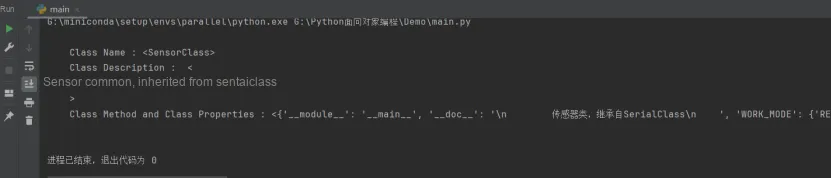
Generally speaking, we use this query method when the object we want to format already exists, rather than creating a class just to use the object in a template.
Introducing variables in template strings is indeed extremely convenient; however, sometimes we need to make appropriate adjustments to these variables to ensure the accuracy of the output results. For example, when calculating accuracy, we may obtain lengthy decimals, but in specific application scenarios, we do not want these detailed values after the decimal point to appear in the final display.
In this case, the str.format () method is particularly practical. It not only allows us to flexibly control the output format, but also provides a wealth of options to meet diverse formatting requirements, such as specifying the number of decimal places, adjusting text alignment, and setting padding characters. With these features, we can control the presentation of output content more precisely, so as to ensure that the information is conveyed accurately and in line with the expected display effect.
The general form of a standard format specifier is as follows:
format_spec     ::=  [[fill]align][sign]["z"]["#"]["0"][width][grouping_option]["." precision][type]
fill            ::=  <any character>
align           ::=  "<" | ">" | "=" | "^"
sign            ::=  "+" | "-" | " "
width           ::=  digit+
grouping_option ::=  "_" | ","
precision       ::=  digit+
type            ::=  "b" | "c" | "d" | "e" | "E" | "f" | "F" | "g" | "G" | "n" | "o" | "s" | "x" | "X" | "%"
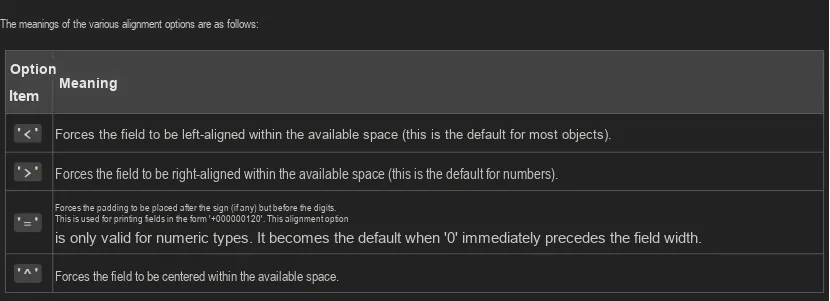
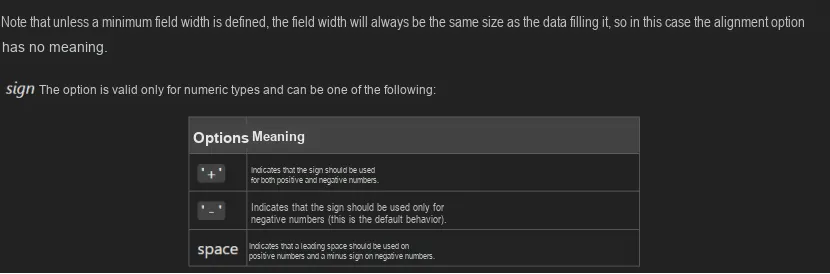
Here, the specific meaning of the type parameter is as follows:
(1) s: string, string;
(2) d: decimal integer, decimal number;
(3) i: integer, used the same as %d;
(4) u: unsigned integer, unsigned decimal number;
(5) f: float, floating-point number (6 digits after the decimal point by default);
(6) F: Float, floating-point number (6 digits after the decimal point by default);
(7) e: exponent, represents the number in scientific notation (lowercase e, 6 digits after the decimal point by default);
(8) E: Exponent, represents the number in scientific notation (uppercase E, 6 digits after the decimal point by default);
(9) o: octal, octal number (i.e. 0-7);
(10) x: hexdecimal, hexadecimal number (i.e. 0-9a-f);
(11) X: Hexdecimal, hexadecimal number (0-9A-F);
(12) g: general format, general format, see below...;
(13) G: General format, general format, see below...;
(14) %c: character, converts a decimal number to the corresponding Unicode value;
(15) %r: representation, outputs by calling the __repr__ magic method;
(16) %%: escapes %, outputs a percent sign.
See the example below for details:
price = 49.95
formatted_price = "The price is {:.2f} dollars.".format(price)
print(formatted_price)
The running results are as follows:
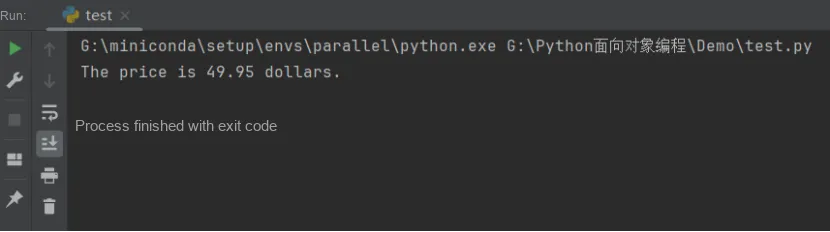
The 0.2f format specifier following the colon indicates that, from left to right, for values less than 1, it ensures there is a 0 to the left of the decimal point, retains two digits after the decimal point, and formats the input value as a floating-point number.
We can also use placeholder values to make each number occupy a specific number of character positions, which is useful for outputting tabular data, for example:
orders = [('burger', 2, 5),
          ('fries', 3.5, 1),
          ('cola', 1.75, 3)]
print("PRODUCT    QUANTITY    PRICE   SUBTOTAL")
for product, price, quantity in orders:
    subtotal = price * quantity
    print("{0:10s}{1: ^9d} ${2: <8.2f}${3: >7.2f}".format(product, quantity, price, subtotal))
Here, take the formatting operator {1: ^9d} for the quantity variable as an example: d indicates that this is an integer value, and the number 9 specifies that this value should occupy 9 characters.
However, for integers, 0 is used as the default padding character instead of a space. Therefore, we add a space after the colon as a placeholder, and the caret indicates that the number should be aligned in the center. The running result is as follows:
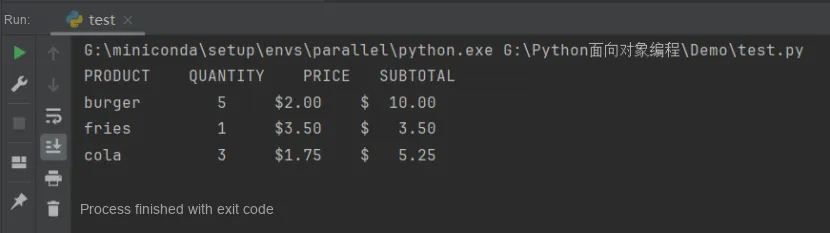
We can also use < or > to select different alignment modes (left-aligned/right-aligned). Here, we use similar specifiers for the `price` and `subtotal` variables: for `price`, we use `{2:<8.2f}`; for `subtotal`, we use `{3:>7.2f}`. We both specify a space as the padding character, and use the < and > symbols respectively to indicate that the numbers are left-aligned and right-aligned within positions of length 8 and 7. Moreover, each floating-point number retains two decimal places.
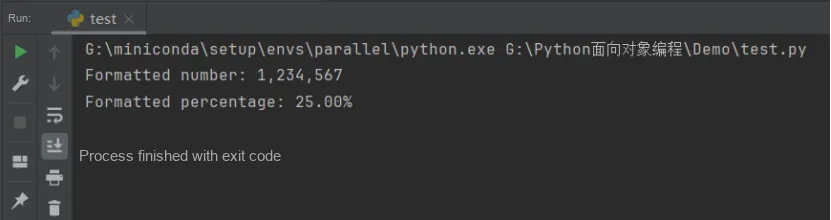
For different data types, variations in the "type" character will lead to changes in the output format. We have already learned about the three types s, d, and f, which are used to represent strings, integers, and floating-point numbers respectively. In fact, most other format specifiers can be regarded as variants or extensions of these three basic types. For example, the o type is used to represent octal integers, while the X type is used to represent hexadecimal integers. Additionally, the n type specifier is a special case, as it allows us to separate integers according to local conventions.For floating-point numbers, the % type specifier has a special function: it multiplies the floating-point number by 100 to convert it into a percentage format.
The sample code is as follows:
# Use the thousands separator
number = 1234567
formatted_number = "Formatted number: {:,}".format(number)
print(formatted_number)
# Use percentage format
percentage = 0.25
formatted_percentage = "Formatted percentage: {:.2%}".format(percentage)
print(formatted_percentage)
The running results are as follows:
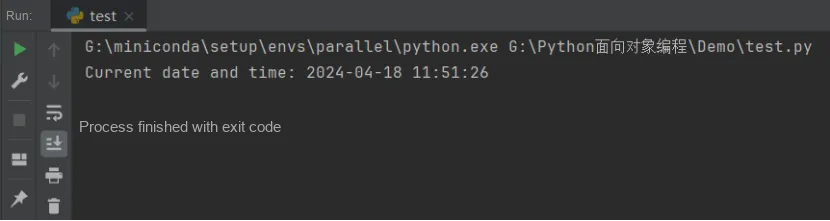
It is worth noting that these standard formatting operators can be applied not only to built-in data types, but also to other objects. For non-standard objects, we can define our own format specifiers to meet specific requirements. For example, if we pass a datetime object to format, we can use those specifiers that are available for the datetime.strftime function, such as:
from datetime import datetime

now = datetime.now()
# Format date and time
formatted_date = "Current date and time: {:%Y-%m-%d %H:%M:%S}".format(now)
print(formatted_date)
The output is as follows:
It should be noted that these specifiers must follow the correct order, though they are all optional: first comes the fill character, then the alignment, followed by the width, and finally the type.
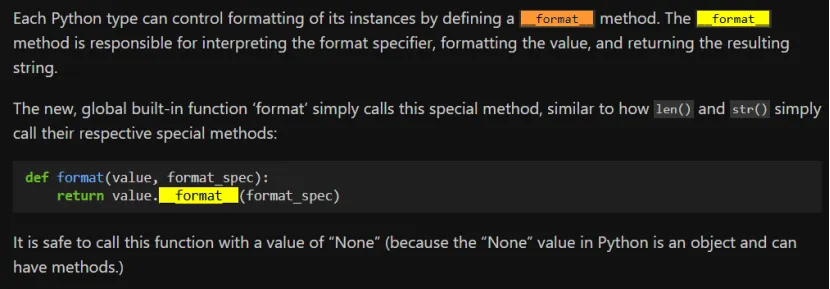
::= [[fill]align][sign]["z"]["#"]["0"][width][grouping_option]["." precision][type]In addition to using standard formatting operators, we can also customize formatting operators for our own objects by overriding the special `format` method. For more detailed operations, you can refer to the following documentation: https://peps.python.org/pep-3101/ .
Meanwhile, for the opening and closing curly braces: { and }, apart from serving as special substitution symbols in formatted strings, the curly brace characters themselves are also frequently used in strings. We need a way to escape formatting so that they appear purely as curly brace characters rather than being substituted. This can be achieved by doubling the curly braces; for instance, we can use Python to format a basic Java program:
template = """
public class {0} {{
    public static void main(String[] args) {{
        System.out.println("{1}");
    }}
}}"""
print(template.format("MyClass", "print('hello world')"))
The running results are as follows:
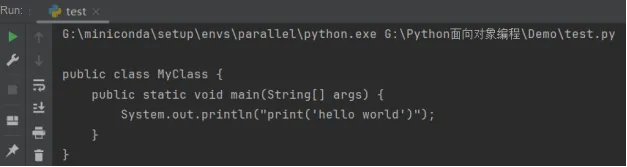
You can see that the output class name and content have been replaced by the two parameters, and the double curly braces have been replaced with single curly braces, resulting in a piece of valid Java code. Whenever you encounter {{ or }} in the template, which are the symbols used to enclose Java class and method definitions, you should know that the format method will replace them with individual curly brace symbols instead of replacing them with the parameters passed into the format method.
Here, we also summarize the usage methods of some commonly used standard formatting symbols:
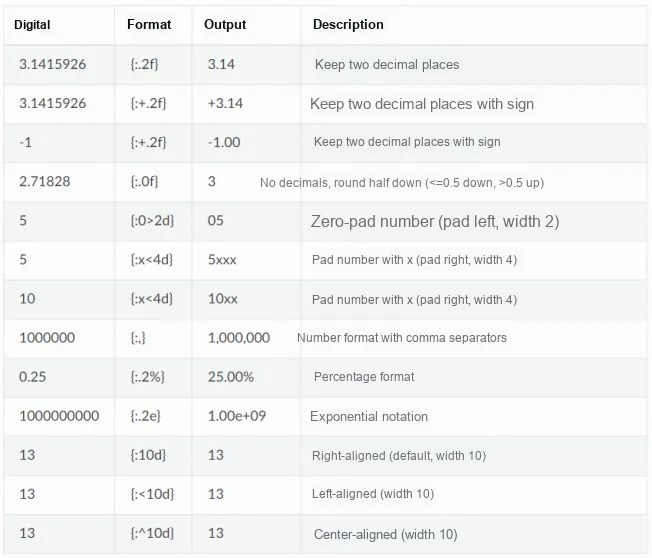
Generally speaking, the formatting operator is a very powerful tool in Python, which allows us to flexibly control the output format of data as needed. By gaining an in-depth understanding of the usage and characteristics of these operators, we can write clearer, more readable and more efficient code.