Contents
Abstract:
This article mainly introduces how to implement composition relationships when using Python Object Oriented programming, compares the advantages and disadvantages of composition relationships and inheritance relationships, and explains how to save the data received/generated by Python through the csv module.
Original Link:
Recommended from previous issues:
You who study embedded systems still don't know Object Oriented? ?!
More exciting content is available here:
Speed Up Your Python: A Quick Guide to Python Parallel Computing
Understand the Debugging Principle of CM3 Microcontroller in One Article
The "Secret Martial Arts Manual" for Computer Science Competitions
Document and Code Acquisition:
You can download the document via the following link:
https://github.com/leezisheng/Doc
This document mainly introduces how to use Python for Object Oriented programming, and requires readers to have a basic understanding of Python syntax and microcontroller development. Compared with other blogs or books that explain Python Object Oriented programming, this document is more detailed and focuses on embedded host computer applications, taking the common serial port data transmission and reception, data processing, dynamic graph drawing of host computer and slave computer as application examples, and uses Sourcetrail code software for visual code reading to facilitate readers' understanding.
The link to obtain the relevant sample code is as follows:
https://github.com/leezisheng/Python-OOP-Demo
Body Text
Earlier, we discussed inheritance for classes and objects, and learned that inheritance represents a "is-a" relationship between entities. However, there is another type of relationship between classes, which is composition. Composition refers to the act of combining multiple objects to create a new object. When one object constitutes a part of another object, composition is usually a sound choice.
For example, an automobile consists of components such as an engine, a transmission system, a starting device, headlights, a windshield, and other parts, while the engine in turn is assembled from elements including pistons, crankshafts, and valves. An automobile is an abstraction of multiple components like the engine, and the engine itself is an abstraction of parts such as pistons; the two exist at distinct levels yet have interfaces that interact with each other, making composition an effective approach to delivering different layers of abstraction. An automobile object can provide the interfaces required by a driver, while also exposing its internal constituent parts to offer a deeper abstraction suitable for mechanics to operate on.Of course, these components can be further broken down if the mechanic needs more information to diagnose the problem or adjust the engine.
Generally speaking, composition means mixing different classes and incorporating them into other classes to enhance functionality and code reusability, which is applicable to scenarios where a large class is composed of multiple small classes without requiring excessive modifications to those small classes.In the previous example, we implemented the serial communication and plotting functions of the host computer. In practical applications, we often need to store sensor data into files for subsequent viewing and processing. Obviously, the aforementioned sensor data is one-dimensional time-series data, which is suitable for being stored in a table format (that is, the column headers are index and value). We usually save such data as CSV format files. CSV is a format of string files, and its syntax for organizing data is to add separators between strings (line breaks between lines, and commas between characters in the same line), which can be opened with any text editor (such as Notepad), can also be opened with Excel, and files can also be saved as CSV format via Excel.Storing data in CSV format is relatively convenient for reading and writing, easy to implement, and the resulting file is smaller than an Excel file. However, CSV files lack many of the inherent features of Excel files, such as the inability to embed images and charts, or generate formulas, among others.
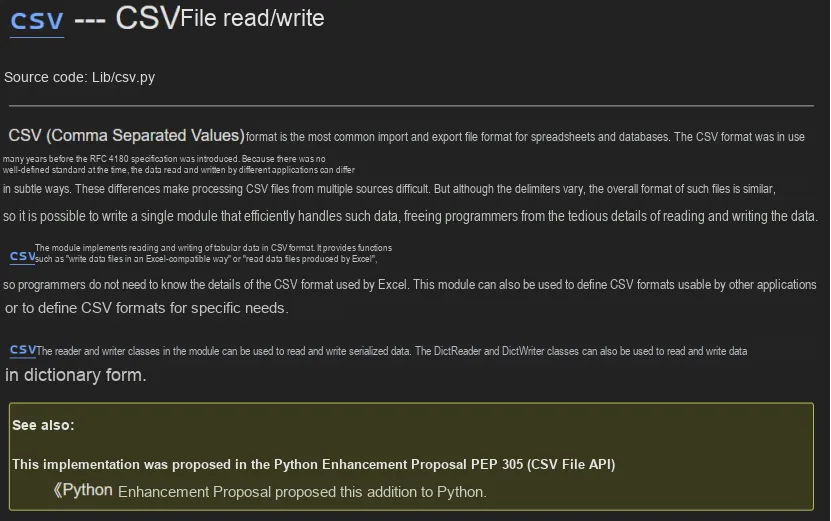
To operate CSV files, we need to use the csv module, which is built into Python and does not require installation via pip. You can click the link below to view the usage instructions for the csv module:
https://docs.python.org/zh-cn/3.13/library/csv.html#csv.writer
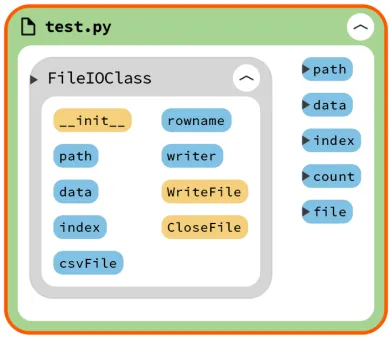
Here, we first define a FileIOClass class, which contains an initialization method, a method for writing sensor data to a file, and a method for closing the file. The sample code is as follows:
import csv
# Use the compound annotation feature provided by the typing module
from typing import List

class FileIOClass:
    def __init__(self,path:str="G:\\Python面向对象编程\\Demo\\file.csv"):
        '''
        Initialize the csv file and the column titles
        :param path: file path and file name
        '''
        self.path   = path
        # path is the output path and file name; newline='' avoids blank lines
        self.csvFile = open(path, "w+", newline='')
        # rowname is the column name, index - index, data - data
        self.rowname = ['index', 'data']
        # Return a writer object that converts the user's data into delimited strings on the given file-like object
        self.writer = csv.writer(self.csvFile)
        # Write the column titles of the csv file
        self.writer.writerow( self.rowname)

    def WriteFile(self,index:List[int],data:List[int])->None:
        '''
        :param index: sensor index list
        :param data:  sensor data list
        :return:
        '''
        writedatalist = []
        for i in range(len(data)):
            writedatalist.append([index[i],data[i]])
            # Each element in the list is written into one column of the CSV file
            self.writer.writerow(writedatalist[i])

    def CloseFile(self)->None:
        '''
        Close the file
        :return: None
        '''
        self.csvFile.close()
Here, in the initialization method, we need to pass in the file save path. After that, create a writer object, convert the user's data into a delimited string on the given file-type object, and meanwhile write the column headers of the CSV file. In the WriteFile method, pass in an index list of the data to indicate the sequence of the data, followed by the data list (the type annotation here needs to use the composite annotation function provided by the typing module), and loop to write each element into a column of the CSV file. Finally, the method for closing the file is defined.
In the main function, we create a FileIOClass object, write simulated sensor data and then close the file. The following is the sample code and running effect:
if __name__ == '__main__':
    path  = "G:\\Python面向对象编程\\Demo\\file.csv"
    data  = [11,42,307,46,55,61,78,80,19,11]
    index = [count for count in range(len(data))]

    file = FileIOClass(path)
    file.WriteFile(index,data)
    file.CloseFile()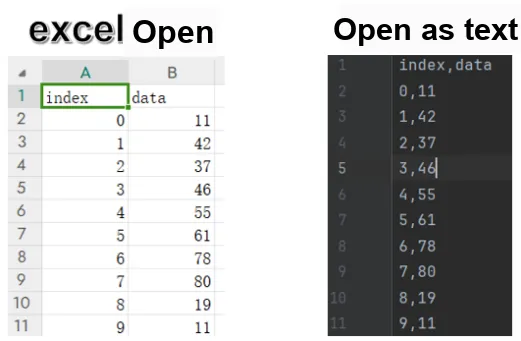
Here, we can directly create an instantiated object of the FileIOClass class in the initialization of the MasterClass class to implement composition. The code is as follows:
        # File save path
        self.savepath = "G:\\Python面向对象编程\\Demo\\file.csv"
        # Create an instance object of the FileIOClass class
        self.fileio = FileIOClass(self.savepath)
With Sourcetrail, we can clearly visualize the composition and inheritance relationships between classes:
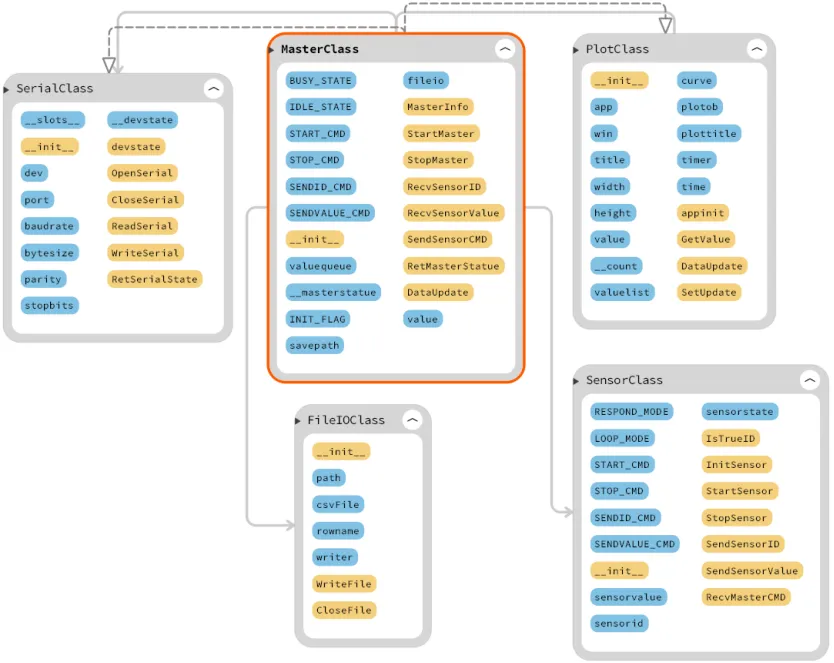
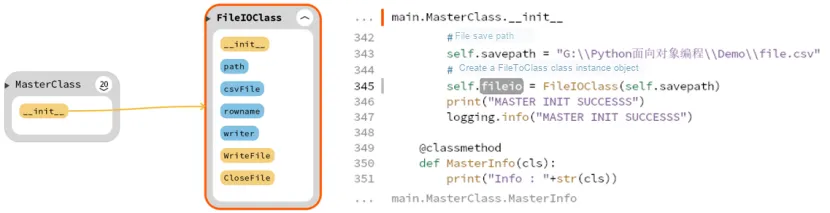
In the main program, after the host receives data 10 times, we will save the data to file.csv:
if __name__ == "__main__":
    # Create a data list
    datalist = []
    m = MasterClass(state = MasterClass.IDLE_STATE,
                    port = "COM17",
                    wintitle = "Basic plotting examples",
                    plottitle = "Updating plot",
                    width = 1000,
                    height = 600)
    m.StartMaster()
    m.SendSensorCMD(MasterClass.SENDID_CMD)
    m.RecvSensorID()

    # Loop 10 times to receive data
    for i in range(10):
        m.SendSensorCMD(MasterClass.SENDVALUE_CMD)
        value = m.RecvSensorValue()
        datalist.append(value)
    indexlist = [count for count in range(len(datalist))]

    # Write data
    m.fileio.WriteFile(indexlist,datalist)
    m.fileio.CloseFile()
The following is the running effect:
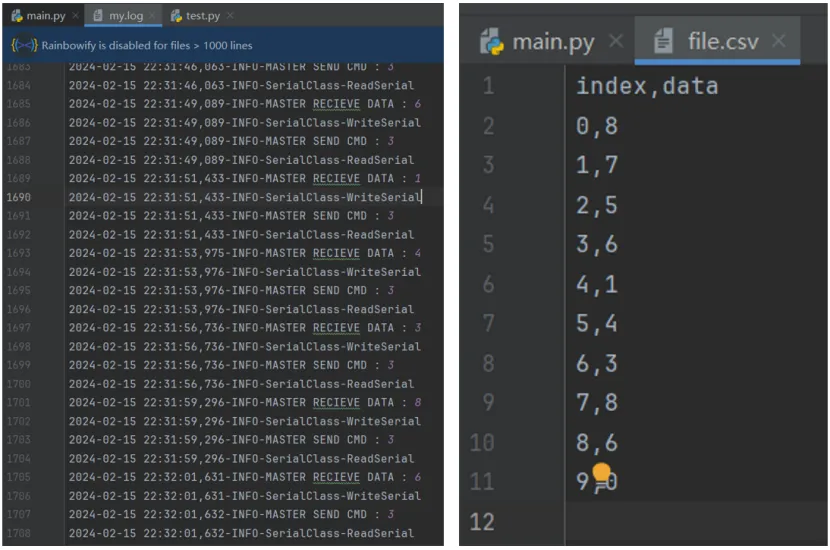
Currently, the complete code for the entire file is as follows. As you can see, even such a simple program already has more than 300 lines, which is extremely inconvenient for code searching and modification. Meanwhile, we notice that several different classes apparently have different functions and should not be placed in a single file. In the next section, we will talk about how to use modules and packages in Python to organize our code.
The complete code is as follows:
# Serial port related library
import serial
import serial.tools.list_ports
# Queue related
import queue
import random
# Log output related library
import logging
# Curve plotting related library
import pyqtgraph as pg
import numpy as np
from pyqtgraph.Qt import QtCore
# File read/write related library
import csv
# Use the compound annotation feature provided by the typing module
from typing import List
import time


# # Set the log output level
# logging.basicConfig(level=logging.DEBUG)
# Configure the log output target file and the log format
LOG_FORMAT="%(asctime)s-%(levelname)s-%(message)s"
logging.basicConfig(filename='my.log',level=logging.DEBUG,format=LOG_FORMAT)

class SerialClass:
    # Restrict the SerialClass object to binding only the following attributes
    __slots__ = ('dev','_SerialClass__devstate')
    # Initialization
    # Use default parameters
    def __init__(self,
                 devport:str     = "COM17",
                 devbaudrate:int = 115200,
                 devbytesize:int = serial.EIGHTBITS,
                 devparity  :str = serial.PARITY_NONE,
                 devstopbits:int = serial.STOPBITS_ONE):
        # Pass in the serial.Serial() class directly
        self.dev             = serial.Serial()
        self.dev.port        = devport
        self.dev.baudrate    = devbaudrate
        self.dev.bytesize    = devbytesize
        self.dev.parity      = devparity
        self.dev.stopbits    = devstopbits
        # Indicates the state of the serial device - open or closed
        # Closed at initialization
        self.__devstate      = False

        print("SerialClass init")
        logging.info("SerialClass init")

    # Getter method
    @property
    def devstate(self):
        return self.__devstate

    # Open the serial port
    def OpenSerial(self):
        print("SerialClass-OpenSerial")
        logging.info("SerialClass-OpenSerial")
        self.dev.open()
        self.__devstate = True

    # Close the serial port
    def CloseSerial(self):
        print("SerialClass-CloseSerial")
        logging.info("SerialClass-CloseSerial")
        self.dev.close()
        self.__devstate = False

    # Serial port read
    def ReadSerial(self):
        print("SerialClass-ReadSerial")
        logging.info("SerialClass-ReadSerial")
        if self.__devstate:
            # Read in blocking mode
            # Read by line
            data = self.dev.readline()
            # The received data is binary
            # Decode the binary data into a unicode string using utf-8
            # Convert the string to int
            data = int(data.decode('utf-8', 'replace'))
            return data

    # Serial port write
    def WriteSerial(self,write_data):
        print("SerialClass-WriteSerial")
        logging.info("SerialClass-WriteSerial")
        if self.__devstate:
            # Write in non-blocking mode
            self.dev.write(write_data.encode())
            # Output a newline character
            # The input parameter of write must be in bytes format
            # String data needs to be encoded into binary data with the encode() function before it can be sent successfully
            # \r\n means carriage return and line feed
            self.dev.write('\r\n'.encode())

    def RetSerialState(self):
        if self.dev.isOpen():
            self.__devstate = True
            return True
        else:
            self.__devstate = False
            return False

class PlotClass:
    # Plot class initialization
    def __init__(self,wintitle:str="Basic plotting examples",plottitle:str="Updating plot",width:int=1000,height:int=600):
        '''
        Used to initialize the Plot class
        :param wintitle:  window title
        :param plottitle: plot layer title
        :param width:     window width
        :param height:    window height
        '''
        # Qt application instance object
        self.app        = None
        # Window object
        self.win        = None
        # Set the window title
        self.title      = wintitle
        # Set the window size
        self.width      = width
        self.height     = height
        # Sensor data
        self.value      = 0
        # Counter variable
        self.__count    = 0
        # Sensor data cache list
        self.valuelist  = []
        # Plot curve
        self.curve      = None
        # Plot layer object
        self.plotob     = None
        # Plot layer title
        self.plottitle  = plottitle
        # Timer object
        self.timer = QtCore.QTimer()
        # Timer interval
        self.time  = 0
        # Qt application and window initialization
        self.appinit()

        print("PLOT INIT SUCCESS")
        logging.info("PLOT INIT SUCCESS")

    # Application initialization
    def appinit(self):
        '''
        Used to initialize the qt application, add the window, curve and plot layer
        :return: None
        '''
        # Create a Qt application and return its instance object
        self.app = pg.mkQApp("Plotting Example")
        # Create a multi-panel graphic
        # show: (bool) If True, show the widget immediately after it is created.
        # title: (str or None) If specified, sets the window title for this widget.
        self.win = pg.GraphicsLayoutWidget(show=True, title=self.title)
        # Set the window size
        self.win.resize(self.width, self.height)
        # Make global window settings; setConfigOptions configures multiple parameters at once
        # antialias enables anti-aliasing, useNumba accelerates the image
        pg.setConfigOptions(antialias=True, useNumba=True)

        # Add a plot layer
        self.plotob = self.win.addPlot(title=self.plottitle)
        # Add a curve
        self.curve = self.plotob.plot(pen='y')

    # Receive data
    def GetValue(self,value):
        '''
        Used to receive sensor data and add it to the cache list
        :param value: sensor data
        :return: None
        '''
        self.value = value
        # Add to the data cache list
        self.valuelist.append(value)
        print("PLOT RECV DATA : "+str(self.value))
        logging.info("PLOT RECV DATA : "+str(self.value))

    # Update the curve data
    def DataUpdate(self):
        '''
        Used to update the curve at timed intervals; here a sine curve is simulated
        :return: None
        '''
        # Simulate drawing a sine curve
        # Update the counter variable
        self.__count = self.__count + 0.1
        self.value = np.sin(self.__count)
        self.GetValue(self.value)
        # Convert the data into a graph
        self.curve.setData(self.valuelist)

    # Set the timed update
    def SetUpdate(self,time:int = 100):
        '''
        Set the timed update task
        :param time: timer interval
        :return: None
        '''
        # When the timer ends, trigger the DataUpdate method
        self.timer.timeout.connect(self.DataUpdate)
        # Start the timer
        self.timer.start(time)
        # Timer interval
        self.time = time
        print("PLOT SET UPDATA")
        logging.info("PLOT SET UPDATA")
        # Enter the main event loop and wait
        pg.exec()

class FileIOClass:
    def __init__(self,path:str="G:\\Python面向对象编程\\Demo\\file.csv"):
        '''
        Initialize the csv file and the column titles
        :param path: file path and file name
        '''
        self.path   = path
        # path is the output path and file name; newline='' avoids blank lines
        self.csvFile = open(path, "w+", newline='')
        # rowname is the column name, index - index, data - data
        self.rowname = ['index', 'data']
        # Return a writer object that converts the user's data into delimited strings on the given file-like object
        self.writer = csv.writer(self.csvFile)
        # Write the column titles of the csv file
        self.writer.writerow(self.rowname)

    def WriteFile(self,index:List[int],data:List[int])->None:
        '''
        :param index: sensor index list
        :param data:  sensor data list
        :return:
        '''
        writedatalist = []
        for i in range(len(data)):
            writedatalist.append([index[i],data[i]])
            # Each element in the list is written into one column of the CSV file
            self.writer.writerow(writedatalist[i])

    def CloseFile(self)->None:
        '''
        Close the file
        :return: None
        '''
        self.csvFile.close()

class SensorClass(SerialClass):
    # Class variables:
    #   RESPOND_MODE - respond mode - 0
    #   LOOP_MODE    - loop mode - 1
    RESPOND_MODE,LOOP_MODE = (0,1)
    # Class variables:
    #   START_CMD       - start command      -0
    #   STOP_CMD        - stop command      -1
    #   SENDID_CMD      - send ID command    -2
    #   SENDVALUE_CMD   - send data command   -3
    START_CMD,STOP_CMD,SENDID_CMD,SENDVALUE_CMD = (0,1,2,3)

    # Class initialization
    def __init__(self,port:str = "COM11",id:int = 0,state:int = RESPOND_MODE):
        # Call the parent class initialization method; the super() function connects the parent class and the child class
        super().__init__(port)
        self.sensorvalue = 0
        self.sensorid    = id
        self.sensorstate = state
        print("Sensor Init")
        logging.info("Sensor Init")

    @staticmethod
    # Check whether the sensor ID is valid: here, check whether the ID is between 0 and 99
    def IsTrueID(id:int = 0):
        if id >= 0 and id <= 99:
            print("Sensor ID True")
            return True
        else:
            print("Sensor ID False")
            return False

    # Sensor power-on initialization
    def InitSensor(self):
        # Sensor power-on initialization
        # Output the ID and the state at the same time
        print("Sensor %d Init complete : %d"%(self.sensorid,self.sensorstate))
        logging.info("Sensor %d Init complete : %d"%(self.sensorid,self.sensorstate))

    # Start the sensor
    def StartSensor(self):
        super().OpenSerial()
        print("Sensor %d start serial %s "%(self.sensorid,self.dev.port))
        logging.info("Sensor %d start serial %s "%(self.sensorid,self.dev.port))

    # Stop the sensor
    def StopSensor(self):
        super().CloseSerial()
        print("Sensor %d close serial %s " % (self.sensorid, self.dev.port))
        logging.info("Sensor %d close serial %s " % (self.sensorid, self.dev.port))

    # Send the sensor ID
    def SendSensorID(self):
        super().WriteSerial(str(self.sensorid))
        print("Sensor %d send id "%self.sensorid)
        logging.info("Sensor %d send id "%self.sensorid)

    # Send the sensor data
    def SendSensorValue(self):
        # Generate a random integer in [1, 10]
        data = random.randint(1, 10)
        super().WriteSerial(str(data))
        print("Sensor %d send data  %d" % (self.sensorid,data))
        logging.info("Sensor %d send data  %d" % (self.sensorid,data))

    # Receive host commands
    def RecvMasterCMD(self):
        cmd = super().ReadSerial()
        print("Sensor %d recv cmd %d " % (self.sensorid,cmd))
        logging.info("Sensor %d recv cmd %d " % (self.sensorid,cmd))
        return cmd

class MasterClass(SerialClass,PlotClass):
    # Class variables:
    #   BUSY_STATE  - busy state - 0
    #   IDLE_STATE  - idle state - 1
    BUSY_STATE, IDLE_STATE = (0, 1)
    # Class variables:
    #   START_CMD       - start command      -0
    #   STOP_CMD        - stop command      -1
    #   SENDID_CMD      - send ID command    -2
    #   SENDVALUE_CMD   - send data command   -3
    START_CMD, STOP_CMD, SENDID_CMD, SENDVALUE_CMD = (0, 1, 2, 3)

    # Class initialization
    def __init__(self,state:int = IDLE_STATE,port:str = "COM17",wintitle:str="Basic plotting examples",plottitle:str="Updating plot",width:int=1000,height:int=600):
        # Call the __init__ methods of the different parent classes separately
        SerialClass.__init__(self,port)
        PlotClass.__init__(self,wintitle,plottitle,width,height)
        self.valuequeue   = queue.Queue(10)
        self.__masterstatue = state
        # Flag indicating initialization is complete
        self.INIT_FLAG = False
        # File save path
        self.savepath = "G:\\Python面向对象编程\\Demo\\file.csv"
        # Create an instance object of the FileIOClass class
        self.fileio = FileIOClass(self.savepath)
        print("MASTER INIT SUCCESSS")
        logging.info("MASTER INIT SUCCESSS")

    @classmethod
    def MasterInfo(cls):
        print("Info : "+str(cls))

    # Start the host
    def StartMaster(self):
        super().OpenSerial()
        print("START MASTER :"+self.dev.port)
        logging.info("START MASTER :"+self.dev.port)

    # Stop the host
    def StopMaster(self):
        super().CloseSerial()
        print("CLOSE MASTER :" + self.dev.port)
        logging.info("CLOSE MASTER :" + self.dev.port)

    # Receive the sensor ID
    def RecvSensorID(self):
        sensorid = super().ReadSerial()
        print("MASTER RECIEVE ID : " + str(sensorid))
        logging.info("MASTER RECIEVE ID : " + str(sensorid))
        return sensorid

    # Receive the sensor data
    def RecvSensorValue(self):
        data = super().ReadSerial()
        print("MASTER RECIEVE DATA : " + str(data))
        logging.info("MASTER RECIEVE DATA : " + str(data))
        self.valuequeue.put(data)
        return data

    # Host sends a command
    def SendSensorCMD(self,cmd):
        super().WriteSerial(str(cmd))
        print("MASTER SEND CMD : " + str(cmd))
        logging.info("MASTER SEND CMD : " + str(cmd))

    # Host returns its working state -
    def RetMasterStatue(self):
        return self.__masterstatue

    # Override the parent class's DataUpdate method
    def DataUpdate(self):
        self.SendSensorCMD(self.SENDVALUE_CMD)
        self.value = self.RecvSensorValue()
        self.WriteSerial("Recv:"+str(self.value))
        self.GetValue(self.value)
        self.curve.setData(self.valuelist)
        print("PLOT UPDATA : " + str(self.value))
        logging.info("PLOT UPDATA : " + str(self.value))

class DevClass(SerialClass):
    def __init__(self,port:str = "COM1"):
        super().__init__(port)

    # Turn on the device
    def StartDev(self):
        super().OpenSerial()
        print("START Dev :" + self.dev.port)

    def ReadSerial(self,byte_size):
        if super().RetSerialState():
            data = self.dev.read(byte_size)
            data = int(data.decode('utf-8', 'replace'))
            return data

# Check whether the serial port of the serial class object is open
def IsSerialConnected(serialclass):
    return serialclass.RetSerialState()

if __name__ == "__main__":
    # Create a data list
    datalist = []
    m = MasterClass(state = MasterClass.IDLE_STATE,
                    port = "COM17",
                    wintitle = "Basic plotting examples",
                    plottitle = "Updating plot",
                    width = 1000,
                    height = 600)
    m.StartMaster()
    m.SendSensorCMD(MasterClass.SENDID_CMD)
    m.RecvSensorID()

    # Loop 10 times to receive data
    for i in range(10):
        m.SendSensorCMD(MasterClass.SENDVALUE_CMD)
        value = m.RecvSensorValue()
        datalist.append(value)
    indexlist = [count for count in range(len(datalist))]

    # Write data
    m.fileio.WriteFile(indexlist,datalist)
    m.fileio.CloseFile()