
Contents
Abstract:
This article mainly introduces the installation and usage of Sourcetrail, a powerful tool for visually reading code, covering the software's introduction and features, download link, installation method, creating new projects, and how to view and analyze source code. It also briefly explains the usage of the Sourcetrail plugin in PyCharm.
Original Link:
Previous Recommendations:
You who are learning embedded systems still don't know Object Oriented? ?!
More exciting content can be found here:
Speed Up Your Python: A Quick Guide to Python Parallel Computing
Understand the Debugging Principle of CM3 Microcontroller in One Article
The "Secret Martial Arts Manual" for Computer Science Competitions
Document and Code Acquisition:
You can download the document via the following link:
https://github.com/leezisheng/Doc
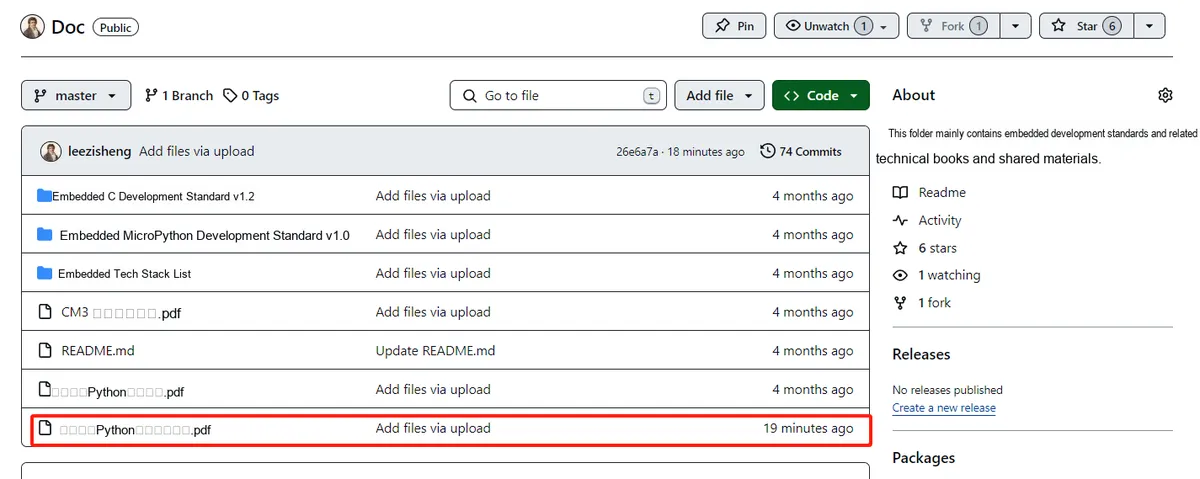
This document mainly introduces how to use Python for Object Oriented programming, and requires readers to have a basic understanding of Python syntax and single-chip microcomputer development. Compared with other blogs or books that explain Python Object Oriented programming, this document is more detailed and focuses on embedded host computer applications, taking the common serial port data transmission and reception, data processing, dynamic graph drawing and other functions between the host computer and the lower computer as application examples. Meanwhile, Sourcetrail code software is used for visual reading of the code to facilitate readers' understanding.
The link to obtain the relevant sample code is as follows:
https://github.com/leezisheng/Python-OOP-Demo
Main Text
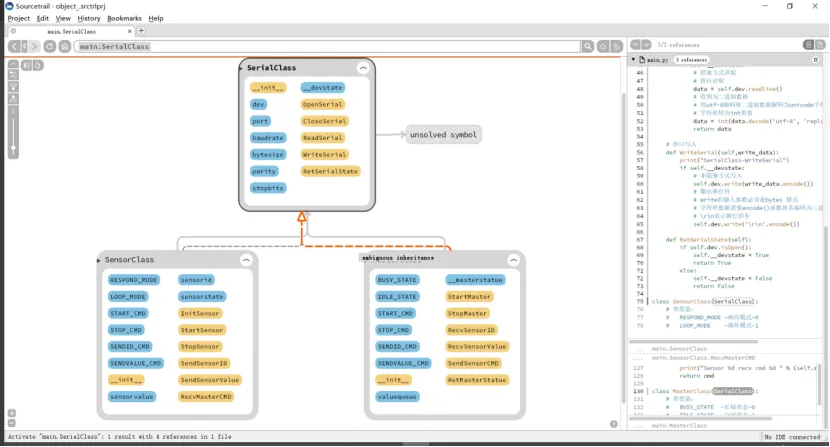
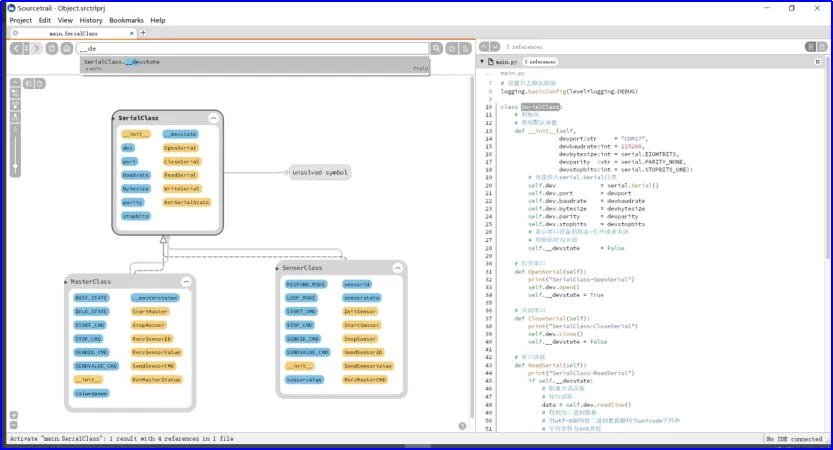
Here, we can use the Sourcetrail software to visually read the code. As a free, open-source and cross-platform visual source code exploration project, Sourcetrail can intuitively represent details such as upstream and downstream calls, class member lists and more in graphical form, making it extremely easy to understand the structure of the source code.The following is the graphical class diagram we obtained by analyzing the sample code with Sourcetrail, from which you can easily see the inheritance relationship between SerialClass, SensorClass and MasterClass as well as the methods and attributes of each class:
For the download and installation of Sourcetrail, please refer to:
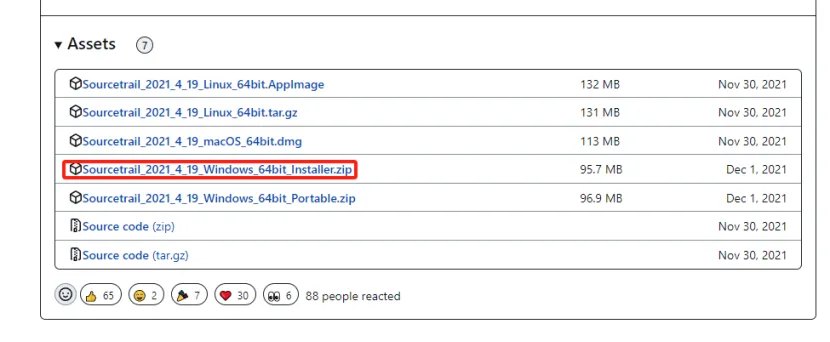
https://github.com/CoatiSoftware/Sourcetrail/releases
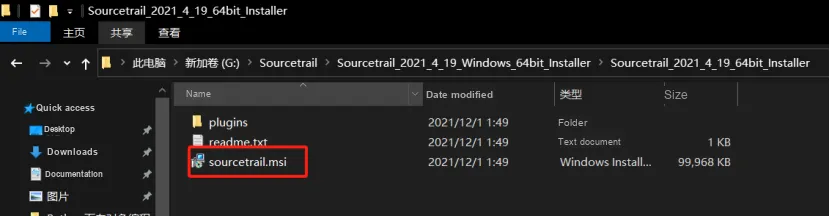
We select Sourcetrail_2021_4_19_Windows_64bit_Installer.zip version to download. After extracting the downloaded installation package, you can find an msi file, just double-click it to install:
If you encounter error code 2053 during the installation process, refer to the following link for a solution:
https://zhuanlan.zhihu.com/p/356008224
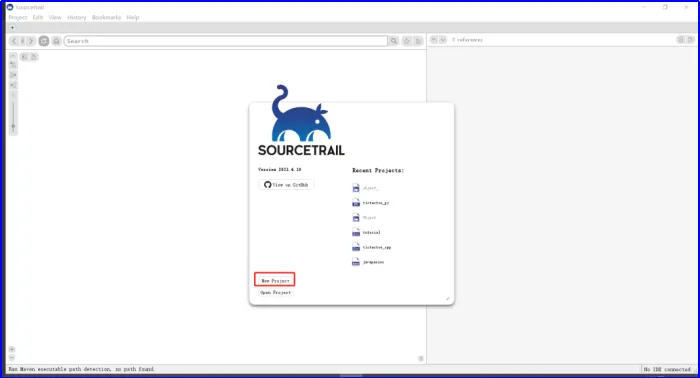
Next, let's take a look at how to analyze source code with Sourcetrail. Open the Sourcetrail software and first click to create a new project:
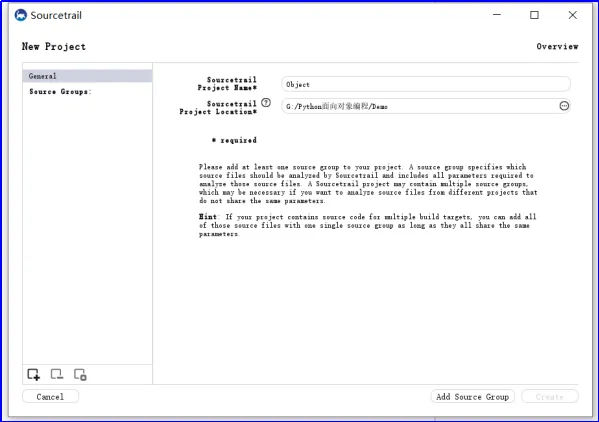
Next, fill in the project name and the address of the file to be parsed:
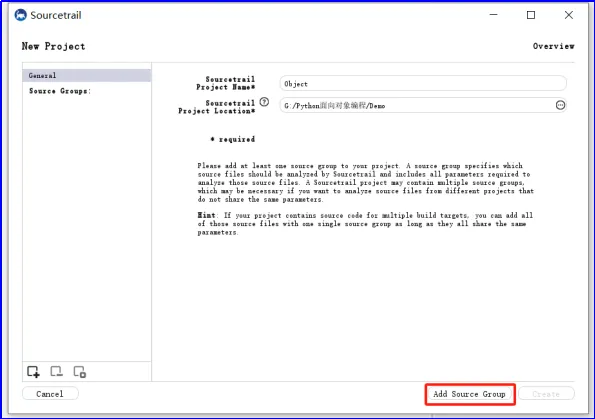
Then click Add Source Group:
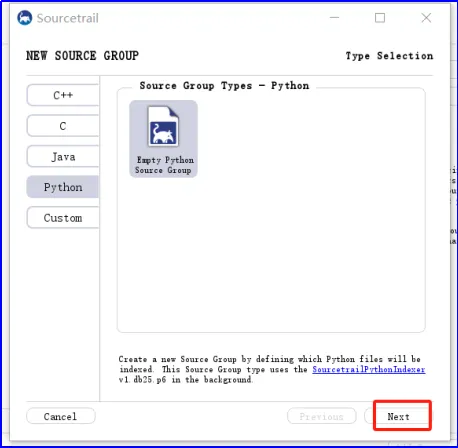
Select a Python file, create an empty source code analysis group, and click Next:
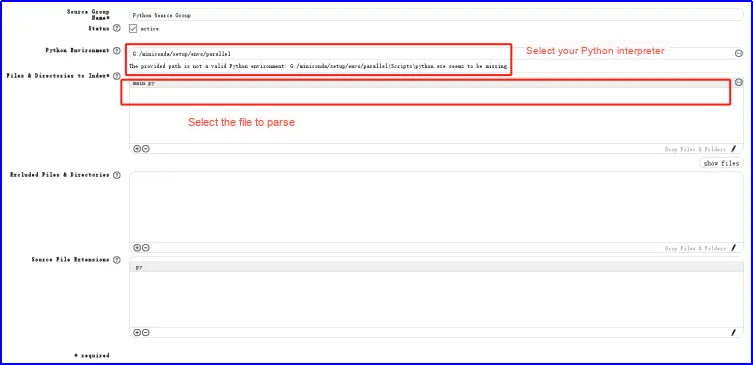
Just fill in the information as shown in the following figure:
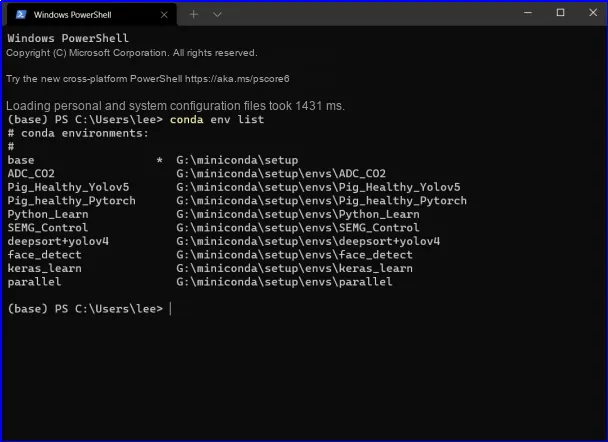
Here, if you are using a virtual environment, you can run `conda env list` to get the path of the virtual environment interpreter:
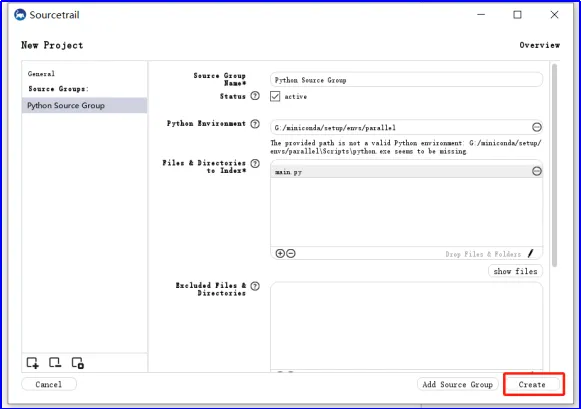
After configuration is complete, click Create:
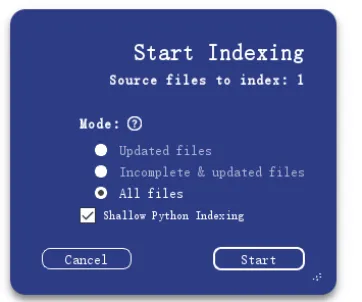
Start the creation, be sure to check the shallow python index option, and click Start:
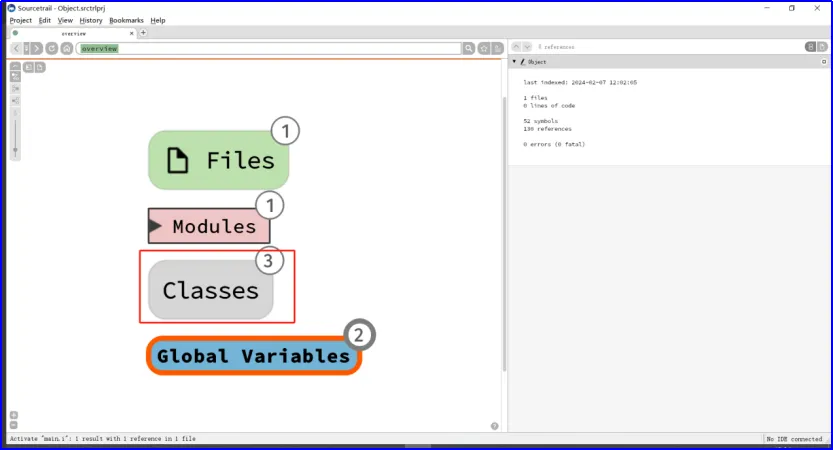
Here, you can see our analysis results. Sourcetrail roughly categorizes the parsing results by "Files", "Modules" and other such groups, which can greatly facilitate our work of reading other people's code. Click on "classes":
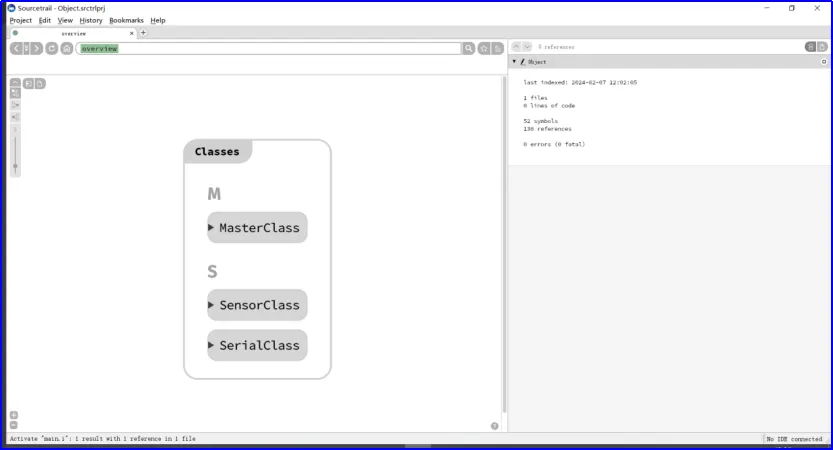
You can see which classes are included in our file:
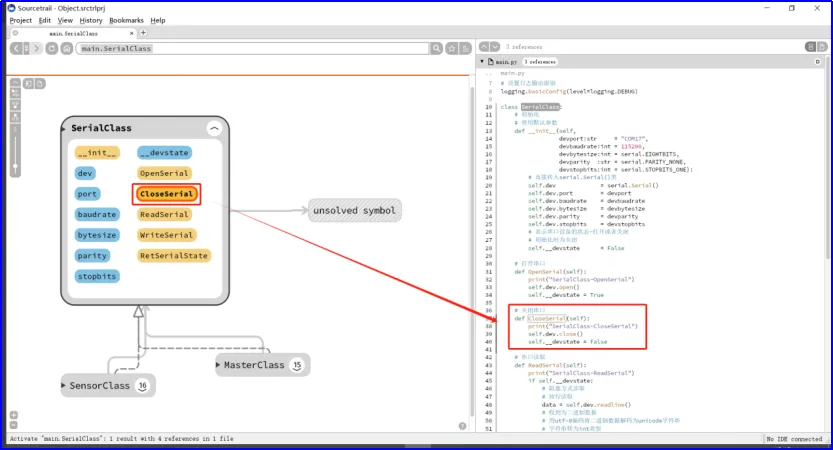
Click the SerialClass class to view its properties and methods, with the corresponding source code on the right:
Click any method to view its invocation details:
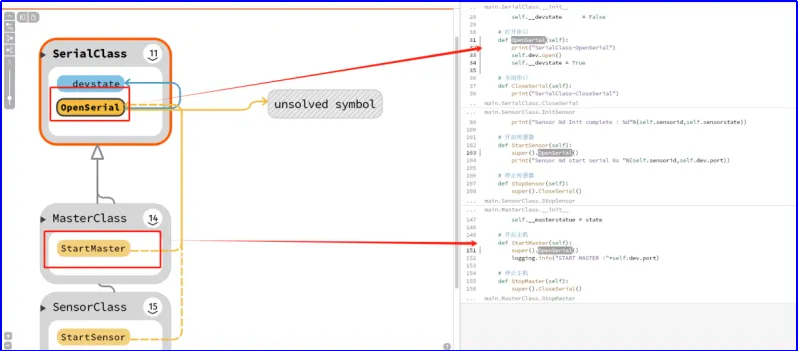
All symbols in the project are clickable, support bidirectional navigation, and are compatible with fuzzy search. The source code structure on the left is extremely clear, which is very helpful for getting familiar with an unfamiliar codebase.
We can also install the idea-sourcetrail plugin in Pycharm to use with it. Sourcetrail supports linking with your preferred code editor: right-click in the editor to activate Sourcetrail and view the contextual visualization. Conversely, you can also click in Sourcetrail to directly edit the corresponding file in the editor.
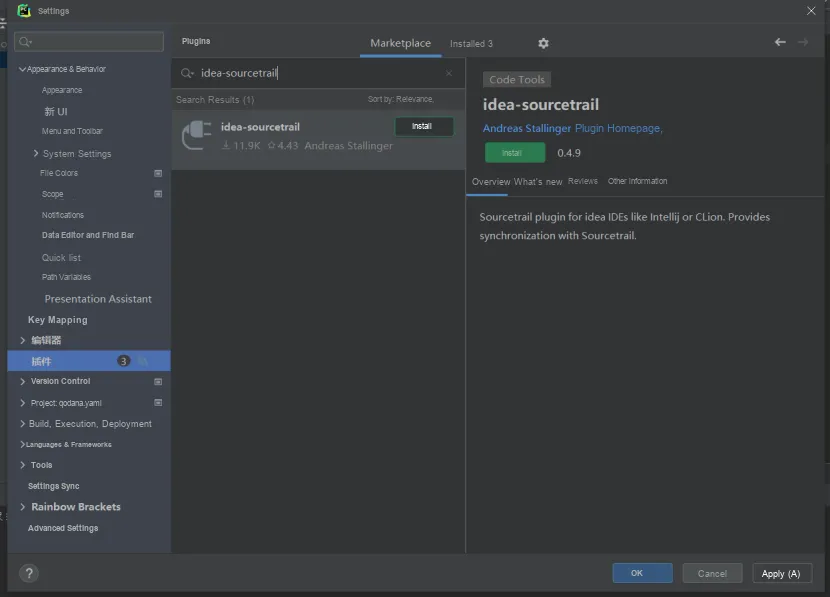
Click to install and apply, then restart the IDE. For specific usage, please refer to:
https://cloud.tencent.com/developer/news/594864
Sourcetrail can also be linked with other editors, such as Atom, CLion, Eclipse, Emacs, IntelliJ IDEA and so on. For more features, please refer to the official documentation:
https://www.sourcetrail.com/python/
As a matter of fact, there are many other source code analysis tools of this kind, such as Source Insight and Understand.