
5.1 Timers
The timer system built into LVGL is a core tool for implementing "periodic tasks" and "delayed execution" in embedded UI development, especially in MPY/MicroPython scenarios. Its design adapts to the lightweight requirements of embedded systems and follows the "non-preemptive" principle, which ensures the security of LVGL API calls and eliminates concerns about UI exceptions caused by timer interrupts.
- Core Features: Create scheduled tasks, support setting execution cycle, repetition times, pause/resume, and can be applied to scenarios such as scheduled refresh, delayed operations, and background tasks.
- Advanced Features: Supports asynchronous calls, idle time measurement, and adapts to task scheduling in RTOS environments.
5.1.1 Core Principle of Timer
The LVGL timer is not a hardware timer, but a task scheduling tool at the software level, which relies on the lv_timer_handler () function at its core:
- The callback functions of all timers only execute when
lv_timer_handler ()is called; - Ensure that
lv_timer_handler ()is called every few milliseconds (usually placed in the main loop / RTOS task), otherwise the timer will not be triggered at all; - The "period (period_ms)" of a timer essentially means that the callback will only be executed when the interval between two
lv_timer_handler ()calls meets this duration.
Meanwhile, the LVGL timer is "non-preemptive":
- When the callback function of a timer is being executed, the callback functions of other timers will not interrupt it;
- Therefore, any LVGL API can be safely called in the timer callback (such as creating controls, modifying styles, and deleting objects) without the need to handle complex synchronization issues related to multi-threading or interrupts, which is particularly important for MPY embedded development.
5.1.2 Timer Creation
LVGL provides two creation methods to adapt to different configuration requirements:
5.1.2.1 Create with Parameters
Key parameters can be directly specified when created via the core function, and will take effect immediately after creation:
- Callback function: The business logic to be executed when the timer is triggered. The callback receives the timer object itself as an input parameter, through which the timer's attributes can be obtained or modified;
- Period (period_ms): The execution interval of the callback (unit: milliseconds; for example, 500ms means the callback is executed once every 500 milliseconds);
- User Data (user_data): Any type of data (e. g., control pointers, status variables) can be passed to the callback; it is necessary to ensure that the data remains "valid" throughout the lifecycle of the timer (e. g., global variables, Static Variables, dynamically allocated memory, to avoid exceptions caused by the destruction of local variables).
5.1.2.2 Base Creation
Create an "empty timer via lv_timer_create_basic (), then dynamically configure parameters such as callback function, period, and user data after creation. This approach is suitable for scenarios where you need to create the object first and adjust parameters later according to business logic.
5.1.3 Basic Operations of Timer (Configuration and Control)
Serial No. | Functions | Description | Scenarios / Examples | Notes |
1 | Ready and Reset (Trigger and Cycle Reset) |
|
|
|
2 | Dynamically modify timer parameters | After a timer is created, its core parameters can be modified at any time without the need to recreate the timer. | You can modify the callback function to replace the logic executed when the timer is triggered; you can also modify the period to adjust the callback execution interval, for example, changing it from 500ms to 1000ms. | The behavior of the timer will immediately take effect according to the new parameters after modification. |
3 | Repetition Count Control | You can use | Set it to a specific value (e. g. |
|
5.1.4 Start, Stop, Pause and Resume of Timers
Serial No. | Functions | API | Description | Features | Applicable Scenarios |
1 | Enable / Disable |
| After the timer is enabled, periodic execution resumes; after the timer is disabled, execution stops and the periodic timer is reset. | When disabled, the timing progress will be reset to zero; when re-enabled, timing will start from 0. | Suitable for long-term switching timers, such as the main function switch (which stops completely after being turned off and restarts timing after being turned on again). |
2 | Pause / Resume |
| Pausing the timer will stop the execution while retaining the current timing progress; after resuming, the timing will continue from the paused position. | The progress remains unchanged after pausing; after resuming, the callback will be triggered once the remaining cycle is completed. | It is applicable to temporarily suspending tasks, such as pausing the animation timer when a pop-up window blocks the view and resuming it after the window is closed. |
5.1.5 Idle Time Measurement
lv_timer_get_idle () is used to obtain the idle time proportion of lv_timer_handler ():
- Core meaning: This value represents
lv_timer_handler ()the percentage of time during execution where "no timers require processing" relative to the total invocation time; - Key Notes:
- It only reflects the idle status of the LVGL timer system, and does not represent the idle time of the entire embedded system;
- If
lv_timer_handler ()is called in the system timer in an RTOS, this value cannot reflect the time consumed by the RTOS idle thread and thus has limited reference significance;
- Scenario: Evaluate the load of the LVGL timer (e. g., if the idle rate is too low, it indicates that the timer tasks are overly dense, and the timer period needs to be optimized).
5.1.6 Timer Handler Recovery Callback
When lv_timer_handler () is stopped (e. g., during system sleep), if you need to monitor its "wake-up timing"(i. e., when lv_timer_handler () resumes being called), you can set a resume callback:
- Bind the callback function and user data via
lv_timer_handler_set_resume_cb (); - The callback will be triggered when
lv_timer_handler ()resumes running from the stopped state; - Scenario: Low-power scenario (system stops
lv_timer_handler ()when sleeping, and triggers a callback to restore UI state after wake-up).
5.1.7 Asynchronous Call
Asynchronous invocation is an extended capability of the timer system, which addresses the issue of "being unable to execute a certain operation immediately", with the core being "to defer the task to the next lv_timer_handler () invocation for execution".
- Core usage scenarios:
- Failed to delete the object immediately: the object is currently being rendered by LVGL or used by other logic; deleting it immediately will cause a crash, so deferred deletion is required.
- Avoid blocking the current execution: time-consuming UI operations (such as batch creation of controls) will block the main loop if placed in the current logic, so they need to be executed asynchronously;
- Ensure LVGL context: Certain operations must be performed within the
lv_timer_handler ()(i. e., in the same context as timers) to avoid thread safety issues.
- Basic Usage and Cancellation:
- Register asynchronous task: via
lv_async_call ()to specify the function to be executed later and the data to be passed; only the data pointer will be saved, so it is necessary to ensure that the data remains "valid" before the function is executed (e. g. global variables / Static Variable); - Cancel asynchronous task:
lv_async_call_cancel ()matches the "target function + data pointer" to clear all eligible asynchronous calls.
- Register asynchronous task: via
- Asynchronous object deletion:
- There is no need to define a custom asynchronous function; simply pass the object to be deleted, and this object will be safely deleted during the next
lv_timer_handler ()call. - Scenario: Quickly implement safe deletion of objects (e. g., delay the deletion of a pop-up window after a button is clicked).
- There is no need to define a custom asynchronous function; simply pass the object to be deleted, and this object will be safely deleted during the next
5.2 Animation System (Animations)
The core of LVGL's animation system lies in automatically and periodically modifying the attribute values of target objects (such as the coordinates, dimensions, and opacity of controls). It achieves visual dynamic effects by binding an "execution callback", eliminating the need for manual loop control throughout the process, and features lightweight performance and ease of use adapted to embedded (MPY) scenarios. Following a design logic of "defining animation rules via configuration for automatic execution by the framework", it supports single-attribute animations and composite timeline animations, while allowing highly customized dynamic effect styles.
- Animation Creation: Defines the change process of object properties such as position, size, and transparency, and supports custom animation paths including linear, accelerated, and decelerated paths.
- Timeline: Combines multiple animations into a sequence to create complex dynamic effects (such as page transitions and loading animations).
- Performance Control: Animation speed/duration is configurable, and animations can be deleted or paused to avoid resource waste.
5.2.1 Core Principles of Animation
- Essential logic: Animation is a value transition process from the start value to the end value. LVGL will, according to the set duration and curve, periodically call the "execution callback function", pass the current value during the transition process into the callback, and finally modify the properties of the target object (such as
lv_obj_set_xfor modifying the x-coordinate,lv_obj_set_widthfor modifying the width). - Callback Compatibility: Most of the attribute-setting functions built into LVGL (such as those for modifying coordinates, dimensions, and opacity) are adapted to the format of animation callbacks, and can be used directly without custom callbacks, which reduces development costs.
- Parallelism and Overlap Rules:
- Different properties of the same object can be animated simultaneously (e. g., modifying both the x and y coordinates at the same time);
- For the same object and the same attribute (e. g., the same
lv_obj_set_xcallback), there can only be one animation; a newly started animation will overwrite the existing one.
5.2.2 Creation and Configuration of Single Animation
The core of creating an animation follows the workflow of "initialization → configure rules → launch". All rules are defined via configuration items, which are divided into mandatory configurations (animation fundamentals) and optional configurations (customized animation effects).
5.2.2.1 Mandatory Configuration
This is the foundation for the animation to function, defining "what to modify, which object to modify, how long the modification lasts, and the start and end points of the modification":
5.2.2.2 Optional Configuration
These configurations enable richer animation behaviors to adapt to different UI scenarios:
5.2.2.3 Animation Startup
After completing all configurations, call the start function to trigger the animation; the framework will automatically handle numerical calculation and callback invocation without manual intervention.
5.2.3 Animation Path (Motion Effect Curve) — Controlling the Gradient Rhythm
Animation path is a function that calculates the current value based on the animation progress, which determines the "feel" of the animation effect. LVGL has multiple built-in common paths that cover most scenarios:
5.2.4 Conversion between Speed and Time
The default animation defines the total duration via "duration", but in some scenarios, "speed"(e. g. moving 20 pixels per second) is more intuitive. LVGL provides a conversion function for this:
- Core Logic:
Duration =(Value Difference ÷ Speed) × 1000(Speed unit: unit/second, Duration unit: millisecond); - Example: Move the control from 0px to 100px at a speed of 20px/s → Duration = 100÷20×1000 = 5000 milliseconds (5 seconds);
- Applicable Scenario: It is necessary to unify the animation speeds for different distances (e. g., maintain a speed of 20px per second regardless of whether the movement distance is 100px or 200px).
5.2.5 Deletion of Animations
If you need to stop the animation midway, you can delete it by using the combination of "target object + execution callback"(this is the unique identifier of the animation); once deleted, the animation will stop immediately and trigger the "deletion callback"(if configured).
5.2.6 Timeline — Composite Animation Scheduling
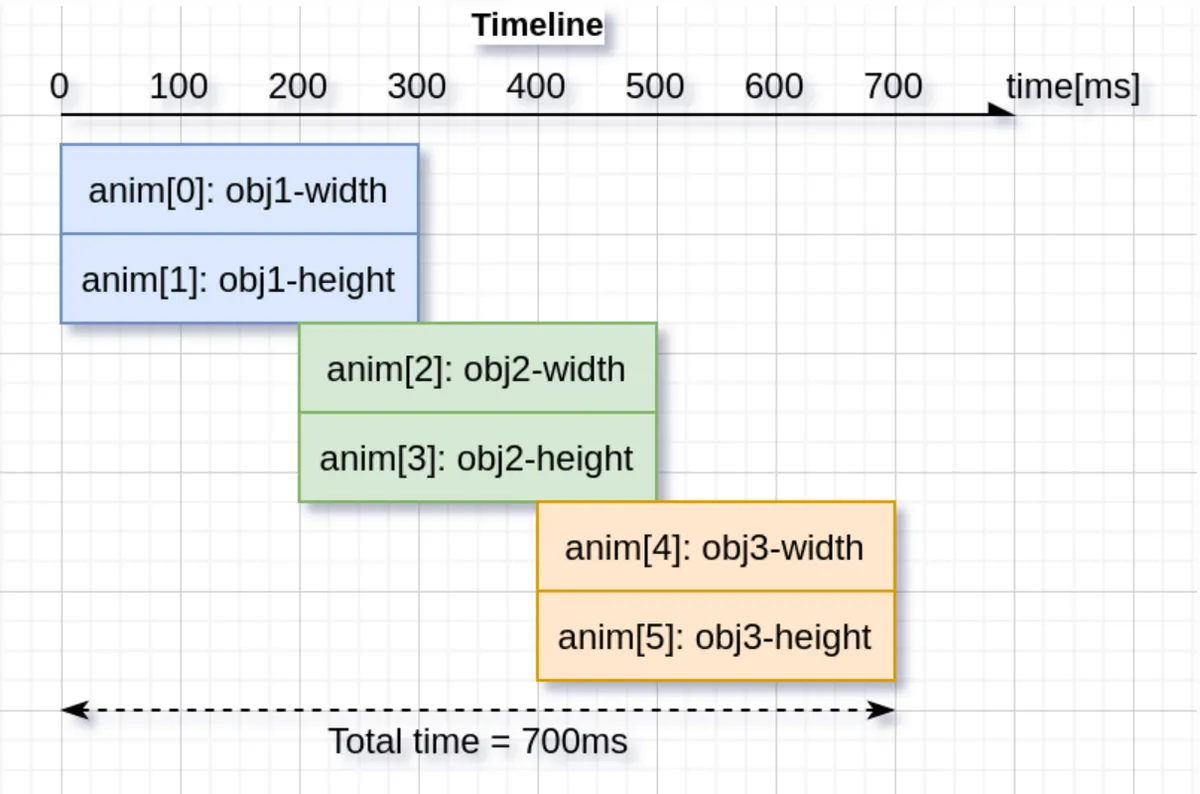
When it is necessary to implement "dynamic effects of multiple controls and multiple attributes according to a specific timeline"(such as boot guide animations and combined pop-up dynamic effects), a single animation is difficult to manage. LVGL provides the "timeline" function, which integrates multiple animations into a whole according to the timeline:
5.2.6.1 Core Value of the Timeline
- Unify the timing management of multiple animations (e. g. Animation A starts at 0ms, Animation B starts at 500ms, Animation C starts at 1000ms);
- Supports overall reverse playback, pause, and jumping to a specified progress position;
- Simplify the logic of complex motion effects (no need to manually manage the delays and callbacks of multiple animations).
5.2.6.2 Process for Creating and Using Timelines
- Create a single animation: Define each sub-animation according to the configuration rules for a single animation, but do not start it;
- Create a timeline object: Initialize an empty timeline container;
- Add sub-animations to the timeline: Specify the "start time on the timeline" for each sub-animation (this time will override the sub-animation's own delay configuration);
- Start Timeline: Triggers the entire composite animation, and the framework will automatically execute each sub-animation according to the timeline;
5.2.6.3 Core Operations of the Timeline
| Operation | Function description |
|---|---|
| Reverse playback | Reverses the whole timeline (e.g., runs from the last animation back to the first); |
| Set progress | Jump directly to a specified progress on the timeline (e.g., start playing from 50% progress); |
| Get total duration | Check the total time of the entire timeline; |
| Stop timeline | Pause all child animations; |
| Delete timeline | Destroy the timeline and all child animations (important: before deleting a widget that is being animated, delete the timeline first to avoid a crash); |
Version Record
Version Number | Modifier | Time | Content |
v1.0 | Li Zisheng | 2026/03/23 | Initialize the document. |