
4.6 Scrolling
Scrolling is the core interaction mechanism in LVGL that enables users to swipe and browse when content exceeds the container bounds, which is widely applied in scenarios such as lists, long text, and carousels, with a design that aligns with the operation intuition of embedded devices.
The essence of scrolling lies in the 'size difference' between the container and the content:
- Scrolling container: The parent object (e. g. a small box) that acts as the "viewport", which has a fixed size and defines the area visible to the user.
- Child content: Controls placed inside a container (such as buttons, images, text) — when the total size of these child content exceeds the container's visible area, the container will automatically switch to a "scrollable state", allowing users to swipe to view all content.
- Trigger Condition: The total width of the child elements exceeds the container width (for horizontal scrolling), or the total height of the child elements exceeds the container height (for vertical scrolling); scrolling will be triggered as long as either of the two conditions is met.
It should be noted that LVGL does not support diagonal scrolling, and you can only choose one of the following two directions:
- Vertical Scroll (VER): Slide up and down, suitable for lists and long text (the most common type).
- Horizontal Scroll (HOR): Slide left and right, suitable for carousels and horizontal menus.
- No Scrolling (NONE): Locks the container, making it impossible to scroll even when the content overflows.
The scrollbar is a standalone component (LV_PART_SCROLLBAR) of the container, used to visually indicate:
- Where it is currently scrolled (slider position).
- How much content remains unread (slider length).
Scrollbars can be styled individually (including color, thickness and spacing), and their show/hide logic can also be controlled.
A complete scrolling operation goes through three key stages, which can be monitored via event listeners:
- Scroll Start (SCROLL_BEGIN): The user presses the screen and swipes, officially initiating the scrolling action.
- Scrolling (SCROLL): Triggered once every time the position changes, suitable for real-time UI updates.
- Scroll End (SCROLL_END): The finger is lifted and the scrolling comes to a complete stop, which is suitable for implementing finalization logic (such as loading more content).
Here is the quick reference sheet for LVGL MicroPython scrolling function API:
Category | Method | Function | Description / Scenario |
Scroll Basic Configuration |
| Set the allowed scrolling directions | It supports controlling horizontal scrolling, vertical scrolling, or disabling scrolling. |
Scroll Basic Configuration |
| Set the scrollbar display mode | The scrollbar can be configured to automatically show, always show, or be hidden. |
Scroll Basic Configuration |
| Set scroll snapping effect | Automatically aligns to the specified position after release, which is suitable for scenarios such as carousel carousels. |
Scroll Control Method |
| relative scrolling | Scroll based on the offset from the current position |
Scroll Control Method |
| Absolute Scrolling | Scroll directly to the specified |
Scroll Control Method |
| Control horizontal/vertical scrolling independently | respectively control the scrolling position in the X-axis or Y-axis direction. |
Scroll Control Method |
| Automatically scroll to display the current control | Make the current control fully displayed on the screen, which is often used for automatically locating elements. |
Scroll State Acquisition |
| Get the current scroll coordinates | Returns the current X/Y scroll position of the container. |
Scroll State Acquisition |
| Obtain the vertical boundaries | Returns the maximum scrolling boundaries at the top / bottom in the vertical direction. |
Scroll State Acquisition |
| Obtain the horizontal boundary | Returns the maximum scroll boundary on the left / right side in the horizontal direction. |
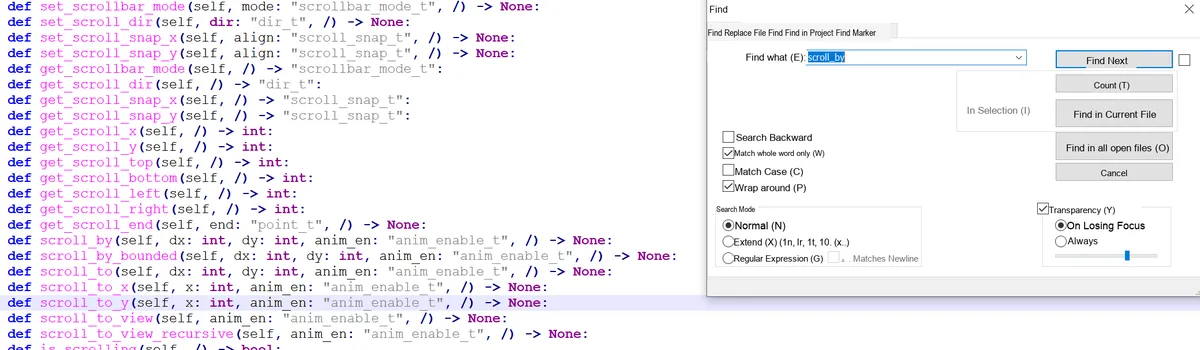
Scroll Direction Setting:
| Function | Related code |
|---|---|
| Vertical scrolling | container.set_scroll_dir(lv.DIR.VER) |
| Horizontal scrolling | container.set_scroll_dir(lv.DIR.HOR) |
| Scrolling disabled | container.set_scroll_dir(lv.DIR.NONE) |
| Scrollbar shown automatically | container.set_scrollbar_mode(lv.SCROLLBAR_MODE.AUTO) |
The scrollbar modes of LVGL are as follows:
| Enum constant | Meaning | Core function (beginner-friendly) |
|---|---|---|
| lv.SCROLLBAR_MODE.OFF | Off | Never shows the scrollbar, completely hidden |
| lv.SCROLLBAR_MODE.ON | Always shown | Always shows the scrollbar, whether or not the content overflows |
| lv.SCROLLBAR_MODE.ACTIVE | Shown while scrolling | Shown only while the finger is swiping / scrolling, and hidden once it stops |
| lv.SCROLLBAR_MODE.AUTO | Automatic display | Recommended by default; shows the scrollbar only when the content overflows the container |
LVGL provides three types of core events for capturing the entire lifecycle of scrolling:
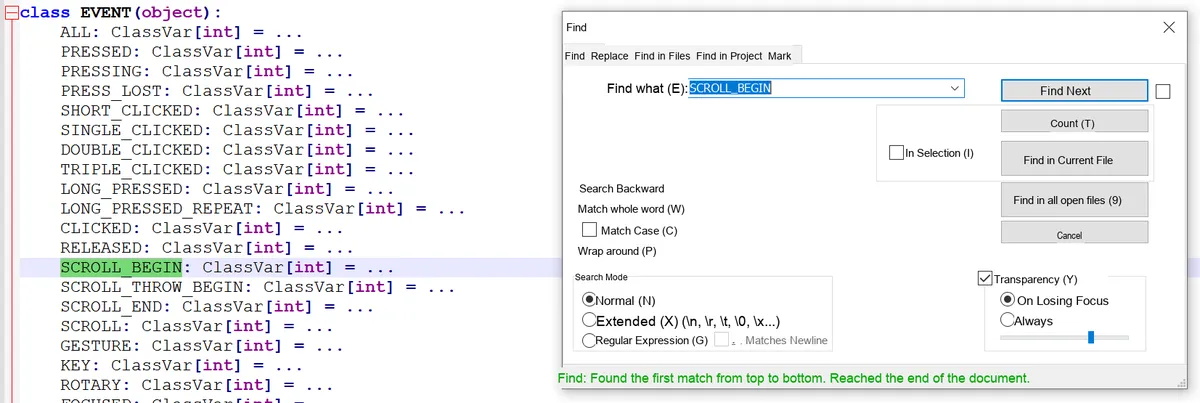
Core Event | Meaning of Core Events |
SCROLL_BEGIN | Triggered when scrolling starts, the scrolling animation parameters (such as animation duration, easing curve) can be modified; |
SCROLL_END | Triggered when scrolling ends, suitable for executing post-scrolling cleanup logic (such as loading more content and updating status); |
SCROLL | Triggered during scrolling (on every position change), it is suitable for real-time monitoring of scroll position (e. g., dynamically updating UI elements, recording scroll offset). |
4.6.1 Scroll Basic Demo
In the following case, we will create a small container, place a large number of buttons inside (the content will exceed the container's size), which automatically supports scrolling, so you can intuitively understand the trigger conditions for scrolling.
import display_driver
import lvgl as lv

lv.init()
scr = lv.screen_active()
scr.set_style_bg_color(lv.color_hex(0x000000), 0) # Black background

# ==================== 1. Create scroll container (parent object) ====================
container = lv.obj(scr)
container.set_size(200, 150)  # Container size is very small (limits the display area)
container.set_pos(50, 50)     # Container position
container.set_scroll_dir(lv.DIR.VER) # Enable [vertical scrolling] (core)
container.set_scrollbar_mode(lv.SCROLLBAR_MODE.AUTO) # Scrollbar shows automatically

# ==================== 2. Create many child buttons (content exceeds the container, triggering scrolling) ====================
for i in range(10):
    btn = lv.button(container)
    btn.set_size(180, 30)
    btn.set_pos(10, 10 + i*40) # Arrange buttons vertically

    label = lv.label(btn)
    label.set_text(f"Button {i+1}")
    label.center()

lv.screen_load(scr)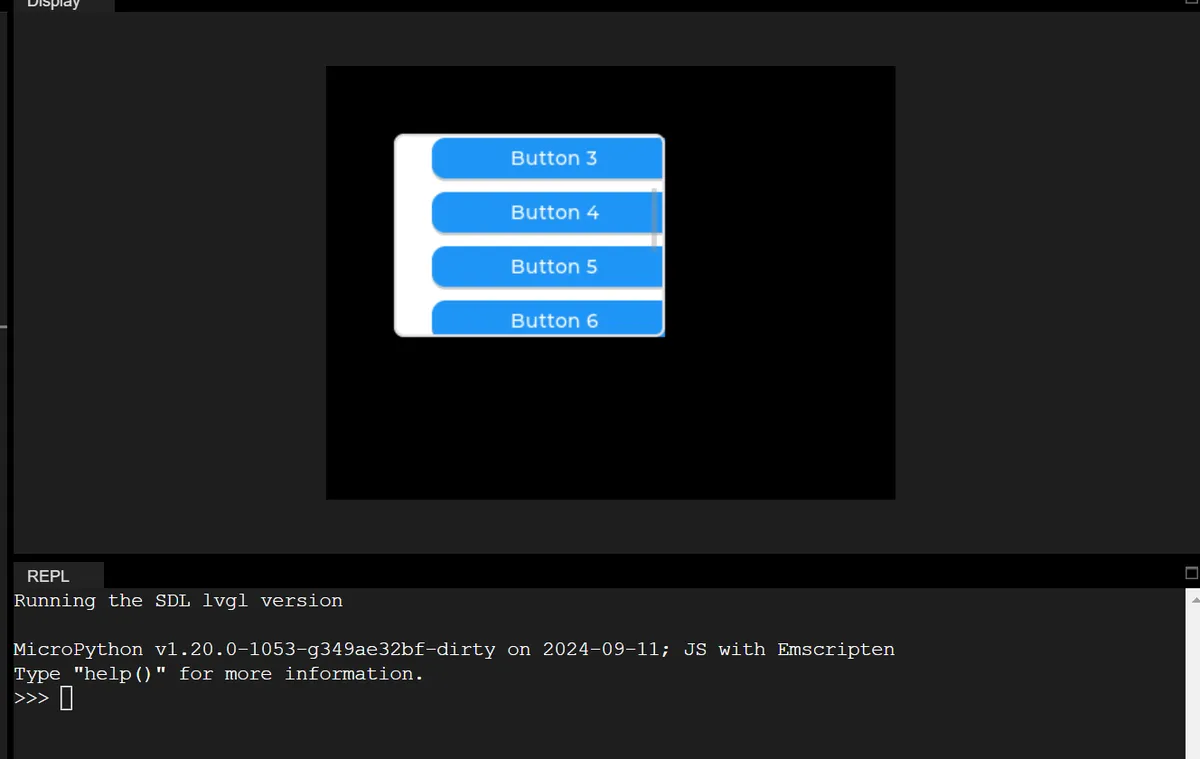
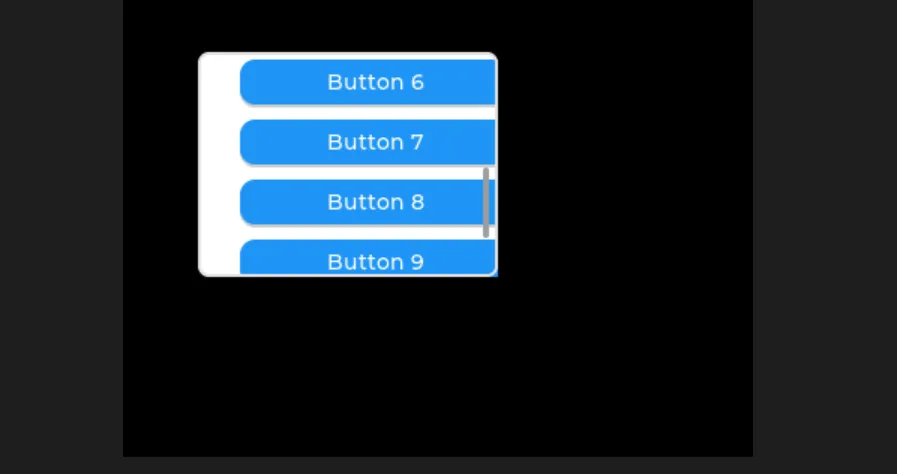
Here, we can see that:
- Scroll Trigger Conditions: When the container is small while there are numerous buttons that exceed the container's bounds → it automatically switches to a scrollable state;
- Scrolling container:
containerrefers to the parent scrolling container, and all buttons are its child elements; - Scrolling direction: We have configured vertical scrolling only, which complies with LVGL's rule of "supporting scrolling in only one direction".
- Scrollbar: It will appear automatically when you swipe the screen, and hide when you stop swiping.
We can also set different scrolling directions to view the content:
| Function | Related code |
|---|---|
| Vertical scrolling | container.set_scroll_dir(lv.DIR.VER) |
| Horizontal scrolling | container.set_scroll_dir(lv.DIR.HOR) |
| Scrolling disabled | container.set_scroll_dir(lv.DIR.NONE) |
Here is the horizontal scroll:
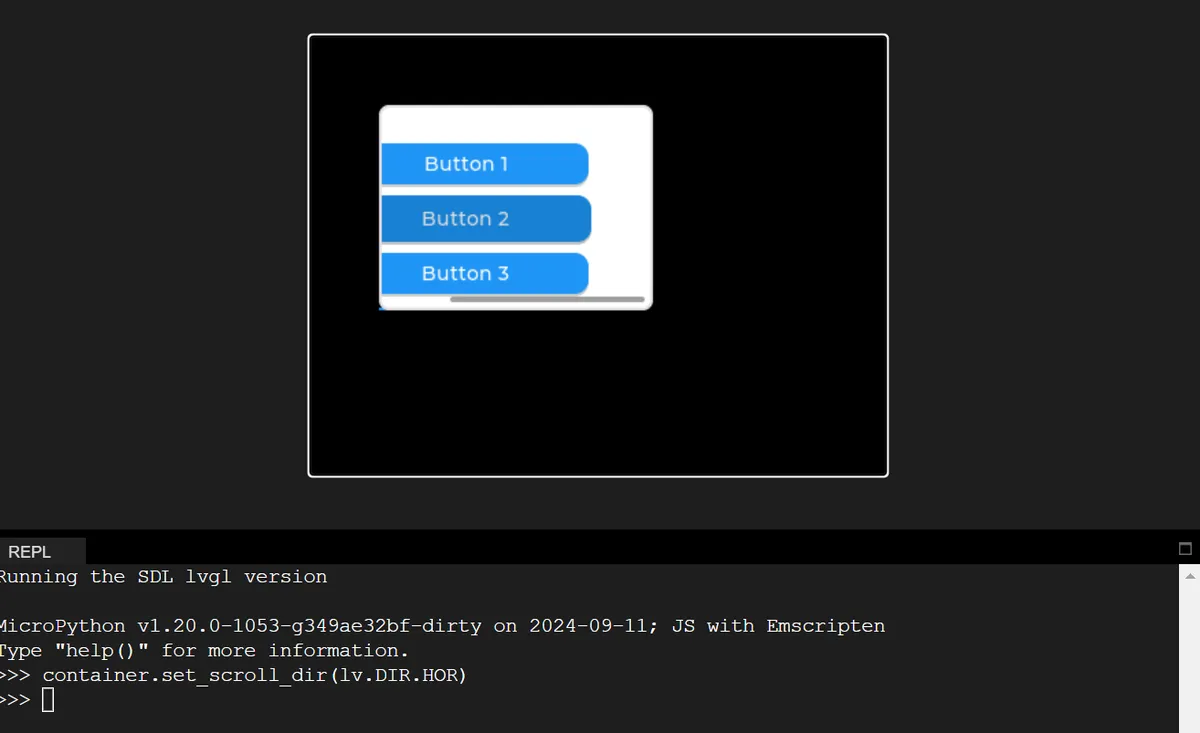
The following disables scrolling:
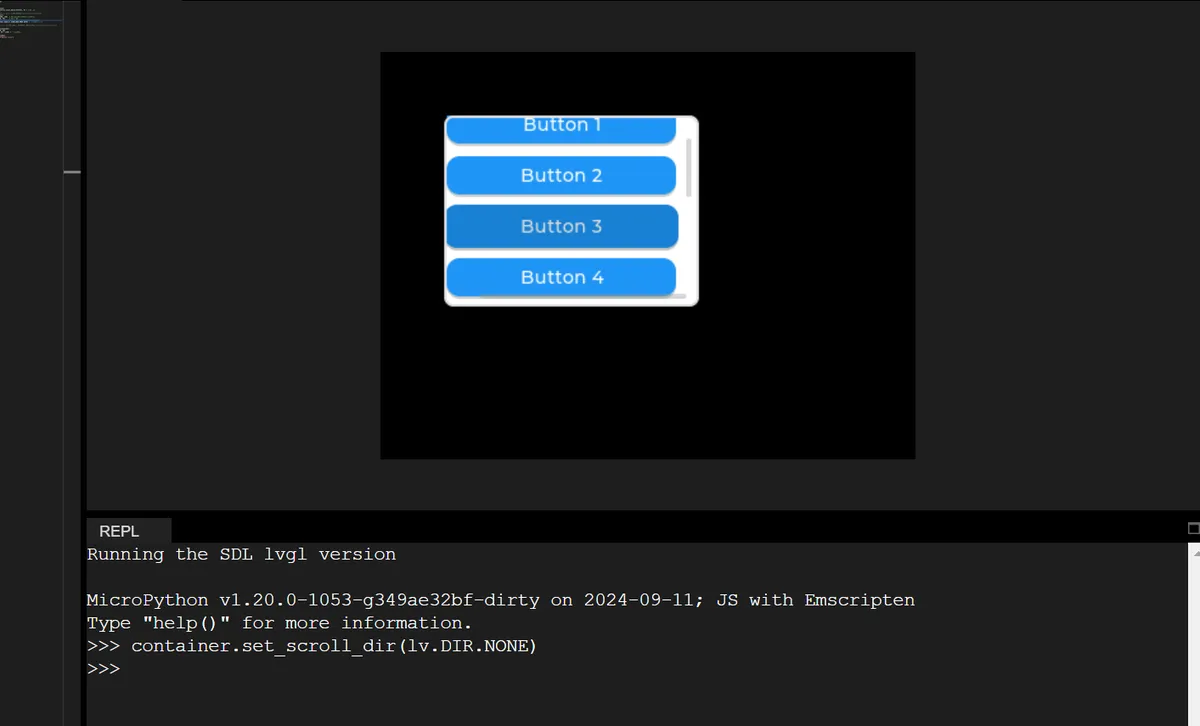
If we do not specify the scrolling direction, it will be automatically set based on the sizes of the container and the internal controls (both vertical and horizontal directions are supported):
# The comment on the line below
# container.set_scroll_dir(lv.DIR.VER)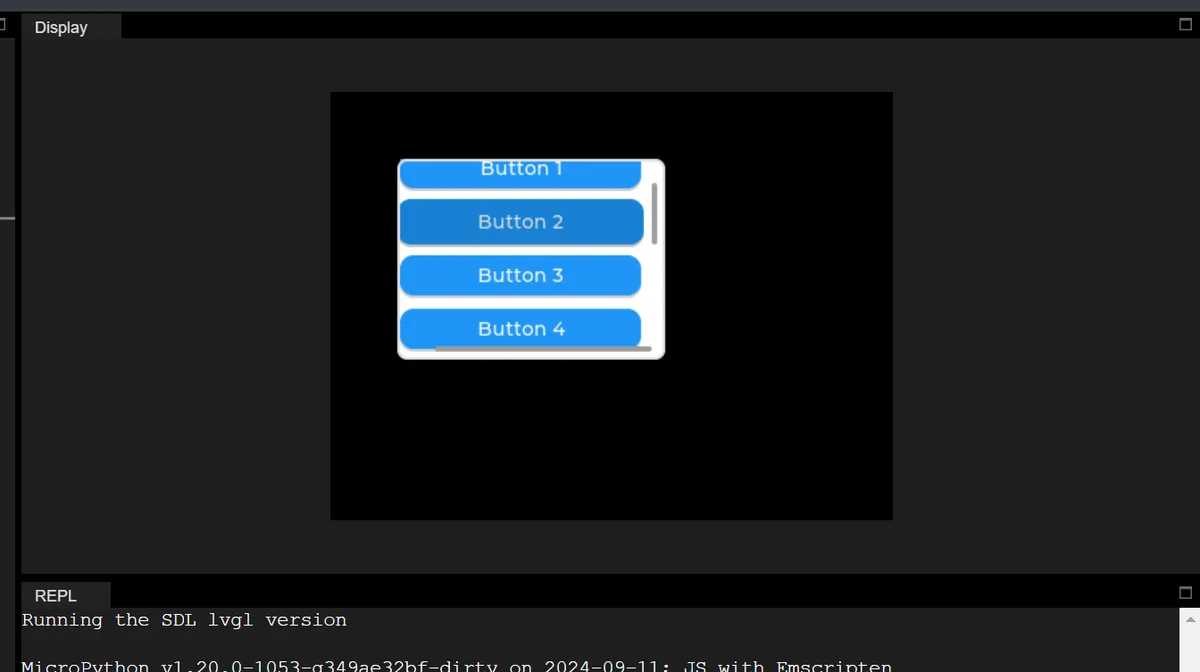
We can also set the scrolling mode; the following is the case where the scrollbar is not displayed:
container.set_scrollbar_mode(lv.SCROLLBAR_MODE.OFF)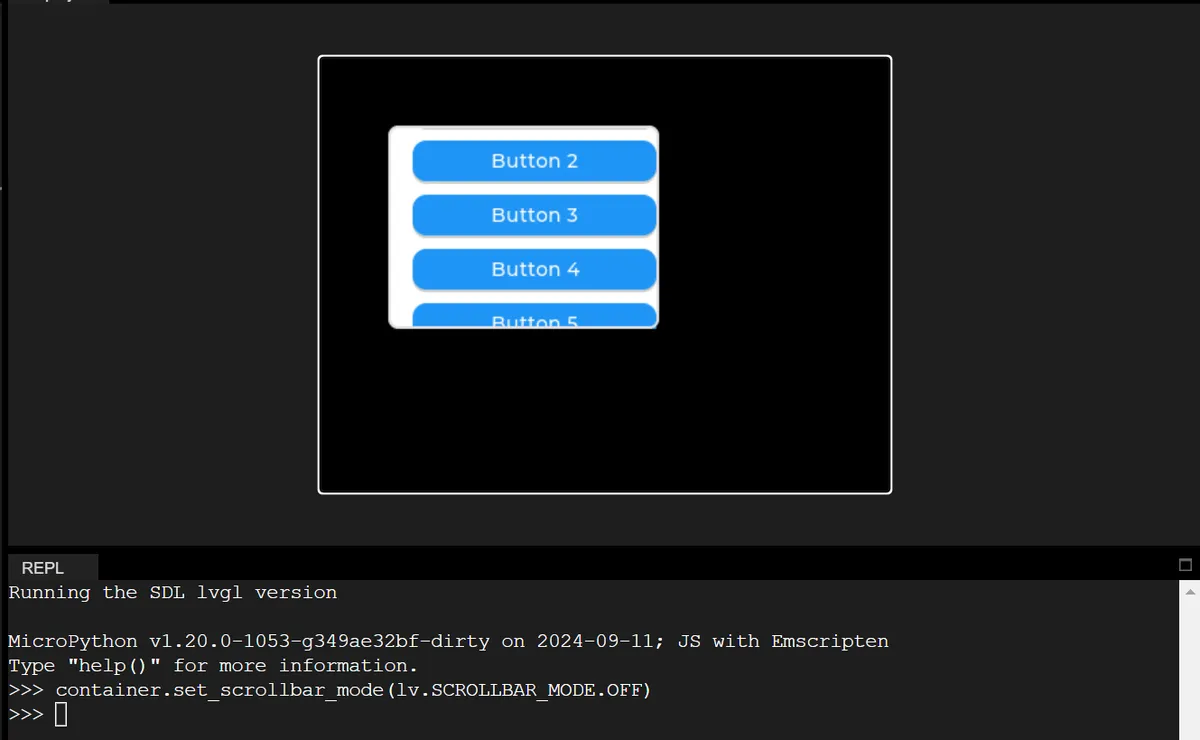
The following is to display the scrollbar when scrolling:
container.set_scrollbar_mode(lv.SCROLLBAR_MODE.ACTIVE)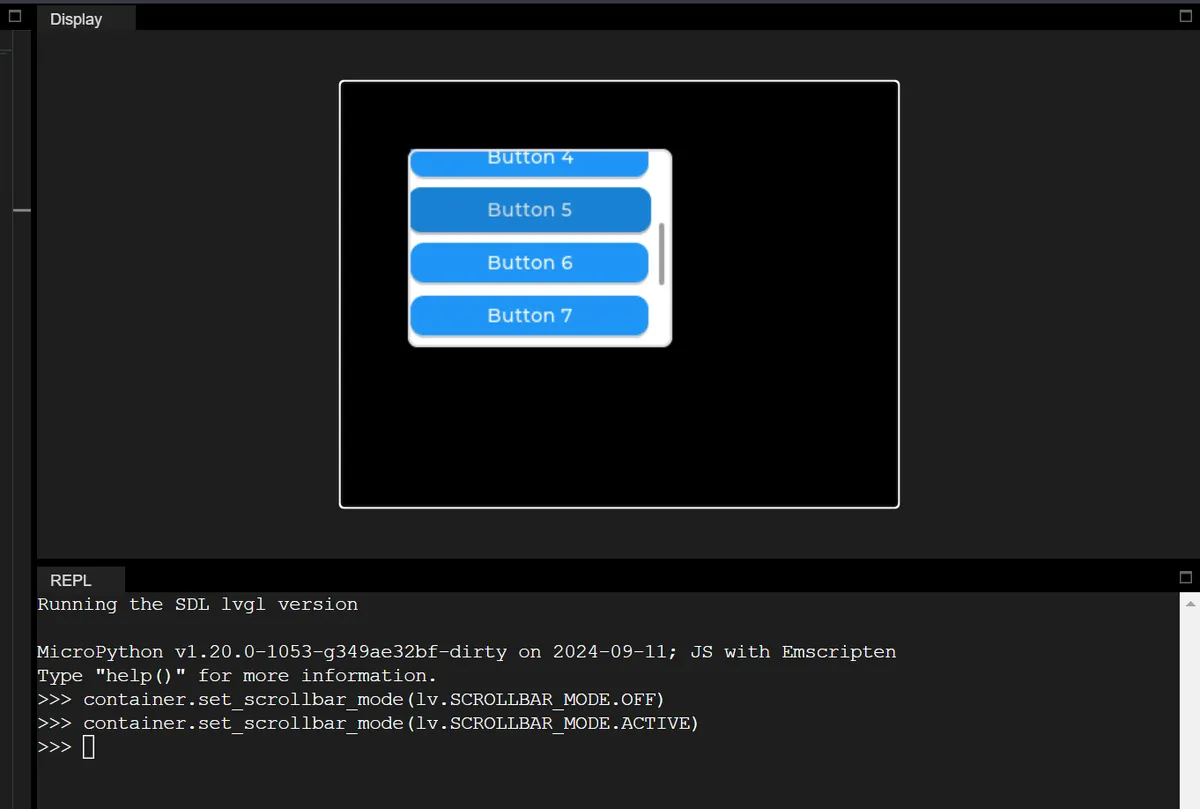
The following is the case where the scrollbar is always displayed:
container.set_scrollbar_mode(lv.SCROLLBAR_MODE.AUTO)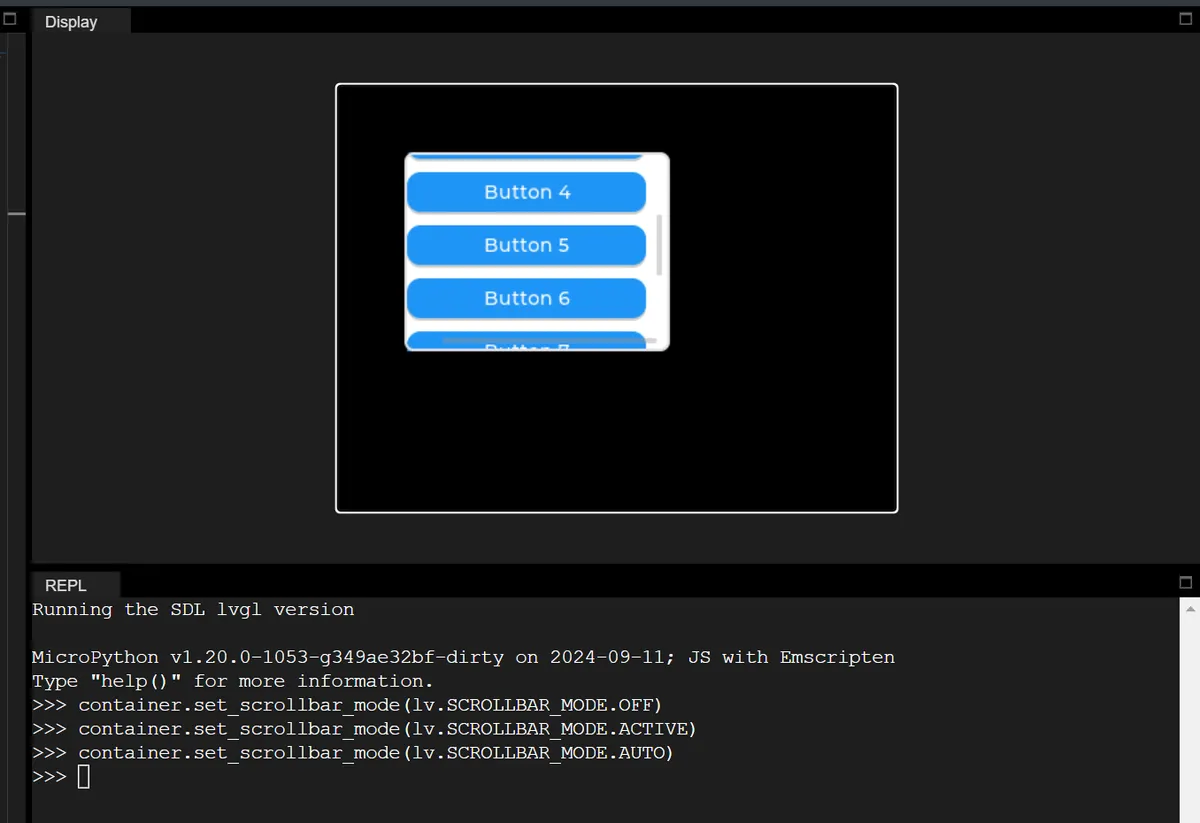
4.6.2 Scroll Event Listening
Based on Case 1, monitor the scroll start and scroll end events, and print logs in the terminal so that beginners can intuitively observe the changes in scroll status.
import display_driver
import lvgl as lv

lv.init()
scr = lv.screen_active()
scr.set_style_bg_color(lv.color_hex(0x000000), 0)

# ==================== Scroll event callback function ====================
def scroll_event_callback(e):
    target = e.get_target()  # Get the object that triggered the event (the scroll container)
    event_code = e.get_code() # Get the event type

    # Check for the scroll event
    if event_code == lv.EVENT.SCROLL_BEGIN:
        print("📜 滚动开始了!")
    elif event_code == lv.EVENT.SCROLL_END:
        print("📜 滚动完全结束!")

# ==================== 1. Create the scroll container ====================
container = lv.obj(scr)
container.set_size(200, 150)
container.set_pos(50, 50)
container.set_scroll_dir(lv.DIR.VER)
container.set_scrollbar_mode(lv.SCROLLBAR_MODE.ACTIVE) # Show scrollbar only while scrolling

# ==================== 2. Bind the scroll listener event (core) ====================
container.add_event_cb(scroll_event_callback, lv.EVENT.SCROLL_BEGIN, None)
container.add_event_cb(scroll_event_callback, lv.EVENT.SCROLL_END, None)

# ==================== 3. Create child buttons ====================
for i in range(10):
    btn = lv.button(container)
    btn.set_size(180, 30)
    btn.set_pos(10, 10 + i*40)
    label = lv.label(btn)
    label.set_text(f"Button:{i+1}")
    label.center()

lv.screen_load(scr)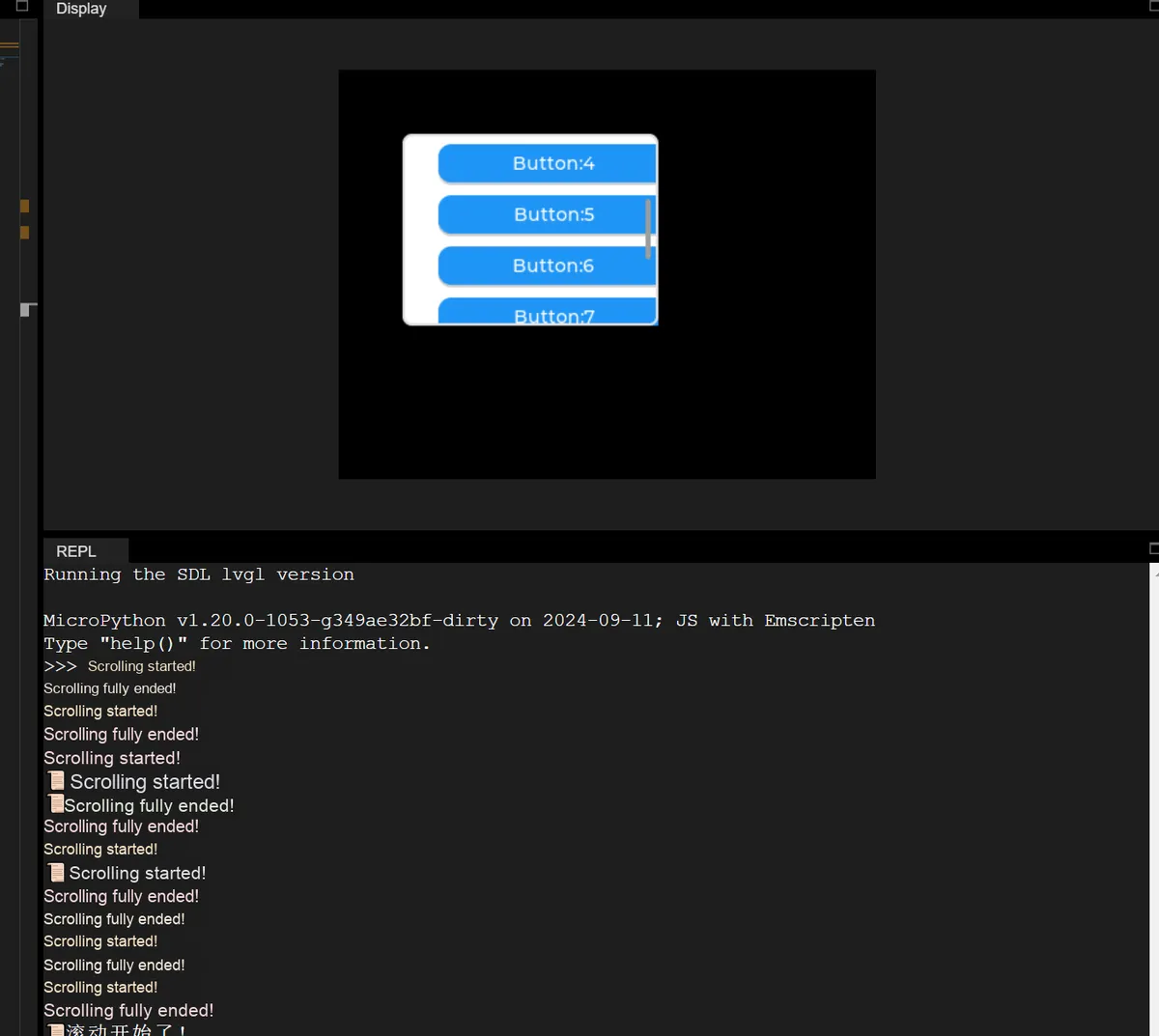
Here, we bind an event callback to the scroll container, so that the system will automatically notify us when the screen is swiped.
The two core events are as follows:
lv.EVENT.SCROLL_BEGIN: Finger swipe / scroll starts → printScroll started;lv.EVENT.SCROLL_END: Fires when scrolling stops completely → PrintScroll ended;
Common use cases include loading more content when scrolling to the bottom, hiding controls while scrolling, etc.
Version Record
Version Number | Modifier | Time | Content |
v1.0 | Li Zisheng | 2026/03/24 | Initialize the document. |