
Contents
Young makers, it's finally time to fit "eyes" to your development board! Today we're going to get to know the light intensity sensor module — it acts as the "visual cells" of the development board, capable of accurately detecting changes in the brightness of the surrounding light, letting the program know "whether it's bright or dark right now", and can even achieve smart functions like "automatically turning on the lights when it gets dark and turning them off when dawn breaks"~
1. Module Introduction
The core principle of the light intensity sensor (we use the GL5516 photoresistor type) is extremely simple — just remember one rule: light intensity and resistance value move in opposite directions, while the readout value moves in lockstep with light intensity.
Essence of the work: The resistance of the photoresistor in the sensor changes with the intensity of light ——
- The stronger the light → the lower the resistance of the photoresistor → the lower the output voltage of the sensor → the smaller the digital value read by the development board;
- The weaker the light → the higher the resistance of the photoresistor → the higher the output voltage of the sensor → the larger the digital value read by the development board
Key Technologies: The development board utilizes the ADC (Analog-to-Digital Conversion) function to convert the "voltage signal" output by the sensor into a numerical value ranging from 0 to 65535, so that the program can measure brightness using this "digital value"!
To make the most of a light intensity sensor, you mainly need to use these categories of blocks in combination:
- ADC input reading block: Core function! Reads the digital value corresponding to the light intensity;
- Conditional judgment block: For example, "If the value > 50000 (too dark), turn on the LED";
- Digital / PWM Output Blocks: Link with LEDs and buzzers to turn "sensing" into "action";
- Delay block: Controls the detection frequency (e. g., once per second) to prevent excessively frequent data fluctuations.
Let’s recap: What exactly is an ADC?
An ADC is a tool that stands for "analog-to-digital conversion" — the voltage output by a sensor is a "continuously varying analog quantity"(e. g., 0~3.3V), while a development board can only recognize "digital quantities"(e. g., 0~65535). The ADC acts as this "interpreter", translating voltage into digital values.
2. Wiring Instructions
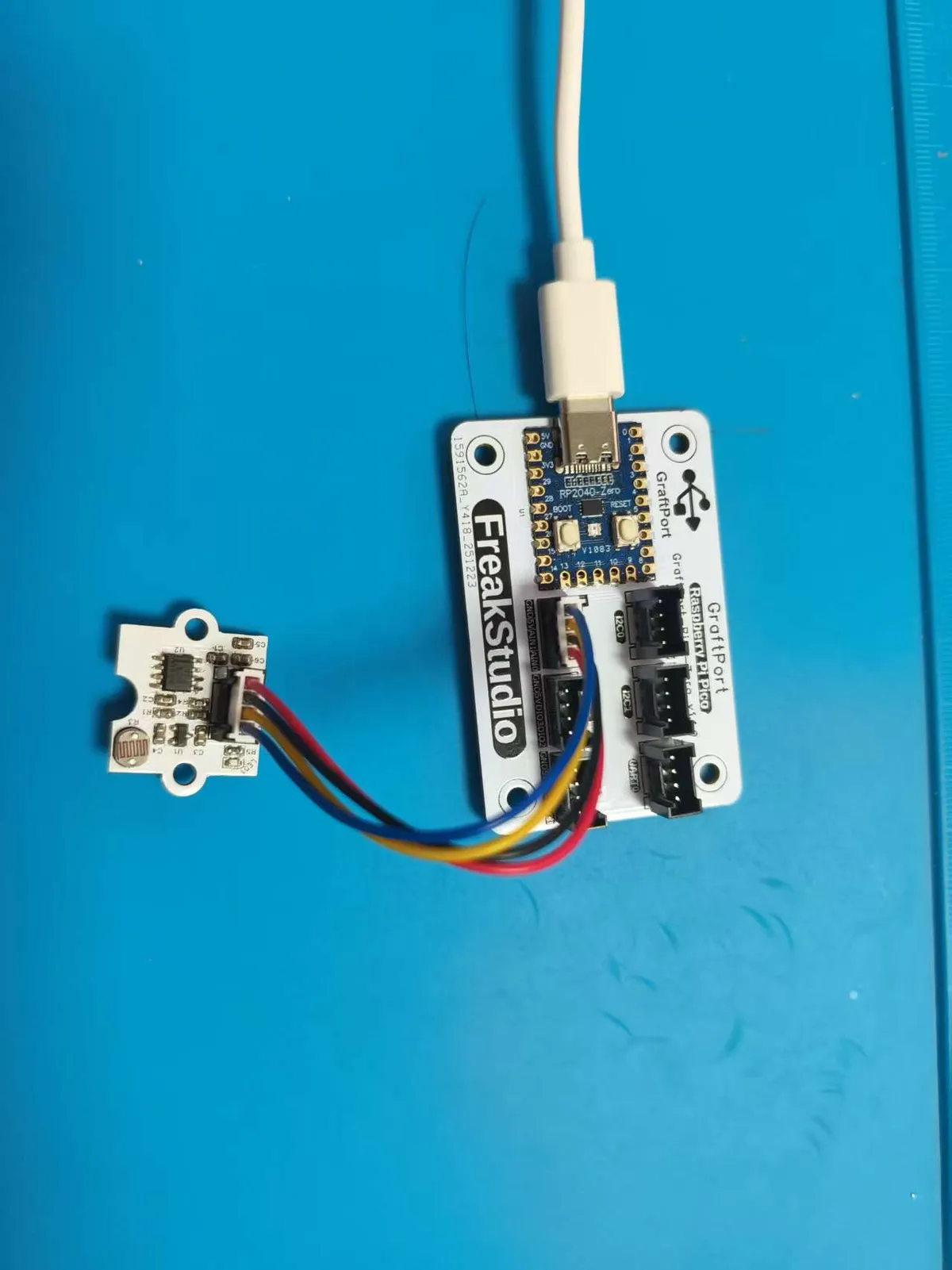
For the sensor to "see" light, you must first connect the wires correctly! We will connect the light intensity sensor module to the AIN0 interface of the development board, and make sure to remember the specific pin correspondence:
Development Board Pins | Module Pins | Description |
Pin 26 |
| Analog Output Pin |
Pin 27 |
| - |
3. Example: Display the original light intensity value
Experiment Objective: Make the development board continuously detect the ambient light, and print the ADC raw value corresponding to the brightness on the terminal every 1 second, so as to intuitively observe the correspondence between "light intensity" and "numerical value".
Core Principle: Characteristics of the GL5516 photoresistor sensor:
- In bright conditions (e. g. under sunlight): ADC value ≈ 10000~20000 (a relatively small figure);
- Dark environments (e. g., pitch-black rooms): ADC value ≈ 50000~60000 (a relatively large figure);
- Indoor (normal environment): ADC value ≈ 30000~40000. We can continuously read this value in an infinite loop to monitor brightness changes in real time!
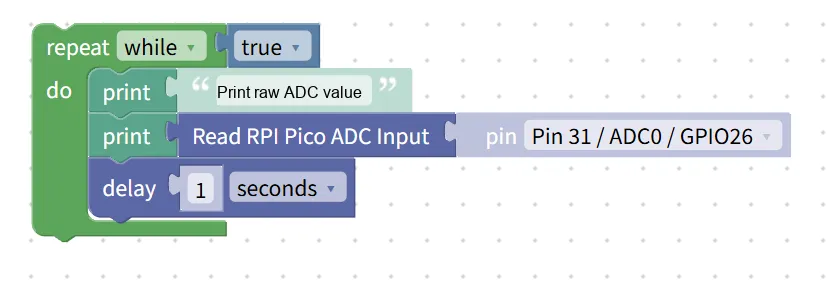
Building Block Assembly Steps (Step-by-Step Guide for You):
- Infinite Loop: Select the
repeat while trueblock → Continuously detect the brightness; - Print prompt: Add
print "Print the original ADC value"block → The prompt will soon display the brightness value; - Read the sensor value: select the
Read RPI Pico ADC Inputblock, setpintoPin 31/ADC0/GPIO26→ read the voltage value of the photosensitive sensor (converted to a digital value); - Print the value: Add the
printblock, associate it with the read ADC value → display the number corresponding to the brightness on the terminal; - Delay: Add
delay 1 secondsblock → Check the brightness level once every 1 second.
After running the program:
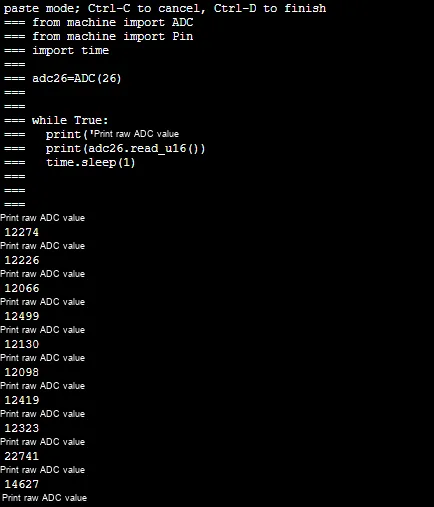
- The terminal will display "Print adc raw value" every 1 second, followed by a string of numbers (e. g. 35680);
- Cover the sensor with your hand (it will darken), and the value will increase rapidly (e. g., rise to 58900);
- Take the sensor out into direct sunlight (where it gets brighter), and the reading will drop rapidly (e. g., down to 12500);
- The numerical changes completely correspond to the brightness of the light, and the development board truly "sees" the brightness!
XML files can be directly imported into the building blocks:
Light sensor.xml 2 KB
Tips
- Is the value jumping too drastically? Change the delay from 1 second to 0.5 seconds, or add the logic of "take multiple readings and calculate the average" in the code (for example, take 3 readings and use the median value), and the data will be more stable;
- Want a more intuitive way? Replace "print the value" with "display the value on the OLED", so you can view the brightness directly on the screen instead of staring at the terminal;
- Is the value always 0 or 65535? Check if the pins are connected incorrectly or if the sensor is broken~
✨ Interactive Quick Question
- Think about it: If you put the sensor in a pitch-black drawer, will the ADC value be close to 65535 or 0? (Answer: It will be close to 65535! The darker the environment, the higher the value~)
- Try this: Shine your phone's flashlight at the sensor, and the reading will suddenly drop; when you move the flashlight away, it will gradually rise again. It's super fun~
Summary
- Core Logic of the Sensor: The light intensity sensor relies on the photoresistor to vary its resistance value and output a voltage signal; the development board converts the voltage into a digital value via ADC, where a smaller value indicates brighter light and a larger value indicates dimmer light.
- Key points for reading: You must select the correct ADC channel (GPIO26 = ADC0), and using an infinite loop plus delay can achieve stable data reading;
- Broaden your mindset: After reading the value, you can implement the intelligent control logic of "turning on the LED when it's dark and turning off the LED when it's bright" by adding conditional judgment.
After mastering this basic example, you can try the "light-controlled LED" — add a conditional block: if the ADC value > 50000 (too dark), turn on the LED; otherwise, turn it off. Your development board will immediately be able to achieve the function of "automatically turning on the light when it gets dark", which is super rewarding!