Contents
- 19.1 Basic Tab
- 19.2 Get the active tab and set the default active option
- 19.3 Dynamically Rename Tabs and Print the Total Number of Tabs
- 19.4 Dynamically modify the position and size of the tab bar by clicking the tab
- 19.5 Obtain the content area and tab bar objects and customize their styles
- Version Record
| API name | Purpose | Input parameters | Return value |
|---|---|---|---|
| add_tab | Add a new tab to the tab view | str (display name of the tab; must be a string) | obj (the created tab object) |
| rename_tab | Rename the specified tab by its position index | int (tab position index, starting from 0); str (new display name of the tab) | None (no return value) |
| set_active | Set the tab at the specified index as active, and control whether the switch is animated | int (target tab index, starting from 0); int (animation switch, lv.ANIM.OFF=0/ON=1) | None (no return value) |
| set_tab_bar_position | Set the position of the tab bar (top / bottom / left / right) | int (position enum value, lv.DIR.TOP=0/BOTTOM=1/LEFT=2/RIGHT=3) | None (no return value) |
| set_tab_bar_size | Set the size of the tab bar (in pixels) | int (tab bar size in pixels; must be a positive integer) | None (no return value) |
| get_tab_count | Get the total number of tabs in the tab view | No parameters | int (total number of tabs) |
| get_tab_active | Get the index of the currently active tab | No parameters | int (active tab index, starting from 0) |
| get_content | Get the content area object of the tab view (used to add widgets to a tab) | No parameters | obj (content area object) |
| get_tab_bar | Get the tab bar object of the tab view (used to customize the tab bar style) | No parameters | obj (tab bar object) |
19.1 Basic Tab
In the following code, we implement a basic tab view control:
- First, initialize the LVGL environment, obtain the currently active screen object, and set its background color to black;
- Then create a tab view control on the screen, and add three tabs "A", "B" and "C" to it;
- Then create a label control for each tab respectively, set the label text to "tabview A", "tabview B", and "tabview C" in sequence, and center the labels;
The final loading screen applies all configurations, ultimately presenting a view with three tabs on a black background screen; clicking different tabs will display the corresponding label text centered on the screen.
import display_driver
import lvgl as lv

# Initialize the LVGL environment
lv.init()
scr = lv.screen_active()
scr.set_style_bg_color(lv.color_hex(0x000000), 0)

#Get the currently active screen object
scr = lv.screen_active()
#Set the screen background color to black
scr.set_style_bg_color(lv.color_hex(0x000000), 0)

#Create the tab view
tabview = lv.tabview(scr)
#Add tabs
tab1 = tabview.add_tab("A")
tab2 = tabview.add_tab("B")
tab3 = tabview.add_tab("C")
#Add tab content
label1 = lv.label(tab1)
label1.set_text("tabview A")
label1.center()
label2 = lv.label(tab2)
label2.set_text("tabview B")
label2.center()
label3 = lv.label(tab3)
label3.set_text("tabview C")
label3.center()

# Load the screen
lv.screen_load(scr)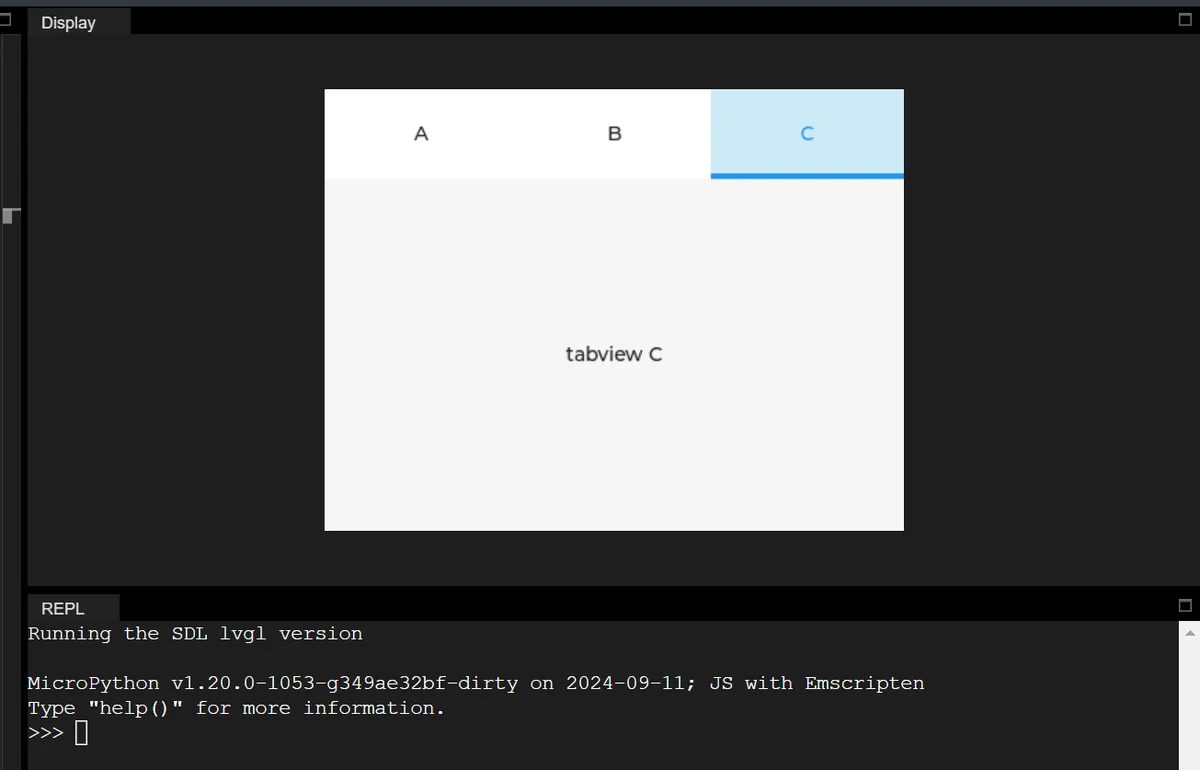
19.2 Get the active tab and set the default active option
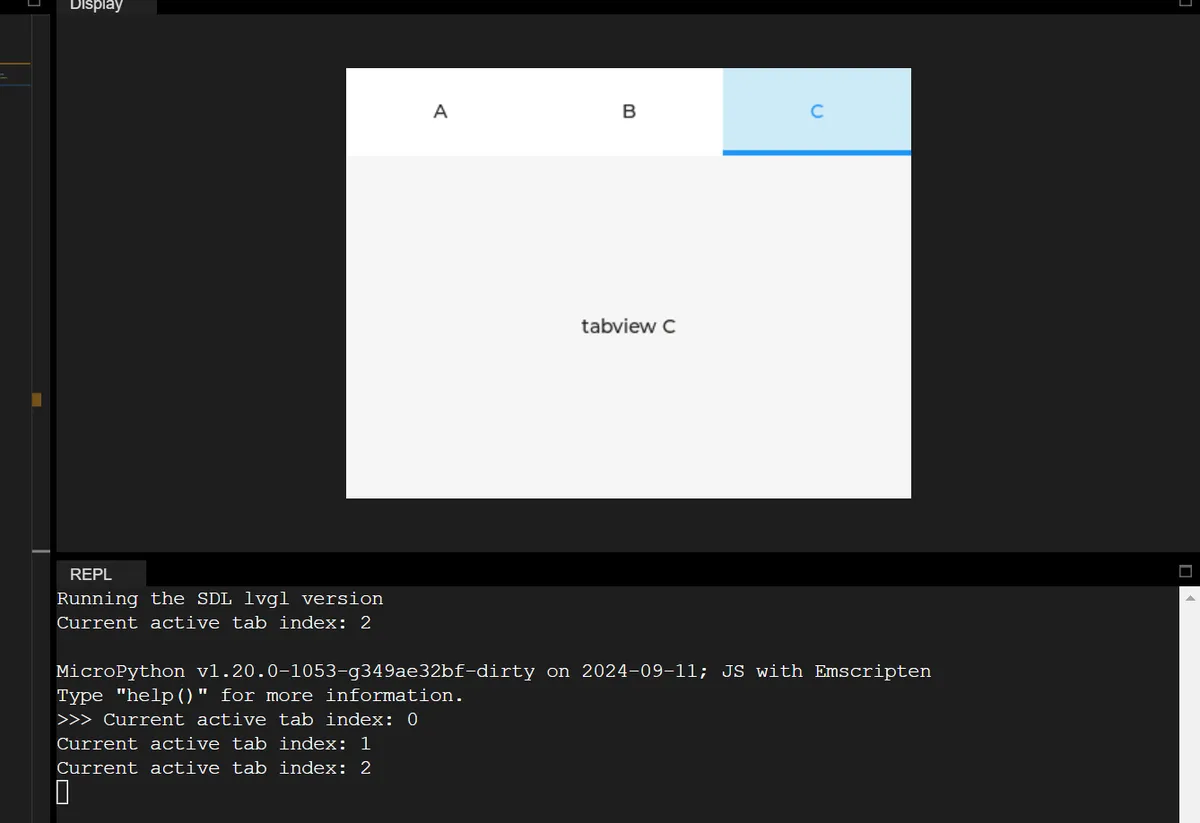
In the following code, we add a tab switching event, and in the callback function, we obtain and print the index of the currently active tab in real time; during initialization, the tab with index 2 is activated by default.
import display_driver
import lvgl as lv

# Initialize the LVGL environment
lv.init()
scr = lv.screen_active()
scr.set_style_bg_color(lv.color_hex(0x000000), 0)

# Create the tab view and add tabs
tabview = lv.tabview(scr)
tab1 = tabview.add_tab("A")
tab2 = tabview.add_tab("B")
tab3 = tabview.add_tab("C")

# Add content to the tabs
label1 = lv.label(tab1)
label1.set_text("tabview A")
label1.center()
label2 = lv.label(tab2)
label2.set_text("tabview B")
label2.center()
label3 = lv.label(tab3)
label3.set_text("tabview C")
label3.center()

# ===================== Define the event callback function =====================
def on_tab_switch(e):
    """Tab switch event callback: get and print the index of the currently active tab"""
    # Get the index of the currently active tab
    active_idx = tabview.get_tab_active()
    print(f"Current active tab index: {active_idx}")

# Bind the tab switch event (LV_EVENT.VALUE_CHANGED means the tab was switched)
tabview.add_event_cb(on_tab_switch, lv.EVENT.VALUE_CHANGED, None)

# Initially set the tab at index 2 as active (animation off), which triggers the switch event and prints the index
tabview.set_active(2, lv.ANIM.OFF)

# Load the screen
lv.screen_load(scr)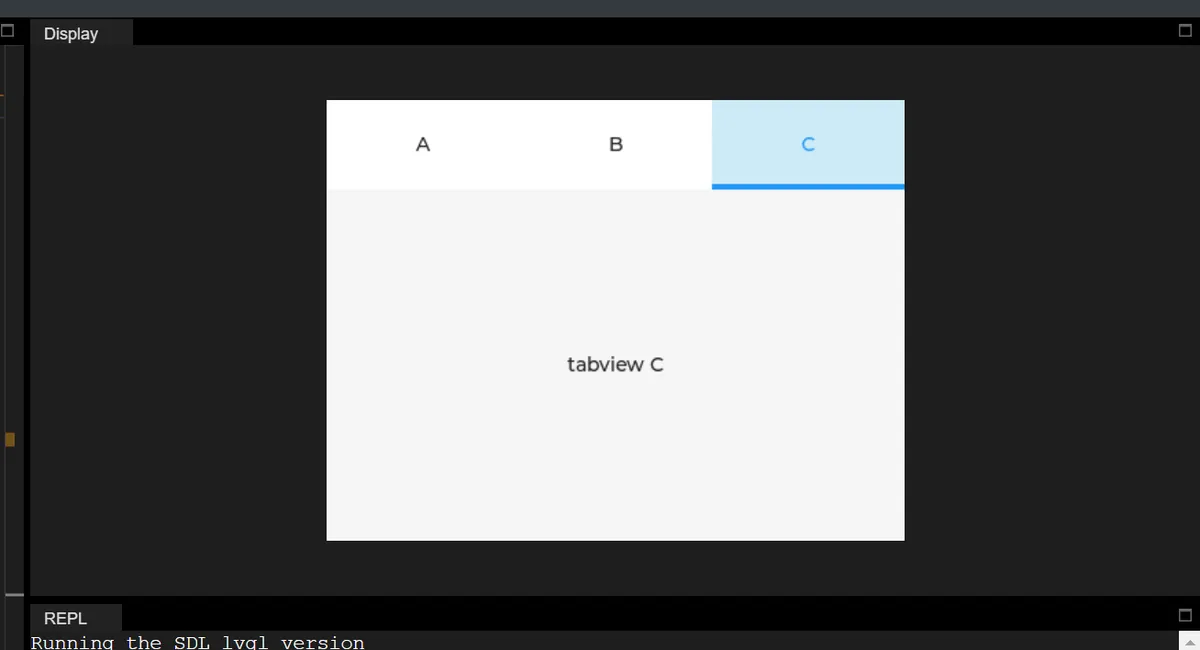
19.3 Dynamically Rename Tabs and Print the Total Number of Tabs
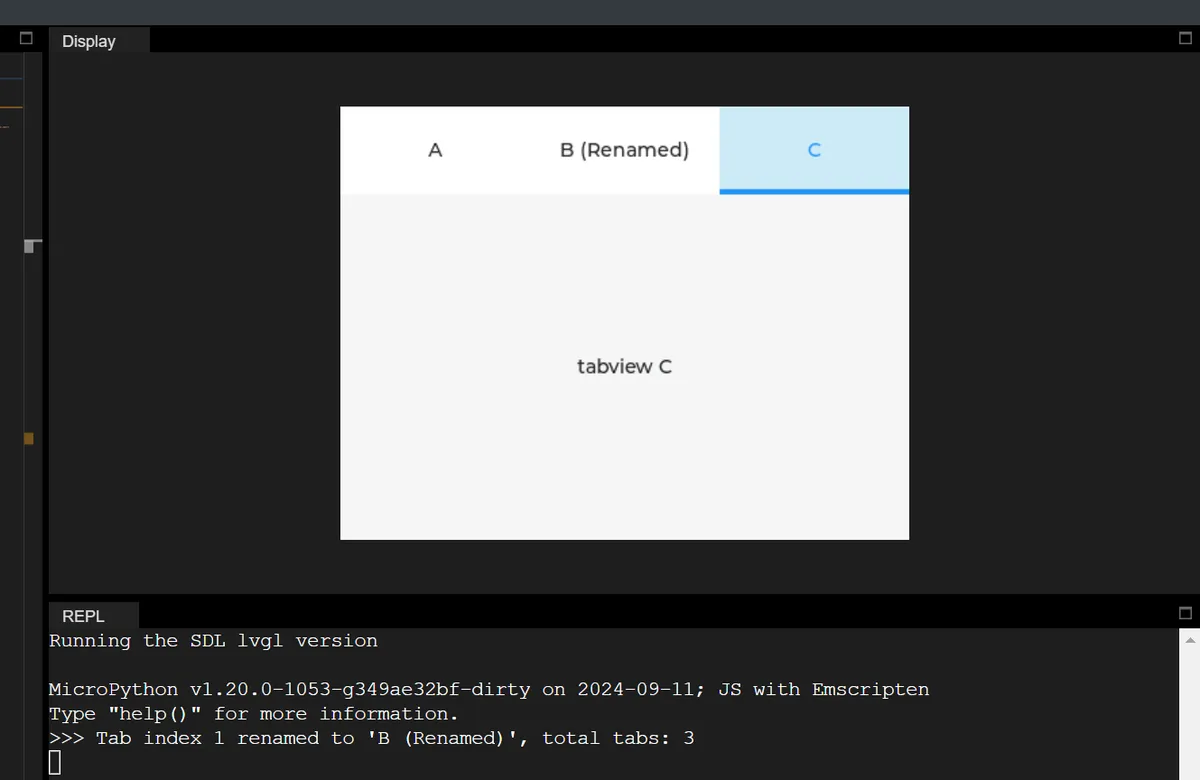
In the following code, we add a tab click event: only when the tab at index 1 (Tab B) is clicked will the rename operation be executed, and the total number of tabs will be printed.
import display_driver
import lvgl as lv

# Initialize the LVGL environment
lv.init()
scr = lv.screen_active()
scr.set_style_bg_color(lv.color_hex(0x000000), 0)

# Create the tab view and add tabs
tabview = lv.tabview(scr)
tab1 = tabview.add_tab("A")
tab2 = tabview.add_tab("B")
tab3 = tabview.add_tab("C")

# Add content to the tabs
label1 = lv.label(tab1)
label1.set_text("tabview A")
label1.center()
label2 = lv.label(tab2)
label2.set_text("tabview B")
label2.center()
label3 = lv.label(tab3)
label3.set_text("tabview C")
label3.center()

# Flag whether it has been renamed (avoid repeated triggering)
renamed_flag = False

# ===================== Define the event callback function =====================
def on_tab_click(e):
    """Tab click event callback: rename the tab at index 1 when it is clicked"""
    global renamed_flag
    # Get the index of the currently active tab
    active_idx = tabview.get_tab_active()

    # Rename only when the tab at index 1 is clicked and it has not been renamed yet
    if active_idx == 1 and not renamed_flag:
        # Rename the tab at index 1 to "B (Renamed)"
        tabview.rename_tab(1, "B (Renamed)")
        # Get the total number of tabs and print it
        total_tabs = tabview.get_tab_count()
        print(f"Tab index 1 renamed to 'B (Renamed)', total tabs: {total_tabs}")
        renamed_flag = True  # Mark as renamed

# Bind the tab switch/click event
tabview.add_event_cb(on_tab_click, lv.EVENT.VALUE_CHANGED, None)

# Load the screen
lv.screen_load(scr)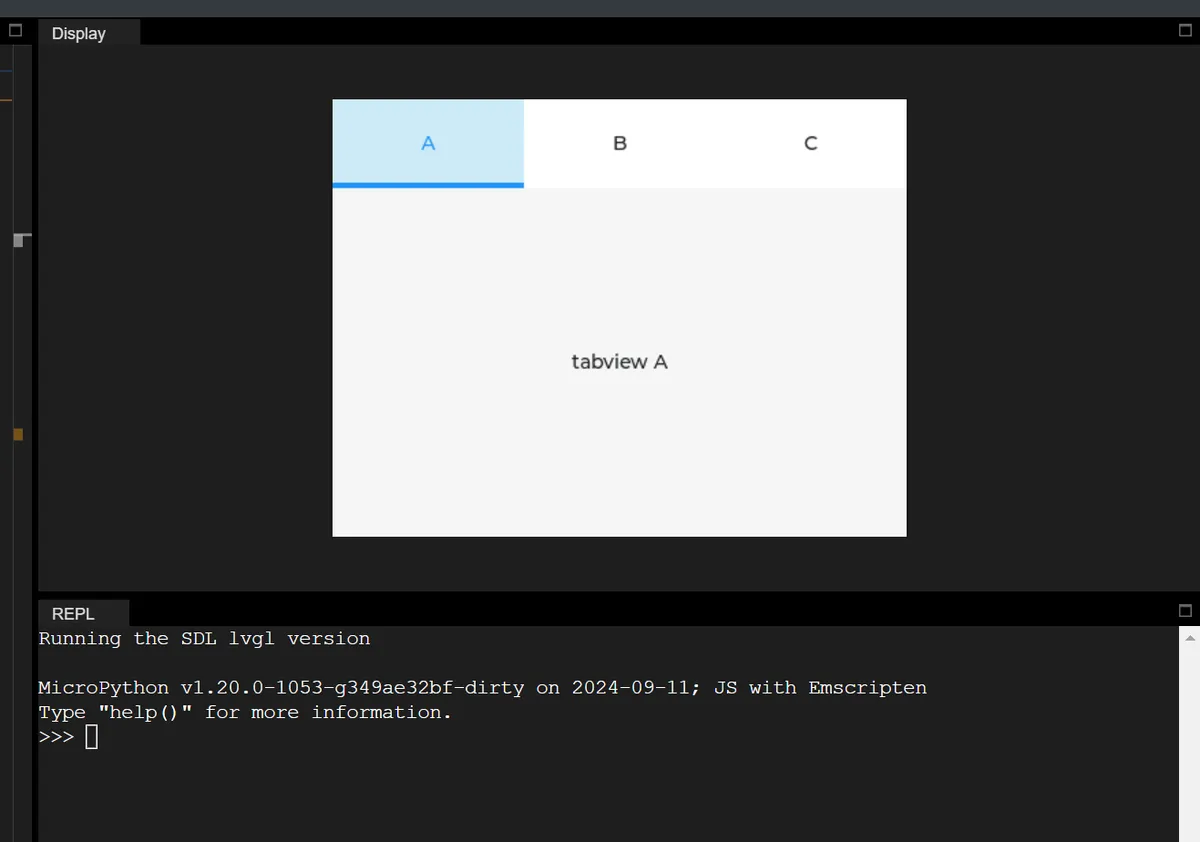
19.4 Dynamically modify the position and size of the tab bar by clicking the tab
In the following code, we add an event callback: only when the tab at index 2 (Tab C) is clicked, we set the tab bar position to the bottom, set its size to 50 pixels, and print a prompt message.
import display_driver
import lvgl as lv

# Initialize the LVGL environment
lv.init()
scr = lv.screen_active()
scr.set_style_bg_color(lv.color_hex(0x000000), 0)

# Create the tab view and add tabs
tabview = lv.tabview(scr)
tab1 = tabview.add_tab("A")
tab2 = tabview.add_tab("B")
tab3 = tabview.add_tab("C")

# Add content to the tabs
label1 = lv.label(tab1)
label1.set_text("tabview A")
label1.center()
label2 = lv.label(tab2)
label2.set_text("tabview B")
label2.center()
label3 = lv.label(tab3)
label3.set_text("tabview C")
label3.center()

# Flag whether it has been set (avoid repeated triggering)
set_flag = False

# ===================== Define the event callback function =====================
def on_tab_click(e):
    """Tab click event callback: set the tab bar properties when the tab at index 2 is clicked"""
    global set_flag
    # Get the index of the currently active tab
    active_idx = tabview.get_tab_active()

    # Modify the properties only when the tab at index 2 is clicked and it has not been set yet
    if active_idx == 2 and not set_flag:
        # Set the tab bar position to the bottom
        tabview.set_tab_bar_position(lv.DIR.BOTTOM)
        # Set the tab bar size to 50 pixels
        tabview.set_tab_bar_size(50)
        # Print a prompt message
        print("Tab bar position set to BOTTOM, size set to 50px")
        set_flag = True  # Mark as set

# Bind the tab switch/click event
tabview.add_event_cb(on_tab_click, lv.EVENT.VALUE_CHANGED, None)

# Load the screen
lv.screen_load(scr)
19.5 Obtain the content area and tab bar objects and customize their styles
In the following code, we take the tab bar object and change its background color to gray; all operations will print the object type and style modification prompts via the Console, and after the screen is finally loaded, you can intuitively see that the tab bar has turned gray:
import display_driver
import lvgl as lv

# Initialize the LVGL environment
lv.init()
scr = lv.screen_active()
scr.set_style_bg_color(lv.color_hex(0x000000), 0)

# Create the tab view and add tabs
tabview = lv.tabview(scr)
tab1 = tabview.add_tab("A")
tab2 = tabview.add_tab("B")
tab3 = tabview.add_tab("C")

# Add content to the tabs
label1 = lv.label(tab1)
label1.set_text("tabview A")
label1.center()
label2 = lv.label(tab2)
label2.set_text("tabview B")
label2.center()
label3 = lv.label(tab3)
label3.set_text("tabview C")
label3.center()

# ===================== Demonstrate the get_content and get_tab_bar APIs =====================
# 1. Get the content area object of the tab view and print its type
content_area = tabview.get_content()
print(f"Tabview content area object type: {type(content_area).__name__}")  # Output: obj
# 2. Get the tab bar object and set its background color to gray (0x808080)
tab_bar = tabview.get_tab_bar()
tab_bar.set_style_bg_color(lv.color_hex(0x808080), 0)
print("Tab bar background color set to gray")  # Note that the tab bar background color has been changed

# Load the screen
lv.screen_load(scr)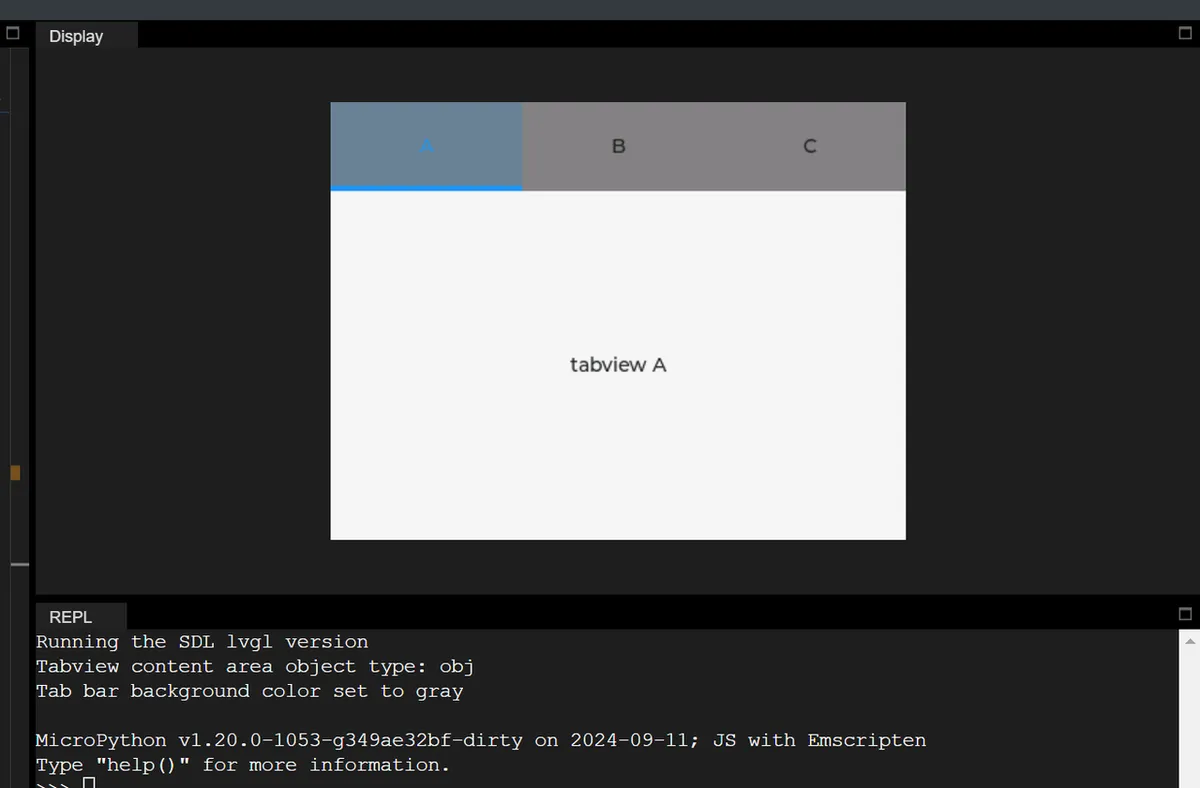
Version Record
Version Number | Modifier | Time | Content |
v1.0 | Li Zisheng | 2026/03/23 | Initialize the document. |