
The Ethernet demo worked on your desk, but at the test site the device cannot connect. Changing its IP address makes no difference. Before rewriting the application, establish whether the prototype and the new switch have a stable physical link, and whether they agree on how to use it.
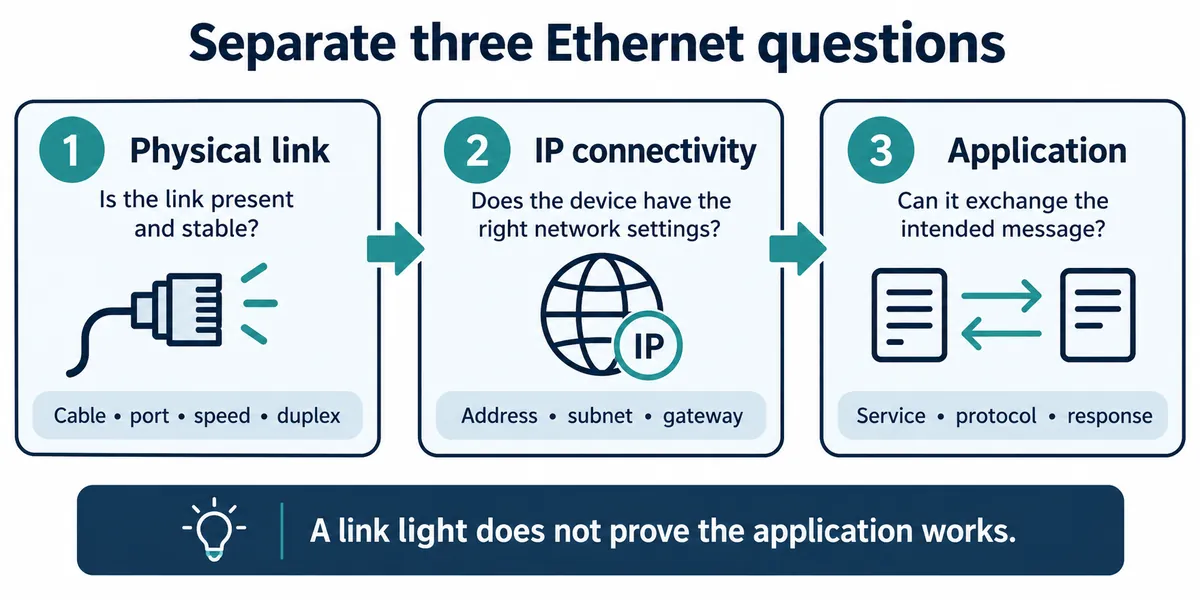
That distinction matters for a team preparing wired sensors, an installation controller or a gateway for its first external trial. A cable plugged into an RJ45 socket is not proof of communication. A link indication is only the first step; an IP address and a successful application exchange answer different questions.
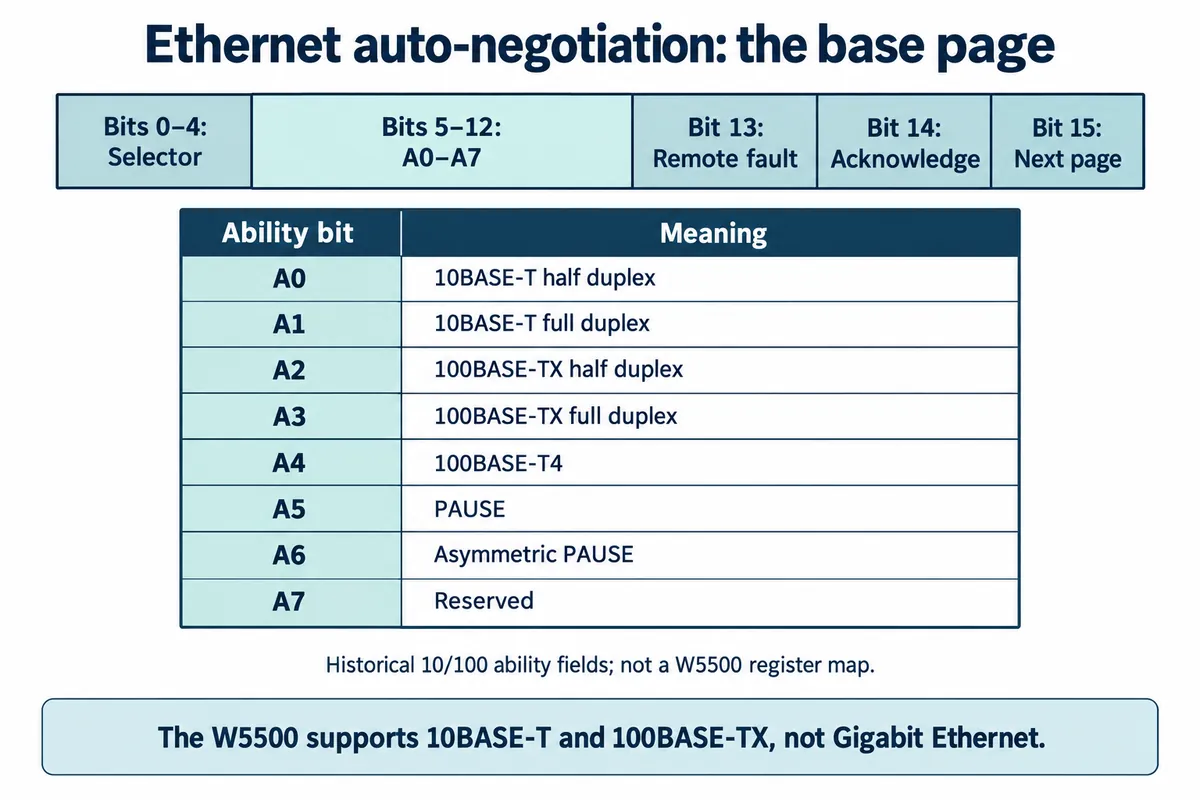
The W5500 supports 10BASE-T and 100BASE-TX, as listed in WIZnet's official overview. Plugging it into a Gigabit switch does not make it a Gigabit device; the switch port has to support a compatible mode, which the two ends agree on through auto-negotiation.
Find the first stage that fails
Start by recording the prototype's link indication and the switch port's reported status. Note whether the link never appears, drops repeatedly, or stays up while messages fail. Those are different observations. If an LED and a software message disagree, check what each one actually reports rather than trusting whichever looks more encouraging.
Next, record speed and duplex at both ends where the hardware and tools expose them. Speed is the data rate; full duplex allows sending and receiving at the same time. A duplex mismatch between the two ends can give a connection that exists but performs badly, which will not necessarily show up as a dark link LED.
Only once that foundation is in place should an IP-setting change become the main experiment. A DHCP timeout is a symptom, not a diagnosis: it can happen because the link is absent, because packets are not being exchanged correctly, or because the higher-level network configuration is wrong.
Compare a working connection with the failing one
A 2019 Arduino forum report describes a W5500 module that failed with one switch and worked with another. The author later found missing components on that particular module. For a new prototype, the lesson is the comparison, not an assumption that your module has the same fault.
Keep the firmware and power arrangement unchanged while swapping one item at a time: a known-good cable, another port, then a documented compatible switch. Record each result. If you have several prototypes, include their board revisions and identifiers so a unit-specific problem is not mistaken for a network-wide one.
On a managed network, ask the administrator for the exact switch and port configuration, including any copper transceiver involved. "It is an Ethernet port" is not enough detail. A July 2026 ESPHome issue reports negotiation trouble between wired temperature sensors and a particular switch and transceiver combination. The issue was still open when reviewed, so it raises a relevant integration question rather than a verified cause or fix.
Keep these with each test record:
- Prototype and Ethernet board revision, to separate hardware variants and individual units.
- Firmware version and PHY configuration, to show what the device requested.
- Switch, port and transceiver model, to identify the actual link partner and its modes.
- Reported link, speed and duplex, to show the negotiated or configured result.
- The cable used and the change made, so the comparison can be repeated.
Do not force one end and forget the other
For compatible 10/100 equipment, auto-negotiation is normally the starting point. If a controlled diagnostic test uses fixed settings, set both ends together. Cisco's auto-negotiation guidance explains how forcing one end while the other negotiates can produce a duplex mismatch. If a manual setting makes a demo work, treat it as a condition to understand and document, not a hidden permanent workaround.
Ask for the port's error counters before and after a short, repeatable exchange. Rising frame-check errors, drops or link transitions narrow the investigation, but no single counter identifies every cause, and cable, connection, board and configuration problems can overlap. On someone else's network, work with the administrator rather than changing shared port settings during a trial.
If one board consistently fails while a known-good unit works on the same connection, the next step may be a board-level review. If every unit fails only on one kind of port, look first at that link partner and its configuration. Either way, the comparison gives the hardware engineer or network administrator something specific to investigate.
Finish with the message your product actually needs
Once the physical link is stable, confirm the address settings and test the intended application exchange. Then repeat after unplugging the cable and after a power cycle. A device that connects once but cannot recover still needs work before a site trial. Keep these outcomes separate from the link observations.
Auto-negotiation background is not a compatibility test across switches. Your own record should say which combinations actually worked, under which settings, and what remains untested.