
You have a board that worked during the demonstration, but now the light stays off or the application never seems to start. Before replacing parts or reinstalling everything, answer a smaller question: can you still talk to the program on the board?
For a MicroPython prototype, the interactive console is one way to find out. It lets you ask for information, try one small command and keep the response. That turns "it stopped working" into a report an engineer can act on.
We walked through this on a WIZnet EVB-Pico2 board with connection tools, built-in help and a board-LED check. The procedure is a starting point for diagnosis, not a promise that a console connection can recover every fault.
First, know which computer is answering
REPL stands for read, evaluate, print, loop. You type Python, the board runs it, and the prompt comes back for the next command. Some commands print a result; others change something silently.
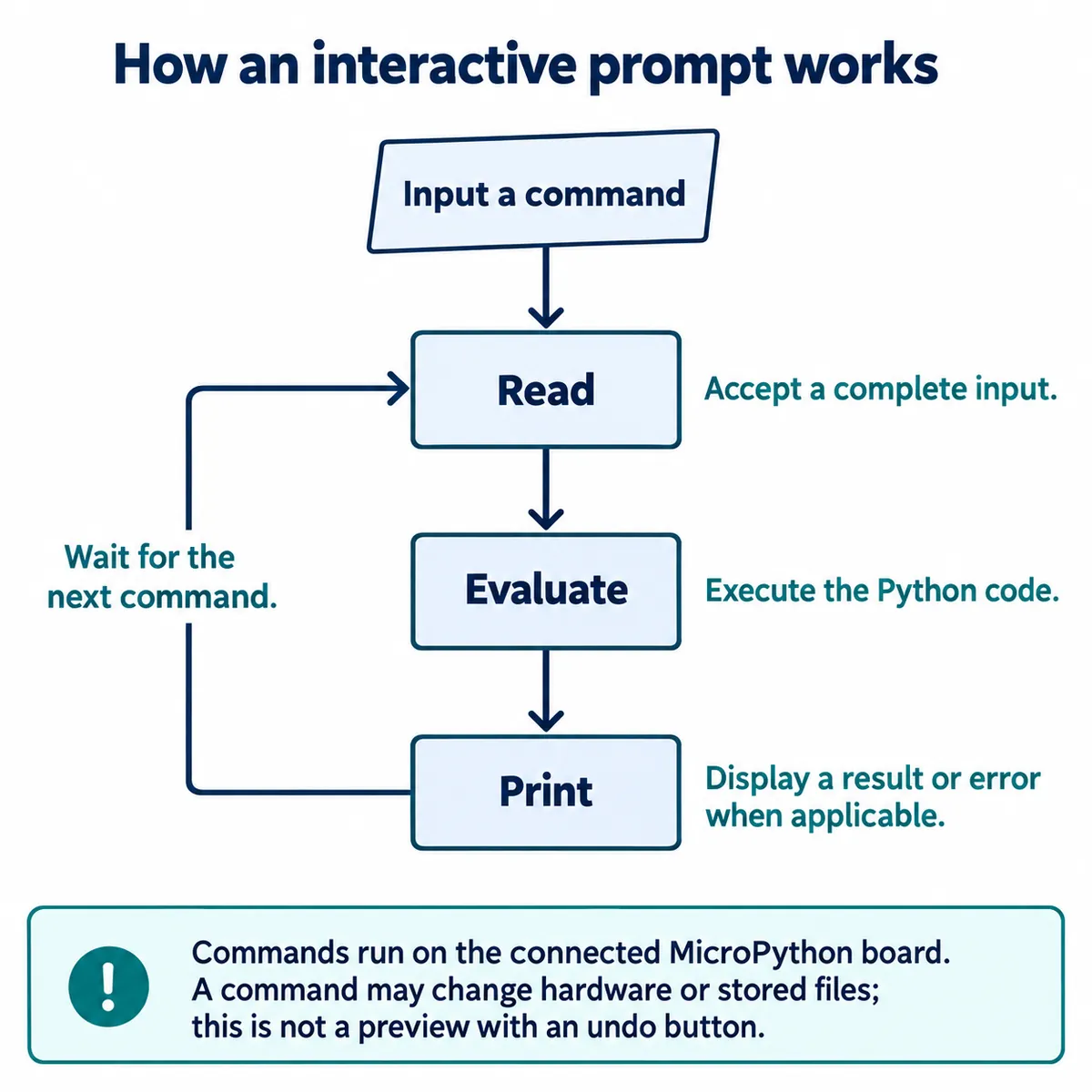
Two computers are involved: the laptop showing the terminal and the microcontroller running your application. The laptop also has its own Python. A familiar prompt alone does not prove your code is reaching the board. In a MicroPython editor discussion, a user reported a missing machine module and was pointed to the command that runs code on the board rather than the PC. Check that before installing more packages.
We started with mpremote. On the computer, install it if needed and identify the board's port:
python -m pip install mpremote
mpremote connect list
mpremote connect COM3 repl
COM3 was our Windows port; use the one listed for your board. With more than one device attached, choosing the port explicitly is clearer than relying on automatic selection. The official mpremote guide documents the connection commands.
PuTTY or MobaXterm also work; you only need one tool open at a time. In PuTTY, choose a serial connection, set the port and turn flow control off. Our USB serial session showed 9600 in the settings. Do not carry that number over to a separate hardware UART connection, which used 115200 in our reference and must first be enabled in firmware. For a first diagnostic session, stay with the board's documented USB path and a known data-capable cable.
Ask a small question before changing the application
At the board's >>> prompt, enter help(). The output lists useful modules, pin information and control keys. Save the firmware banner too; "Pico board" is less precise than the board and firmware version the device reports.
Next, check what the installed firmware actually provides:
import machine
help(machine)
dir(machine)
help describes an object and dir lists its names. This is useful when an example refers to a feature your firmware does not seem to have: it checks the current environment instead of assuming every example targets the same build.
A plain response is another small check:
print("Hello World!")
If the prompt accepts it and prints the message, you have confirmed an interactive path into the interpreter. You have not yet tested the sensor, network or application that stopped. That narrower result still tells the engineer where to look next.
Reproduce one controlled action
Then control the board LED:
from machine import Pin
led = Pin("LED", Pin.OUT)
led.value(1)
led.value(0)
Enter the last two lines separately so there is time to see the change. The example uses the firmware's LED name, which mapped to GP25 on our board. Check your board's definition before reusing it on another design, especially one where outputs drive more than an indicator.
Record both what the terminal did and what you saw on the hardware. "The command returned without an error, but the LED stayed off" is far more useful than "the test failed."
For several lines of code, use paste mode: press Ctrl-E at an empty normal prompt, paste a short function, then press Ctrl-D to compile and run it. In paste mode Ctrl-D finishes the pasted input, which is not the same as Ctrl-D at an empty normal prompt. The MicroPython REPL reference explains these controls. If the pasted function prints its lines, the block reached the interpreter with its structure intact. Save the script separately; an interactive session does not replace keeping the code that belongs to a prototype version.
Keep stopping, disconnecting and resetting separate
While the application is running, Ctrl-C can interrupt it and return to the prompt, if the program and connection let the interrupt through. Save the output before any reset. Closing the terminal on the laptop is a different action: it ends that connection and does not by itself guarantee the board's Python state was cleared.
A soft reset restarts the interpreter and clears its Python objects. A power cycle also runs startup, but it is not interchangeable with every editor's "Run" button. MicroPython's reset and boot documentation explains how startup files and the type of reset affect what runs next.
Record the tool version as well as the firmware. In a September 2026 announcement, the MicroPython team described a change in mpremote 1.30 preview builds: action commands would keep interpreter state by default instead of starting from a soft reset. Do not assume every installed version behaves this way. One consequence: copying a changed module onto the board does not necessarily replace a copy already imported in memory. Decide whether a test should keep the current state or start fresh, and use your installed tool's commands to make that explicit. Avoid upgrading to a preview just to match an old screenshot.
If the board never reaches a prompt, stop treating repeated terminal commands as diagnosis. Record whether the computer sees the USB device, what appears before it stops responding, and what changed since the last working run. Recovery then depends on the board, firmware and startup code, so keep a copy of the application files before any erase or reflash.
Make the next test easy to repeat
Before handing a prototype to someone else, agree on a short support procedure: the board and firmware, the connection tool and its version, the exact port-selection step, one harmless check and its expected response. Include how the application normally starts, since "works from the editor" and "starts when power is applied" are different observations.
For a problem report, keep the exact command and full error text, the action just before the failure, and whether it repeats after the agreed restart. Remove passwords or tokens from anything you share. A short video adds the physical result the console cannot show.
The goal is to make the next engineering decision easier: investigate the connection, the installed software, the startup sequence or the hardware output, without starting from a full reinstall.