
You leave an AI coding task running and turn to something else. Ten minutes later you find it has been waiting for your permission the whole time. If you are designing a desk companion or a work-status gadget, this is a good first problem: help someone notice when their attention is needed, without making them keep checking another screen.
People already try desktop notifications, sounds and floating status widgets for this. In one Claude Code discussion on Reddit, the author got a notification working, then found it stopped after restarting the coding tool. That is an example of a recurring problem, not evidence that everyone wants another gadget on the desk.
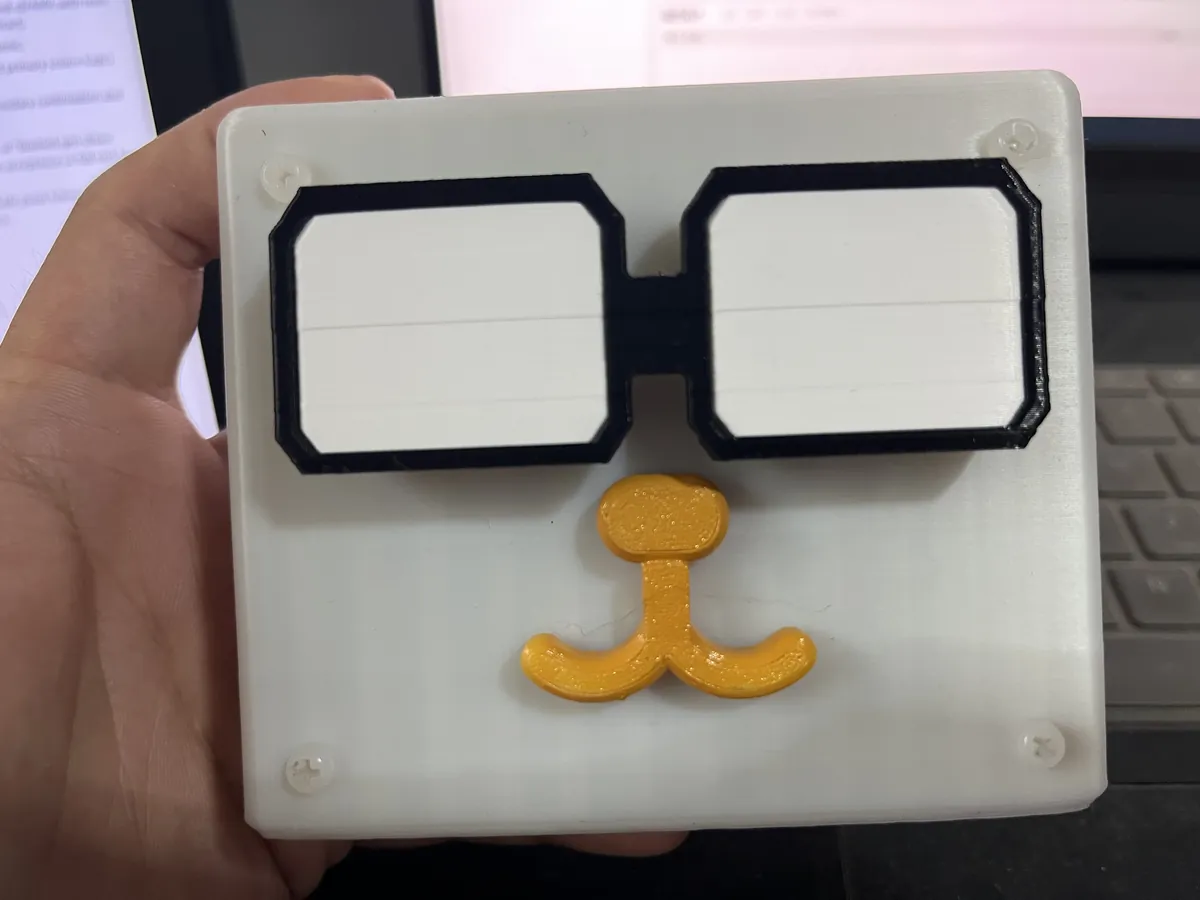
A physical light makes sense when it is easier to notice than a window, or when the object itself is part of what you want to test. Our team built a desktop assistant of this kind: a computer sends status updates over Wi-Fi to a small printed device, which responds with light, sound and vibration. This note follows that build and lists what to test before handing a similar prototype to users.
Start with the moment that should bring someone back
The useful distinction is between "still working" and "waiting for me". A quiet terminal could mean either. If a light guesses from a lack of activity, a long operation triggers an unnecessary alert. If every tool call makes a sound, people mute it within a day.
Our device receives events from Claude Code through hooks, small integrations that run at defined points in a coding session. A program on the computer turns those events into five display states: slow blue breathing for idle, a moving cyan pattern for working, a slow yellow flash for pending approval, three green flashes for complete, and alternating red and blue with vibration for an error. Approval still happens on the computer; the object only notifies.
Define what each state means before choosing an animation. In the Claude Code hooks reference, PreToolUse means a tool is about to run, which is not proof the user must approve anything. PermissionRequest identifies a permission request, and Stop means the assistant has finished responding. That matters when a cheerful green light could be read as "the whole project passed its tests".
Give the computer and the device separate jobs
The device is built on a WizFi360-EVB-Pico, which, as the WIZnet board documentation describes, combines an RP2040 with a WizFi360 Wi-Fi module. The WizFi360 handles the network; the RP2040 runs the feedback logic. The computer opens a TCP connection to port 57321 on the device and sends status messages over the local network. In our configuration, UART1 links the RP2040 to the Wi-Fi module, with GP4 transmitting and GP5 receiving, at 115200 baud.
Keeping those jobs apart lets the hardware show a compact status instead of trying to interpret a coding session itself.
During development we enlarged the UART receive buffer to 8192 bytes and improved frame parsing after communication problems: the device has to separate incoming status data from the Wi-Fi module's own command responses on the same serial line. A larger buffer alone does not establish how long the assembled device runs without an error.
Two version traps are worth naming. The computer-side program is called ble_daemon.py even in the Wi-Fi build, a leftover from a Bluetooth variant. And early project notes described the wire format as binary, while the Wi-Fi transport actually sends JSON text ending in a newline. For a derivative build, use a matched computer and device release and its actual protocol, not a description of it.
Keep the physical details in the design
The device has a controller board, a carrier PCB, status LEDs driven from GP16, an I2S audio amplifier and speaker for stored speech prompts, a vibration input and motor, a power switch and a printed case. A status light has to stay noticeable once it is inside that case. Speaker openings, light windows and access to the switch shape the experience as much as the software states do.
Our circuit drawing used a placeholder symbol for the controller and recorded later pin revisions. Treat a drawing like that as design history; match the actual PCB, firmware configuration and board revision before wiring a copy. The project family also includes other enclosure shapes and a Bluetooth variant, so photos of one version are not a pin reference for another.
Light, sound and vibration are separate channels. Light is visible beside a monitor, a short sound calls someone back from another window, and vibration depends on how the object couples to the desk or the hand. For an early user trial, test one alert at a time. Can someone recognize the pending state from where they sit? Does the light read clearly through the printed window? Can they silence it without losing the important indication?
Walk through setup as the next user will
Our setup tool selects the device directory and the WizFi360/RP2040 variant, then prepares the matching firmware. The variants are easy to confuse, and the wrong firmware gives a device that lights up but never receives the right events. Generating speech prompts uses a cloud speech service, a separate step from the local status link, so the whole workflow is not cloud-free.
After the device joins the network, the computer has to find it. Our pairing screen takes the device's IP address and runs a connection check. We suggested a fixed IP address, but a scan that finds nothing does not prove an address is unused; plan addressing with whoever runs the network, or use a DHCP reservation. The requirement is that the computer finds the device again after a restart.
Then start the bridge and exercise the states on purpose: start a task, cause a real permission request, finish a response, and watch each one. Restart the coding tool and the bridge and check again. A notification that only works during setup is not ready to hand to someone else.
Test lost contact before adding features
The next useful test is what happens when events stop arriving. Disconnect the network, close the bridge, restart the computer and reconnect. Decide how the user will recognize stale information, and confirm that an old "working" or "complete" indication does not look current indefinitely.
Our documentation gives a nominal 5 Hz update cadence on the computer and 20 frames per second for rendering the light. Those are settings, not measurements: neither tells you the delay from a real permission request to an alert, or how reliably the connection holds over days.
That leaves a focused next prototype: one matched hardware and software version, a few recognizable states, a clear pairing flow and defined lost-contact behavior. Test it with people at their desks before turning the object into a talking robot or a shared office display.