
A customer-facing screen and an operator screen can make a prototype easier to use. One person sees a result; the other changes settings. But if both panels show the last page you created, or a touch affects the wrong interface, adding more buttons to the design will not fix the underlying problem.
The first decision is whether the panels need independent interfaces or the same picture. For independent interfaces, the software has to know where each page belongs and which display receives each input. That assignment is separate from wiring the panels and getting pixels onto them.
This note works through that assignment with LVGL 9.0. It is a design note: we have not built and recorded a two-screen hardware setup for it, and the code below is illustrative.
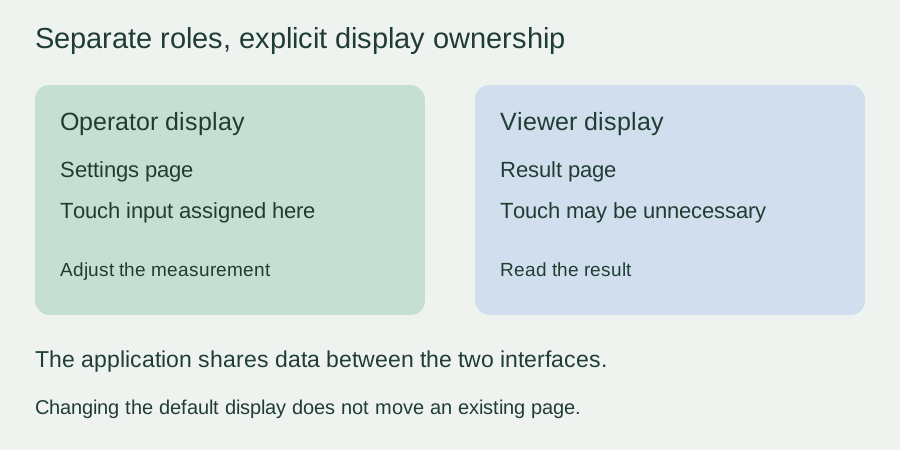
Choose the relationship between the two panels
Typical reasons for a second panel include a large color display beside a small monochrome one, several status panels on an instrument, or separate customer and staff interfaces. LVGL can even add a virtual VNC display, which needs its own driver. These are architectural options, not proof that a given board can drive every combination.
For the operator-and-viewer case, two independent LVGL displays are the natural starting point. Each has its own resolution, rendering configuration and pages. Sharing an application value, such as the current result, does not require the panels to share a screen object.
Mirroring is a different job: a driver distributes the same rendered output to both panels, which still needs compatible dimensions, pixel formats and transfer completion. A tiled wall is different again, because software must map parts of a larger image to each panel. Copying or clipping buffers is only an outline of those cases, not a ready-made driver.
A page belongs to a display when it is created
In LVGL terms, a display represents the output device. A screen is a top-level page of interface objects on that display. A product can have one physical display with several pages, or two physical displays with separate page sets.
In LVGL 9.0.0, the first display created becomes the default; creating another does not replace it. Some explanations say the last one becomes the default, which is wrong for this version. The version-pinned display implementation shows the behavior, so set the default explicitly when building each page instead of relying on creation order.
This has caused real confusion. In an October 2021 LVGL forum question, a developer created the displays and pages first, then changed the default before loading each page. Content still appeared on the first display. That report concerns LVGL 8.0.2; it shows the misunderstanding, while the 9.0.0 code is the basis for the example here.
The fragment below shows the intended order once two display drivers are configured. It uses the C API because it makes the relationship explicit; a MicroPython binding and the driver setup must match your firmware.
/* operator_disp and viewer_disp are configured display handles. */
lv_display_t *previous = lv_display_get_default();

lv_display_set_default(operator_disp);
lv_obj_t *operator_page = lv_obj_create(NULL);
lv_label_set_text(lv_label_create(operator_page), "Operator settings");
lv_screen_load(operator_page);

lv_display_set_default(viewer_disp);
lv_obj_t *viewer_page = lv_obj_create(NULL);
lv_label_set_text(lv_label_create(viewer_page), "Viewer result");
lv_screen_load(viewer_page);

lv_display_set_default(previous);
A page with no parent is assigned to the current default display when it is created. A label created under that page follows its parent, and changing the default later does not move an existing page or its children, as the LVGL 9.0.0 object-creation code shows. Keep page construction and loading for each display together so the association is easy to review.
Route touch separately from the picture
A correctly drawn page does not prove its input is attached to the right display. After creating a pointer input device and setting its read callback, associate it with the intended display explicitly:
/* operator_touch is an initialized pointer input device. */
lv_indev_set_display(operator_touch, operator_disp);
LVGL 9.0.0 first associates a new input device with the default display; lv_indev_set_display() changes that. It does not calibrate coordinates or correct a rotated touch panel, so check reported positions separately from the display assignment. If the viewer panel is only for viewing, it may not need a touch device at all.
This is also why a graphical editor that supports a panel is not the same as one that supports a whole dual-panel product. In a public ESP32 UI-editor discussion, a user asked about a dual-display board and the developer said its dual displays and custom libraries were outside the beta's current support. That is one tool's boundary, not a limit of LVGL systems in general.
Make the first prototype visibly unambiguous
Before building polished pages, put a large OPERATOR label on one display and VIEWER on the other, each with its own visible counter. Touch the operator control and log the input-device identity, the coordinates and the target control. The operator counter should change; the viewer counter should change only when the application intends it to.
Then run both panels together with the real data and refresh rates. Two displays can share processor time, memory and a communication bus even when their interfaces are logically separate. A static screen on each is a useful first result, but it does not show that two animated interfaces will stay responsive.
For the next engineering step, bring the panel models, resolutions, intended roles and a sketch of which controls affect which results. Reviewing the interaction and the driver requirements together, before the enclosure is fixed, keeps those choices cheap to change.