
Someone is trying your device for the first time. They tap a field, type a name or a number, and press the check mark. What happens next? Does the keyboard go away, is the value accepted, and can they come back to fix a mistake?
For a small team adding a touchscreen to a prototype, that complete interaction is a better test than whether a text box appears. A working keyboard is one part of setup. The user also needs to see the field, understand what input is allowed, and know whether the device accepted it.
We tried text areas, on-screen keyboards and a button matrix with LVGL and MicroPython in the LVGL browser simulator. The results include useful limits as well as successful typing. They show interface behavior only: no connected product, no authentication, no saved configuration.
Ask for less typing where you can
List what the user really has to enter. A device name may need free text. A count needs digits. A choice among three known modes probably needs no keyboard at all.
Our button-matrix test created three buttons, A1, A2 and A3, and printed the pressed label to the console. Small as it is, it is a practical alternative to typing a known choice. In a product you would replace the labels with meaningful options and connect each to its action; the console message only confirms the callback ran, not that anything changed modes.
Choose the field behavior before styling it
We tried three text-area setups.
- A multiline field limited to 100 characters, with a placeholder saying several lines are allowed.
- A password field: masking on, a bullet character, one second of visibility for each typed character, and a 20-character limit. Those are test settings, not a recommended credential policy.
- A one-line field that accepts only the characters
0123456789, limited to ten characters.
Masking changes only what is drawn. The LVGL 9.0 text-area documentation notes that reading the field still returns the real characters. If you adapt it for real credentials, decide separately how they are stored and keep them out of debug output.
The digits-only filter stops letters from being typed through that path. It does not decide whether a value makes sense. If a product needs a repeat count from 1 to 20, then 0, 21 and 999 all pass the filter and all fail the requirement. Add a range check and a clear message; we have not built that yet.
Connect the keyboard to the field being edited
Our first keyboard test placed a 400 by 200 keyboard at the bottom of the screen and a 380 by 100 text area near the top, then linked them with keyboard.set_textarea(textarea) so key presses land in that field. Typed text appeared as expected.
Those sizes suit a demonstration, not every product. Try the interaction at your display's resolution with the keyboard open: the field being edited and the action that finishes the task must both stay reachable.
This is a long-standing integration problem. In a 2020 LVGL forum discussion, a MicroPython developer asked how to reopen a keyboard and keep lower fields from being covered, and a 2025 question about a configuration screen raised the same goal on an ESP32-S3 touchscreen. Those are individual reports on older LVGL versions, not a measure of how common the problem is.
Moving the keyboard away is not hiding it
Next we used a six-digit field with a numeric keyboard. Tapping the field bound and moved the keyboard into view, and the confirm key's READY event moved it below the screen again.
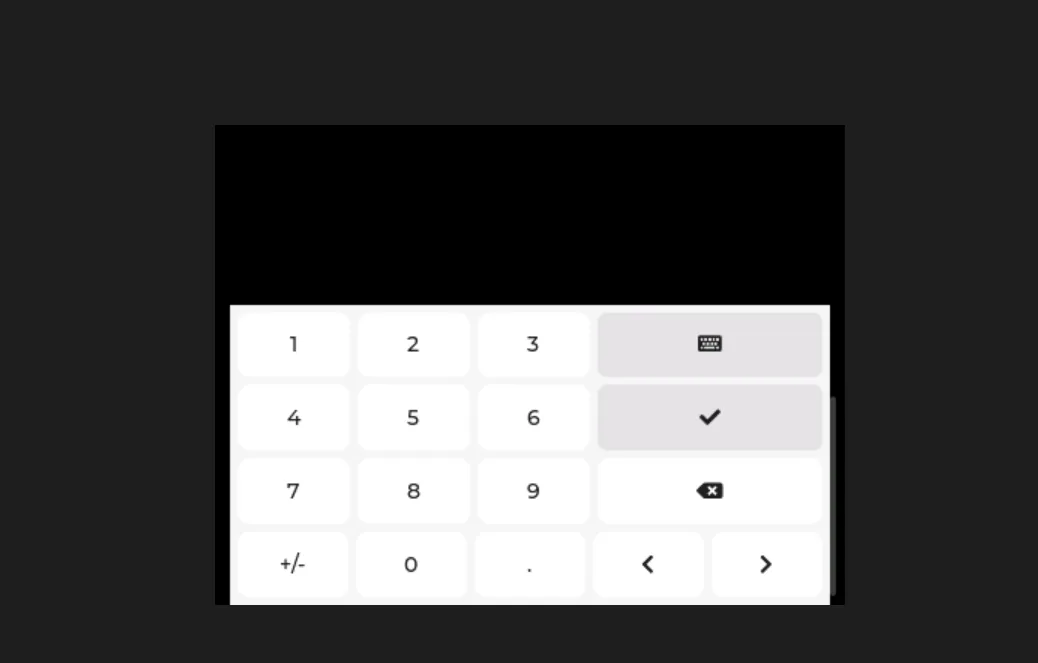
The LVGL 9.0 scrolling documentation explains why: content outside a parent's content area can make the parent scrollable. Changing a widget's coordinates does not remove it from the interface.
For a product, use explicit visibility handling and a layout that reserves room for input. The official keyboard example hides the keyboard with a hidden flag when a text area loses focus and assigns it when a field gains focus. That is the reference design; we have not yet run a corrected MicroPython version. Test reopening, switching fields and dismissing in your actual binding and input setup.
Share one keyboard without sending input to the wrong field
The last test added a normal text field and a digits-only field. Each field's click callback pointed the same keyboard at itself and set the matching mode:
kb.set_textarea(text_number)
kb.set_mode(lv.keyboard.MODE.NUMBER)
The important change is where input goes, not just which keys are drawn.
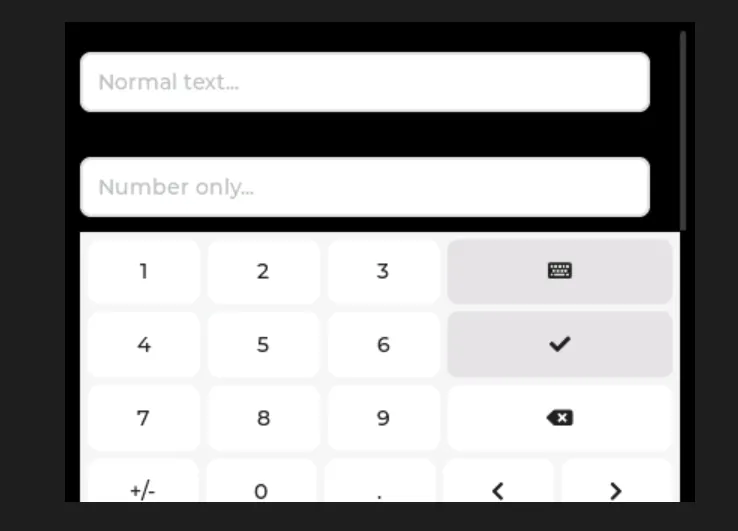
The field's accepted-character rule is separate from the keyboard layout. A number pad is not a validation rule, so choose both on purpose.
Confirming still just moved the keyboard off-screen. Nothing saved the text, applied a setting or showed an acceptance message. In a real setup flow, decide whether the check mark means "done typing" or "save this setting." If those are different steps, make the next action visible rather than letting the keyboard's disappearance imply success.
Test the complete task, including a correction
Give a participant a small, realistic task: name the prototype, enter an allowed value, finish, then change that value. Watch where they hesitate. Can they see which field receives input? Can they bring the keyboard back? Can they tell an invalid entry from an accepted setting?
Then cover what our simulator tests did not: empty input, the maximum length, an out-of-range value, switching fields mid-entry, and leaving the page without confirming. Use the physical screen before drawing conclusions about touch accuracy or comfort; simulator results do not measure finger input or the finished enclosure.
The goal is a setup interaction a first-time user can complete and correct without developer help. Once that works, connect the accepted values to the device and test what happens after a restart.