Your touchscreen prototype asks, "Discard these settings?" The box looks clear and its buttons work. Then someone taps beside it and changes the page underneath. The interface asked for a decision without actually waiting for one.
For a small team preparing a device for user testing, this is worth checking before polishing the graphics. A popup needs a defined response to touch, to any physical controls, and to being closed. You can explore the screen behavior in a simulator before the display goes into an enclosure.
We worked through this in the browser-hosted LVGL and MicroPython simulator: overlapping buttons, a global popup and the return to normal screens. These are software experiments, not measurements on a finished touchscreen product.
Decide what must wait for an answer
A confirmation box should make one decision clear. For a settings screen, "Keep editing" and "Discard changes" might be the choices. Decide what each does to the pending settings, which screen follows, and whether touching outside the box does nothing. That short description gives the developer and the tester the same target.
This differs from a notice that reports a status while the rest of the interface stays usable. A modal popup deliberately restricts interaction until it is dismissed. Drawing a box over other controls is only part of that.
The distinction causes real confusion. In a May 2023 LVGL forum discussion, a developer could still operate background widgets while a message box was visible. A suggested workaround that changed every widget's click flag was later withdrawn because it caused unexpected behavior.
Start with two buttons that overlap
Before building the popup, we created two buttons on one screen, partly overlapping. The later button drew above the earlier one, and calling move_foreground() on the first button changed the visible order.
That makes the point tangible: the upper button covers some pixels of the lower one without turning the whole screen into a blocked area. For a product review, ask both "What can I see?" and "What can I still operate?"
Two practical notes from that session. One command referenced an index variable we had not defined yet and raised NameError; the next, with a literal index, worked. An error at the prompt is not proof that LVGL cannot reorder objects. And keep the simulator build and binding version with the project: older examples use lv.btn, newer ones lv.button, and mixing snippets from different bindings can stop a simple test before it reaches the behavior you wanted to see.
Put the popup on a layer that can intercept touch
Our test had Screen A with a button to switch to Screen B, and Screen B with a button to return. The popup was created on lv.layer_top() rather than as a child of either screen. For a given display, that layer sits above the active screen and stays available when screens change.
The important extra step makes the top layer clickable, so it intercepts pointer clicks that would otherwise reach the screen. This is the modal-layer behavior described in LVGL's version 9.0 layer documentation. It applies to one display's layer, not to every display or input in a device.
The core LVGL calls are short:
top_layer = lv.layer_top()
top_layer.add_flag(lv.obj.FLAG.CLICKABLE)
popup = lv.obj(top_layer)

# in the close button's callback:
top_layer.remove_flag(lv.obj.FLAG.CLICKABLE)
popup.delete()
Closing therefore has two jobs: remove the popup and release the click barrier. Removing only the visible box can leave the screen looking normal while an invisible layer still catches taps. Releasing the barrier while another dialog still needs it restores interaction too early. Our test used a single popup; overlapping dialogs need their own ownership and dismissal rules.
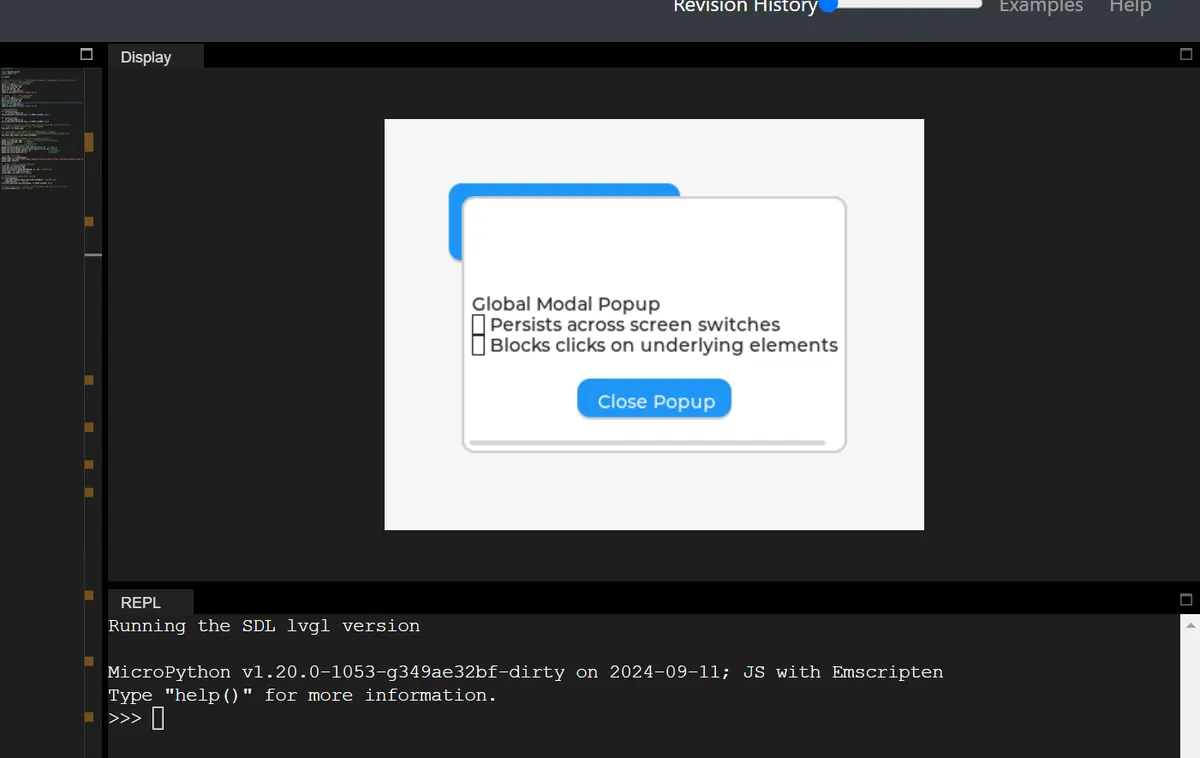
Check the return to normal use
After dismissing the popup, we moved between Screen A and Screen B normally. That shows the intended path back to ordinary navigation. It does not show that every tap was blocked while the popup was open, or that the popup stayed visible across a screen change.
Test those interactions deliberately on your prototype. Open the box and tap the exposed part of the button behind it, then tap empty background. Close it and try the ordinary control again. Repeat the sequence rather than accepting one successful dismissal as the whole test.
The screenshot also shows details a polished mockup can hide: a horizontal scrollbar on the popup and arrow characters rendered as empty boxes in this font. Check the real text, font and dimensions on the target display. A dialog can block clicks correctly and still be awkward to read or use.
We also placed a red marker on the system layer above the popup and moved it from the terminal. That illustrates another layer's position; it is not a working touch driver or a cursor following physical input.
Try the knob or keyboard as well as the touchscreen
A desktop mouse is convenient for the first pass. It is not enough if the enclosure will also have a rotary knob, keypad or separate button, because those controls can reach the interface by a different path.
A September 2021 forum question describes exactly that: the modal box worked with a mouse, but Tab still selected objects behind it. LVGL's input-device documentation explains why: keypad and encoder actions go to the focused object in their assigned group. A touch barrier does not set a focus policy by itself.
If your prototype uses those inputs, specify which dialog choice starts with focus, how the user moves between choices, and where focus returns after closing. Then test them on the actual controls. Our pointer-only popup did not implement that.
Make the device agree with the message
For a settings confirmation, the application should keep pending values separate from saved values until the user chooses. A popup asking "Discard changes?" after the changes are already committed offers a misleading choice. That is application state to build around the interface.
The same applies when a screen controls something physical. A modal box does not automatically stop a motor, cancel a command already sent or block a separate hardware input. Decide what the device keeps doing while the question is on screen, and enforce it in the device logic.
Before handing the prototype to someone else, write down the expected behavior:
| Situation | What the team should be able to demonstrate |
|---|---|
| Popup open, user taps outside it | Background controls stay inactive, if that is the policy |
| User turns a knob or uses a keypad | Selection stays within the dialog's choices |
| User cancels or confirms | Pending settings follow the chosen action exactly once |
| Popup closes | Normal touch and focus behavior return |
| Another page or message is requested | A defined rule decides what stays visible and interactive |
These are acceptance checks to run on your hardware; our simulator work is a starting point, not that test.