
If you are building a lamp with a small touchscreen, a single tile can look like a neat solution: tap it to turn the light on, hold it to open settings. But what happens when you lift your finger after the hold? If the software also treats that release as a normal click, visiting settings can switch the lamp.
This is a real design problem, not just an awkward label. A SquareLine forum user reported exactly that conflict in October 2025, and the reply suggested separating the actions or adding explicit handling for the overlap. For a team preparing a first user trial, the useful question is simple: can someone predict what each action will do?
This note works from LVGL's input and event model, as used with MicroPython, and turns it into a control scheme to define before the screen is connected to a real light. It is design guidance, not a recorded lamp experiment.
Give the everyday action its own control
For a first prototype, consider an obvious On/Off control next to a separate Settings button. People can discover both actions by looking; they do not need to know that holding the main tile reveals another page.
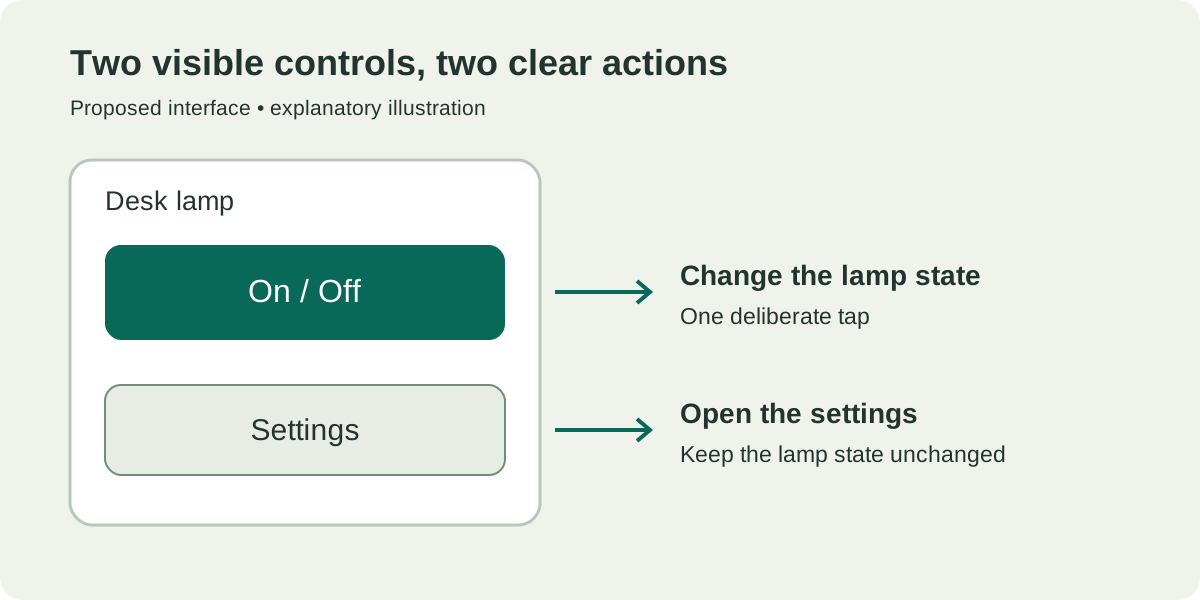
A long press can still make sense when space is tight. If you use one, write down the whole gesture: finger down, hold, settings opens, finger up. Then specify whether that final release may change anything. "Long press opens settings" leaves the last step undefined.
A press, a click and a hold are different notifications
LVGL tells the application what happened through events. In the version 9.0 reference, PRESSED marks the initial press, SHORT_CLICKED a short press followed by release, and CLICKED a release that counts as a click even after a long press. Scrolling prevents the click events. LONG_PRESSED fires when the hold reaches the configured duration. The LVGL 9.0 event reference documents these distinctions.
For the lamp, do not attach "toggle power" to every event that sounds like a click. Decide which single event owns that action. If a widget also changes its checked state on its own, review that too; moving your application callback may not remove the built-in toggle.
| User action | Proposed behavior | What to observe in a trial |
|---|---|---|
| Tap On/Off | Request one state change | One action, with a clear response |
| Tap Settings | Open settings | The lamp keeps its current state |
| Hold a control | Follow its documented hold behavior | Releasing does not trigger a second action |
| Start a touch, then slide away | Follow the chosen cancel behavior | The result matches what the screen told the user |
This table is a handoff for implementation and testing. It does not show that a particular touch driver, widget configuration or physical lamp already behaves this way.
Keep the action attached to the right object
Events can bubble: a child control can pass an event to its parent container. That is useful when one panel manages several related buttons, but it means the object handling an event may not be the one the user touched.
Say a settings panel holds separate brightness and color controls. Its handler must identify the original control before deciding what to change. LVGL distinguishes the original target from the current target for exactly this reason (get_target() versus get_current_target(), though the exposed names depend on your binding version), and the event reference explains the difference. To turn bubbling on for an object you set a flag on it, so check which objects have that flag.
When diagnosing an unwanted action, log the event type, the original control and the handler that received it. Check whether both a child and its parent issue the same command. That tells you more than adding a delay and hoping the second response goes away.
If you add a knob, show what turning it will change
A knob raises another decision: does turning it move between options, or adjust brightness? LVGL organizes this with a group of controls that has one focused item, plus separate navigation and editing modes. The screen has to make the current mode visible. A focus outline can mean "this control is selected"; an editing label can mean "turn to adjust brightness."
That is easy to get wrong. A June 2026 LVGL forum thread describes difficulty using encoder rotation to move through an on-screen keyboard. It is one developer's question, not evidence that a knob is wrong for every product.
For an encoder, the input driver must report rotation and press or release state; drawing a knob on screen is not enough. Do not assume every widget leaves editing mode on a short click either, because the required gesture depends on the widget. Check the LVGL 9.0 input device guide against your firmware and test the way back to normal navigation.
Try the complete action before expanding the interface
Start with one working control path. Let a person turn the lamp on, open settings, adjust a value and come back. Watch where they pause, tap twice or change something by accident. Then repeat on the real screen and input hardware; a mouse-driven preview cannot tell you how the touch surface or the knob feels.
The useful deliverable is a short list of agreed behaviors and a demonstration that follows them. Additional screens then have a clear foundation to build on.