
Your prototype works with one screen. Now you want a customer to see its status while an operator changes settings on the other side. Adding another display sounds like a small extension, until the two screens need different information at the same time.
The first decision is what the second screen is for. Does it repeat the first image, show an independent view, or form part of a wider picture? Those choices lead to different display software and different tests. Make the decision before building a second interface around an assumption your hardware cannot support. This note works through the choice using LVGL 9.0 concepts. It is a design note: we have not run a dual-display hardware test for it, and the diagrams are illustrations, not photographs of a tested product.
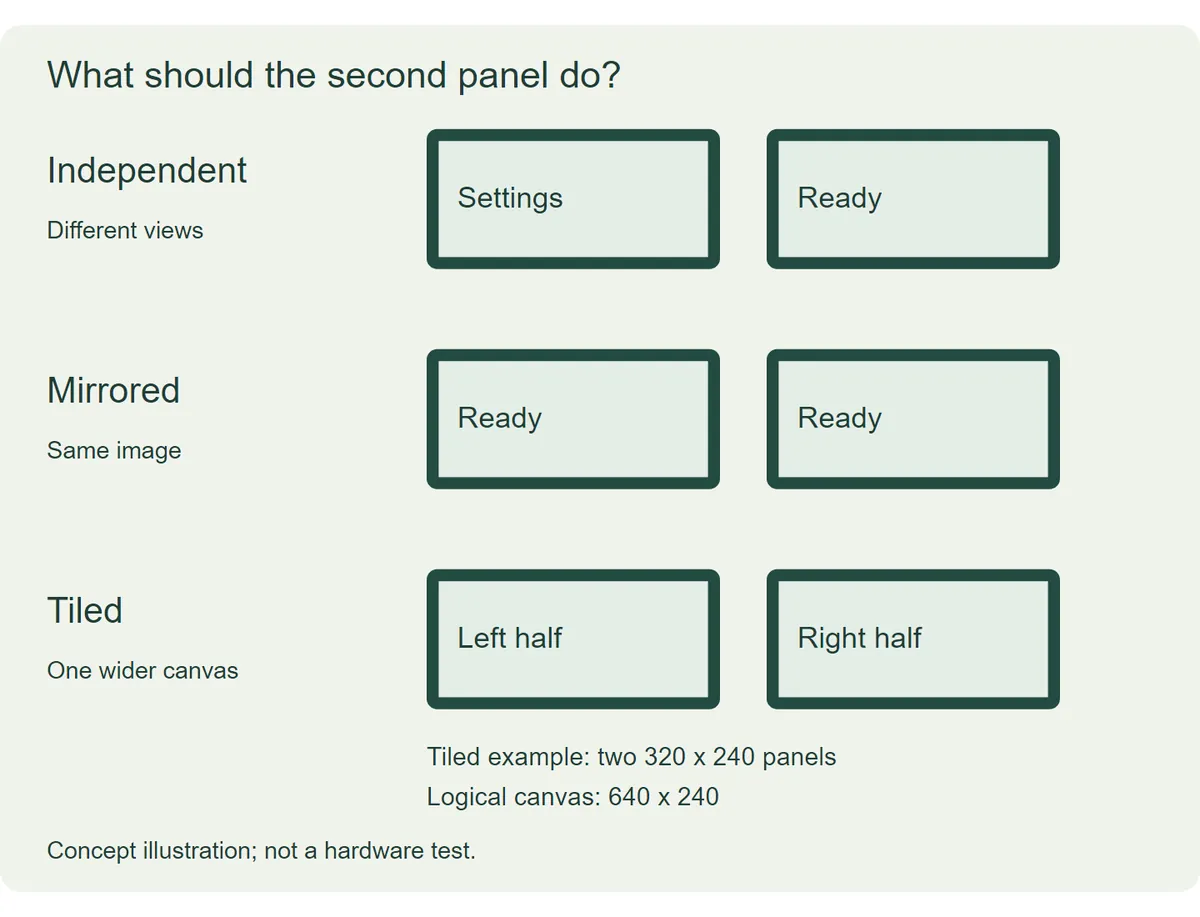
Give each screen a job
For an operator panel and a customer-facing status panel, independent views usually fit the task. The operator might need a settings page while the customer continues seeing "Ready." Changing pages on the operator panel should not reveal its controls on the customer panel. Both views can use the same application data without sharing the same layout.
Mirroring fits a different need: two people must see the same information. LVGL's explanation of mirroring describes forwarding the rendered pixels to another output. That does not automatically adapt a large color interface to a small monochrome panel. Different dimensions or pixel formats still need an explicit conversion or layout decision.
A tiled arrangement treats adjacent panels as one larger canvas. For example, two hypothetical 320 x 240 panels placed side by side provide a 640 x 240 logical area. Each panel still has its own physical pixel limits, and the output code must send each portion to the correct panel. This is useful when an image needs to span the seam, but it adds work that an ordinary controls-and-status pair does not need.
A page is not another display
LVGL uses two terms that are easy to confuse. A display is an output destination with its own configuration. A screen is a top-level user-interface container belonging to a display. One physical panel can have several software screens, such as Home and Settings, with one active at a time.
Adding a Settings screen therefore does not create a second hardware output. For two independent panels, the software needs to keep track of two display destinations and create each interface under the intended one. Ask where the pixels go first, then ask which page belongs there.
This is a real integration hurdle. In an LVGL forum question dated April 30, 2025, a developer reported that either display worked alone, while the combined setup stayed white. The post does not establish a final cause. It shows why two successful single-panel demonstrations are not yet a successful dual-panel system.
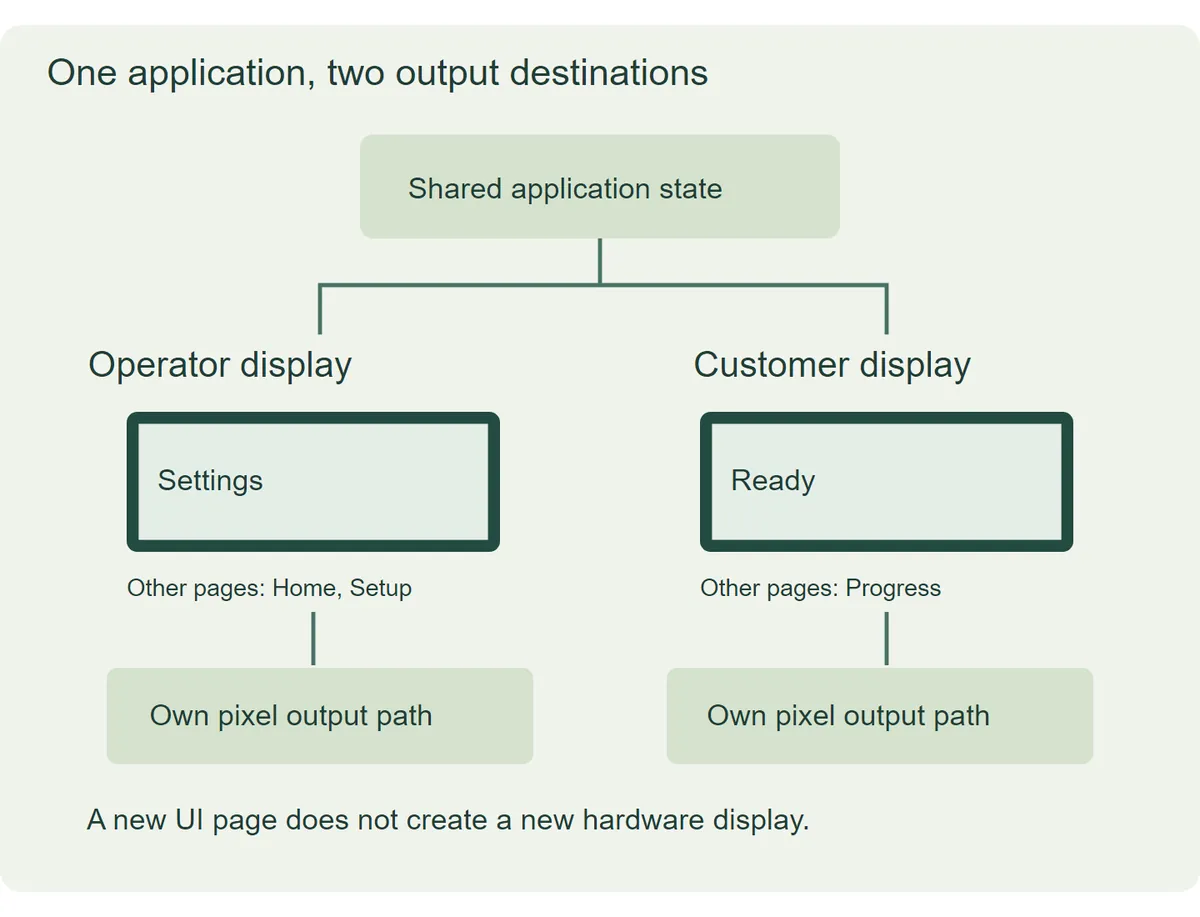
Make the destination explicit
A display handle is the reference used to identify one output. Keep those references instead of relying on whichever display happens to be the default. This makes it easier to see whether a new label, page or refresh operation belongs to the operator panel or the customer panel.
The default display is version-sensitive. It is often described as "the last-created display becomes the default." In the LVGL 9.0.0 implementation, creation temporarily switches the default while constructing the new display's internal objects, then restores the previous default. The first display becomes default when none existed. Set the intended destination explicitly rather than depending on either description.
The following C fragment illustrates object ownership after both display drivers have already been initialized. It is not a complete driver or a tested MicroPython program; a particular MicroPython firmware exposes its own binding and setup conventions.
/* LVGL 9.0 concept: operator_display and customer_display already exist. */
lv_obj_t *operator_root = lv_display_get_screen_active(operator_display);
lv_obj_t *customer_root = lv_display_get_screen_active(customer_display);

lv_obj_t *operator_label = lv_label_create(operator_root);
lv_label_set_text(operator_label, "Settings");

lv_obj_t *customer_label = lv_label_create(customer_root);
lv_label_set_text(customer_label, "Ready");
The same distinction helps when using a visual UI editor. An exported interface is only one part of the system; its display initialization and target board still have to match. In a public ESP32 editor discussion, a DualEye user asked for support and the author explained that its dual-display arrangement was outside the beta's support. That is one tool's limitation, not a reason to assume all dual-screen hardware is unsupported.
Check the pixel transfer before adding animation
LVGL first draws pixels into memory. A driver callback then transfers the relevant area to the display hardware. The LVGL display setup guide explains these drawing buffers and the flush callback. When transfers run asynchronously, completion must be reported at the correct time so the buffer can be reused safely.
With two independent outputs, inspect each path separately: which panel receives the data, which memory it uses, and when that transfer finishes. With mirroring, the same rendered data must remain usable until both destinations have finished consuming it. Sharing a pointer does not by itself coordinate two transfers.
A reasonable bring-up order:
- Each panel alone, to confirm the driver and basic pixel output.
- A different static label on each panel at the same time, to confirm each interface reaches the right panel.
- A simple counter updating on one panel while the other stays unchanged, which makes accidental cross-updates easy to notice.
- Updates and interaction on both panels under the intended workload.
Passing these steps would be evidence for your particular board, drivers and firmware. A pair of complex animations at step one hides too much.
Test the two-screen task as a whole
Once both views update correctly, try the interaction you actually need. In the operator and customer example, change a setting while watching the customer-facing status. Does it remain meaningful during editing? Does it change only when the application state changes? If either panel accepts touch, check that its input acts on the intended interface.
Then exercise both outputs under the expected workload. Record the board, panel models, interfaces, firmware versions and visible behavior. Observe whether updates or input handling slow down when both views are active. A static label test cannot establish animation performance, and a simulator cannot measure the display bus or the experience inside the final enclosure.
Before asking someone to integrate the second screen, prepare a short brief: what each user sees, whether the views are independent or mirrored, which panels you have, and what already works. Include the smallest example that reproduces any failure. That gives the engineering work a clear starting point and makes it possible to judge whether the second panel improves the product's task.