
Your designer has supplied an icon or a short animation. It looks right on a laptop, but the prototype shows a blank area. Before replacing the screen or simplifying the whole design, find out which step failed: reading the asset, understanding its format, drawing it, or sending the result to the display.
This is a practical problem for teams building a branded controller, a desk companion or an interactive exhibit. In a September 2026 Arduino forum thread, a developer could run the supplied M5GFX example but got a blank screen after swapping in their own artwork, and the replies looked at image data and format compatibility. That is a different graphics stack from the LVGL setup below, but the first question is the same: what changed between the working asset and the new one?
We established a baseline with LVGL and MicroPython in the LVGL browser simulator. Built-in symbols displayed correctly. Loading external PNG, JPG and GIF files did not work in that simulator, and we left that step unfinished. Keeping that boundary visible is what makes the baseline useful.
Establish a small, working baseline
We created an image object on the active screen and gave it a built-in symbol:
scr = lv.screen_active()
img_symbol = lv.image(scr)
img_symbol.set_src(lv.SYMBOL.AUDIO)
img_symbol.align(lv.ALIGN.CENTER, 0, 0)
The audio symbol appeared. Built-in symbols are rendered through a font, so this checks a different resource path from opening an external bitmap. It proves the screen can show this object; it says nothing about whether your PNG decoder or file path is ready. The LVGL 9.0 image reference describes these different source types.
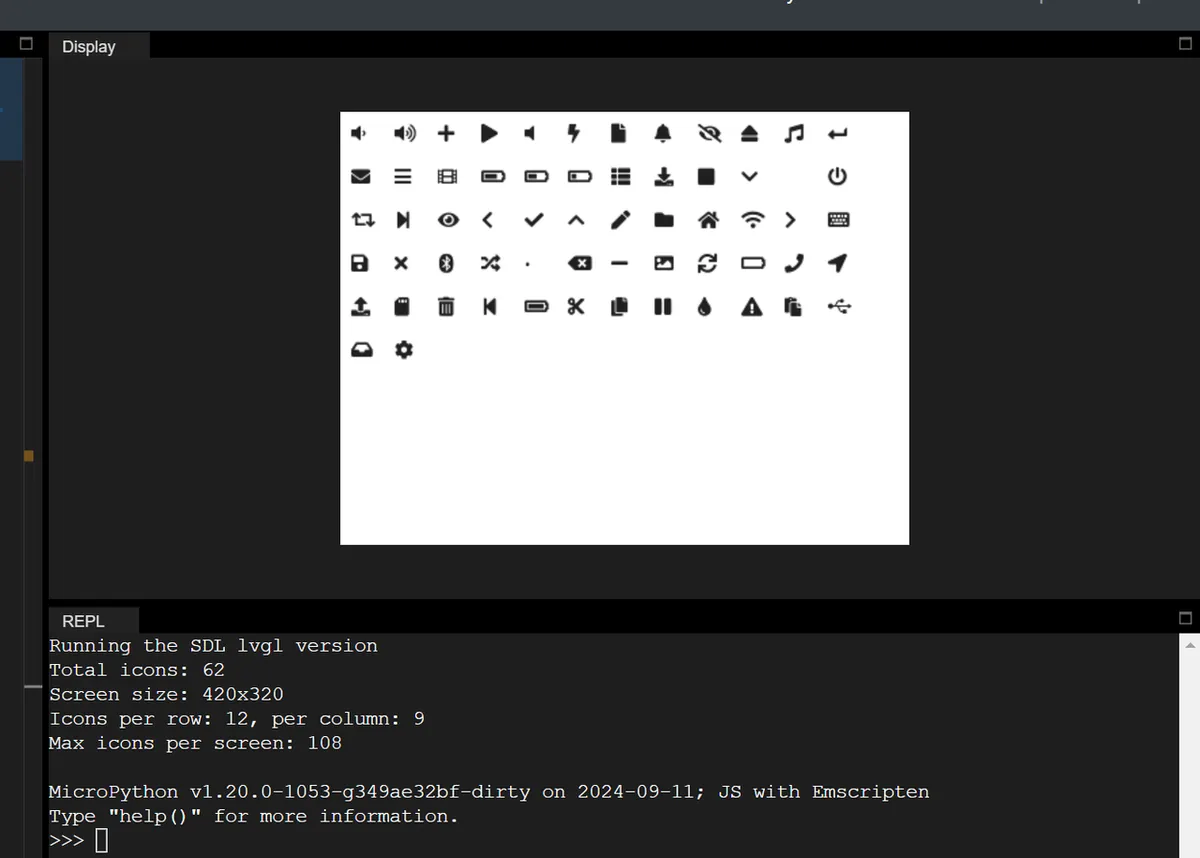
Next we collected the uppercase entries of lv.SYMBOL and laid them out in 24-pixel cells with 8-pixel gaps and padding. On the 420 by 320 screen the console reported 62 symbols and room for 108. Our loop simply stopped at capacity instead of adding a second page.
A sheet like this helps a team pick a few useful symbols early. Review them at the real viewing size and pair unfamiliar ones with words. The cell size is a layout choice; it does not resize every glyph to exactly 24 pixels, and it says nothing about whether people understand what a symbol means.
Introduce one external asset at a time
We registered a filesystem driver with the drive letter S and wrote calls such as set_src('S:001.png') and set_src('S:001.gif'), but nothing displayed in the simulator and we commented them out. Those lines describe the next step. They are not a working solution.
For your next test, use one small static image and keep a known-working comparison next to it. Confirm where the firmware actually stores the file, which LVGL filesystem driver opens it, and whether the build includes a decoder for that format. A Windows drive letter and an LVGL filesystem prefix are not the same thing. If the asset is compiled in instead, check that the converter's output format matches the library version you run.
Add transformations only after that. Two units are easy to get wrong in LVGL 9.0: image scale uses 256 for unchanged size, and rotation is in tenths of a degree. A scale of 100 is not 100%, and a rotation of 90 is not 90 degrees. Those come from the API documentation, not from our screenshots. Record the runtime and binding version with each test.
Budget for the decoded image, not just the file
A small compressed file can become a much larger image in memory. Start from the dimensions and the decoded format: a tightly packed 200 by 200 image at two bytes per pixel holds 80,000 bytes of pixel data. That excludes object storage, decoder workspace, caches, alignment and display buffers. Shrinking the saved file does not necessarily shrink any of those.
Animation adds its own requirements. The LVGL 9.0 GIF documentation requires GIF support in the build and a registered filesystem driver for file-based playback. Its estimate for 16-bit color decoding is four times width times height, which is 160,000 bytes for a 200 by 200 GIF, before anything else the application needs. Check the decoder you actually ship rather than applying one version's estimate everywhere.
Measure the slow step before changing hardware
Drawing and display transfer are separate operations. An image can open correctly and still take too long to decode, redraw or transfer, and a smaller drawing buffer does not mean a smaller decoder buffer.
The LVGL 9.0 display porting guide describes the rendering modes. Partial rendering can use smaller draw buffers; direct and full rendering need screen-sized buffers. The right choice depends on the display path and the rest of the workload. Two buffers can overlap drawing with a background transfer, but allocating them does not guarantee a faster interface by itself.
For a useful comparison, record the same interaction three times: with a symbol, with one static image, and with the animation. Note load failures, free memory and how quickly the screen responds to input. If a decorative animation makes a necessary control hard to use, reduce its size or frame rate and compare again before deciding the processor is too slow.
Hand over a testable visual requirement
Give the engineer the actual asset files, the intended display size, any transparency requirements and the state each image represents. For animation, include the duration, looping behavior and a static fallback. Agree on what the user sees while a file is loading or if it fails to load.
Our baseline established two working symbol displays and an unfinished file-loading step. The next milestone is one representative asset working on the intended device, with enough memory and responsiveness left for the device's real job.