
Imagine handing someone a small sensor controller. They tap "Read," the screen stops changing, and they tap again. Did the first press register? Is the sensor still working? Should they wait or restart? A prototype needs to answer those questions before a user test can teach you much.
You can work out the screen behavior before the real sensor is connected. We ran a set of LVGL timer experiments with MicroPython in the LVGL browser simulator: a changing label, a delayed response, pause and resume, and a finite countdown. Together they separate three things that often get mixed up: the work the device is doing, the time that has passed, and what the screen tells the user. The sensor controller is the scenario we had in mind; no sensor measurement or physical touchscreen test is part of this note.
Give the screen a short job to do
An LVGL timer asks the interface to run a small function at intervals. Our first experiment requested a callback every 1,000 milliseconds that incremented a counter and updated a label, a visible sign that the interface is still being serviced.
timer = lv.timer_create(timer_cb, 1000, None)
The label ended in "/s", but the number is a callback count, not a measured rate. A busy interface can call the function later than requested. For an elapsed-time display, compute elapsed time from a clock instead of assuming each callback is exactly one second.
The key constraint is that these callbacks share LVGL's work. A long sensor read, network wait or sleep inside one callback holds up everything else on the screen. In an LVGL forum discussion from early 2025, a developer described poor touch response when screen-update work took about 100 milliseconds. That is one reported case, not a universal threshold, but it points to a practical test: measure how long your own updates take.
For the sensor controller, let the screen request a reading and then go back to handling the interface. When the acquisition code has a result, make a short UI update. How that handoff works depends on the board and runtime. Adding another LVGL timer does not create a separate worker thread; the LVGL timer documentation describes the non-preemptive model.
Acknowledge the press before the result arrives
In the second experiment, a button click changed the label to "Waiting 500ms..." and created a one-shot timer whose callback changed the label again. It is a simple way to check that the person can tell the press was accepted without the screen freezing during the wait.
For a real measurement, the result message must follow the measurement result. A 500-millisecond delay can demonstrate a transition; it cannot prove a sensor finished. Show a state such as "Reading..." while the duration is unknown, then show the returned value or a specific failure.
Also decide what a second press does. Our test created another timer on every click. If the product should allow one reading at a time, guard the request or disable the start action while it is pending. If cancellation is useful, define what it cancels: the operation itself, a queued request, or only what the screen shows.
Make "finished" an explicit outcome
The countdown experiment exposed a small logic error. It started at 3, displayed the count, decremented it and checked whether it had dropped below zero, but the timer was set to run only three times. The callbacks showed 3, 2 and 1 and then stopped. The branch that displays "Countdown Finished!" was never reached.
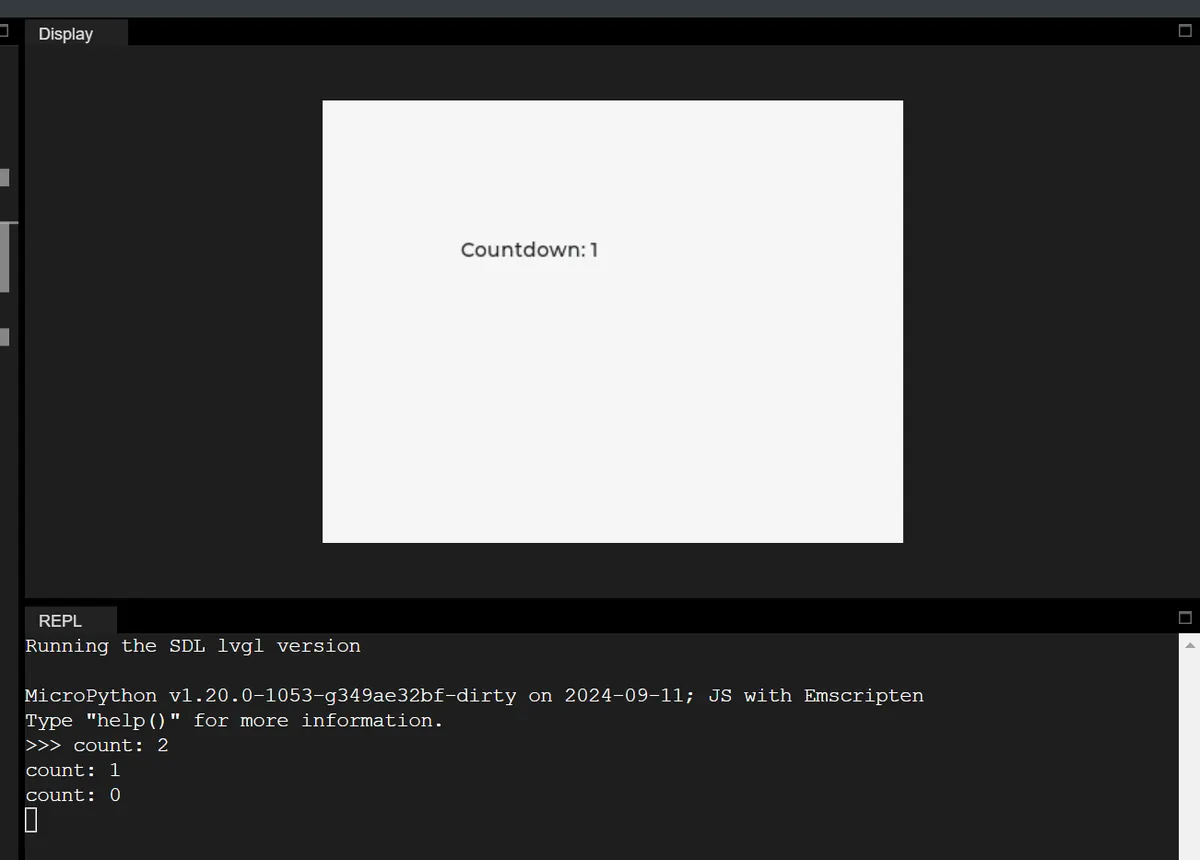
That matters beyond a demo. A user who sees a screen stranded on "1" cannot tell whether the task finished or the device stalled. For a callback-count countdown, show 3 at the start and update after each decrement:
remaining = 3
label.set_text("Countdown: 3")

def countdown(timer):
    global remaining
    remaining -= 1
    if remaining == 0:
        label.set_text("Countdown Finished!")
    else:
        label.set_text(f"Countdown: {remaining}")

timer = lv.timer_create(countdown, 1000, None)
timer.set_repeat_count(3)
The intended sequence is 3, 2, 1, finished. We have not yet run this corrected version, so check it in your LVGL binding. If the product depends on real elapsed time, a deadline-based calculation is a better start than counting callbacks. If it depends on a sensor finishing, use the sensor's completion state rather than either kind of countdown.
Pause the right thing
With Pause and Resume buttons we stopped and restarted the label's timer. Pausing that timer does not pause a motor, a network request or a measurement. For the sensor controller, decide whether "Pause" means stop acquiring data or only hold the displayed value. If it holds an old value, label it clearly so nobody reads it as live.
One timing detail is worth handling on purpose. In the LVGL 9.0 timer implementation, pause and resume toggle execution without storing the remaining part of the interval. After a long pause, a callback can be due the moment it resumes. If you need a fresh interval, reset it explicitly; if you need an accurate pausable stopwatch, track that time in your application.
Update as often as the user needs
Changing the timer period from 1,000 milliseconds to 500 and 200 made the count rise faster. That is useful for trying display update rates, but a faster timer does not make the sensor produce new information faster. A slowly changing reading can be easier to follow when it settles between updates; a control needs prompt feedback when pressed. Keep those needs separate instead of redrawing every label at the fastest rate available.
When a screen is no longer needed, stop its update work before destroying objects that callbacks still reference. A one-shot timer with a repeat count of one is deleted automatically after its callback under the default setting; a label saying "Timer Auto-deleted" was only text set inside that callback.
A status check that asks whether a timer is paused tells you about the timer, not the health of the connected device. A status panel should distinguish "screen updater running" from "fresh sensor data received."
Two more cautions. Calling ready() on a timer makes it due on the next handler pass; it does not interrupt work already running. In one of our manual-trigger tests the printed callback took two parameters while the working examples took one, so we cannot say which version produced the screenshot. Use the callback signature your binding expects. And animation is separate from progress: motion can explain a screen transition, but it shows nothing about a hardware operation unless it is driven by real operation state. Avoid a percentage that rises just because an animation is running.
Try the awkward sequence before the user does
On the prototype, start a reading twice, leave the screen while it is pending, return, pause, resume and disconnect the input. Check that the controls still respond and that an old result cannot appear to belong to a new request. These are tests to run on hardware; the simulator results above do not include them.
Record the requested update period, the measured callback duration and what the screen did during a slow operation, on the intended display and inside the enclosure as well as in the simulator.
A useful handoff to the engineer who wires in the real sensor is a short list of states (ready, working, finished, failed, cancelled) with the actions allowed in each.